
What is this? The checklists you’re actually working through right now — a pre-departure run, an engine start, a haul-out prep. A live checklist is a fresh copy of a Template that you (and your crew) check off step-by-step.
The Basics
A Live Checklist is what a Template becomes once you start using it. The Template is the recipe; the Live Checklist is what’s on the stove. Each time you start a job, YACHTWAVE creates a brand-new Live Checklist from the Template — the steps are locked in at that moment so nothing changes mid-job.
A typical flow:
- Open the Checklists screen on the boat.
- Start a new Live Checklist from a Template (e.g. “Pre-Departure”).
- Work through the steps. Mark each one Complete (or Excluded, or one of the Advanced states).
- When all steps are checked, the checklist is complete. It stays on the Live tab marked Complete. If you uncheck a step later, it goes back to in progress.
If a Live Checklist is attached to a Task, the task can’t be marked complete until every required step is checked off. That’s a deliberate safeguard.
Key Things on This Screen
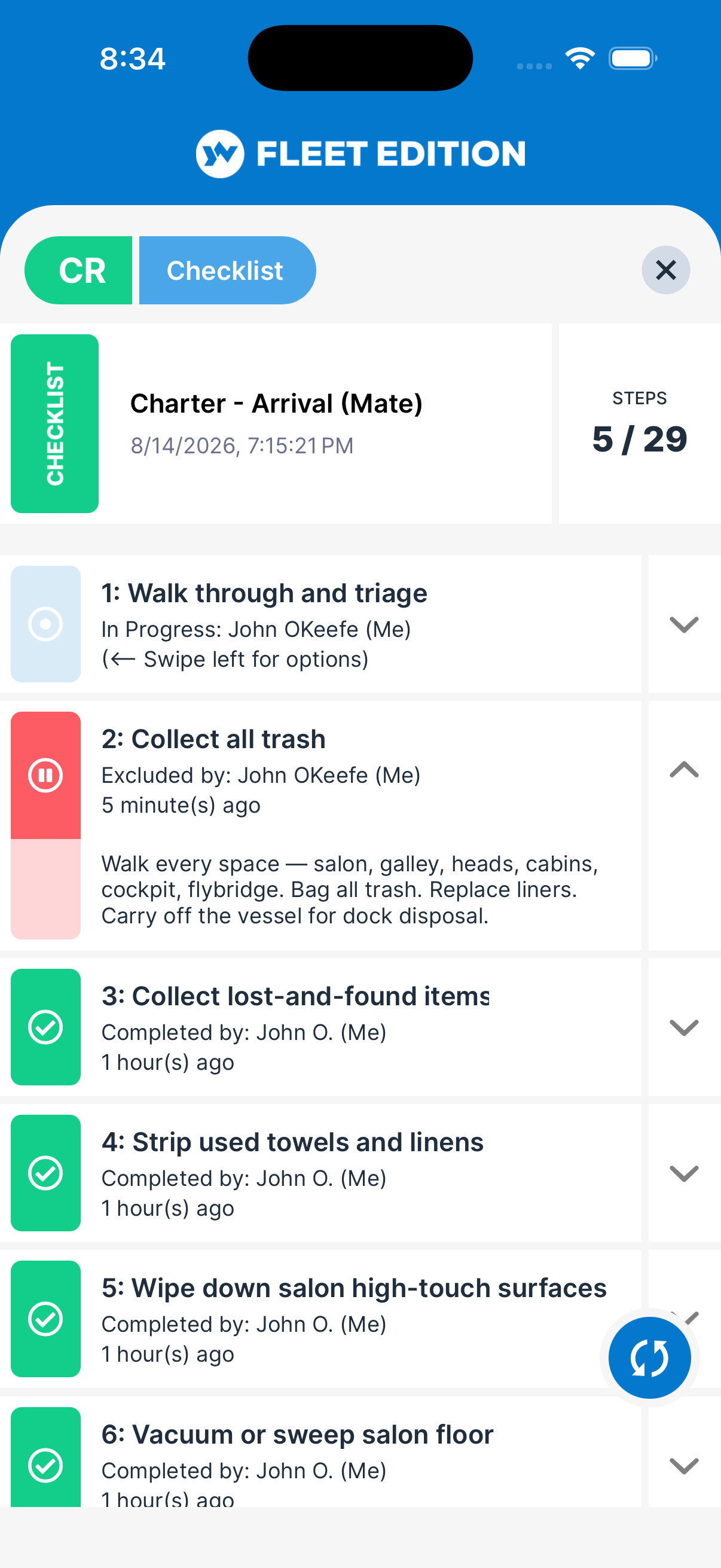
- Live Checklist tile — One per checklist. Shows the name, the status (e.g. In Progress (14 of 20) or Complete) and when it was started or completed. Checklists that belong to a trip are marked Cruise.
- Search (top) — Find a checklist by name.
- + button (lower right) — Start a new Live Checklist from a Template.
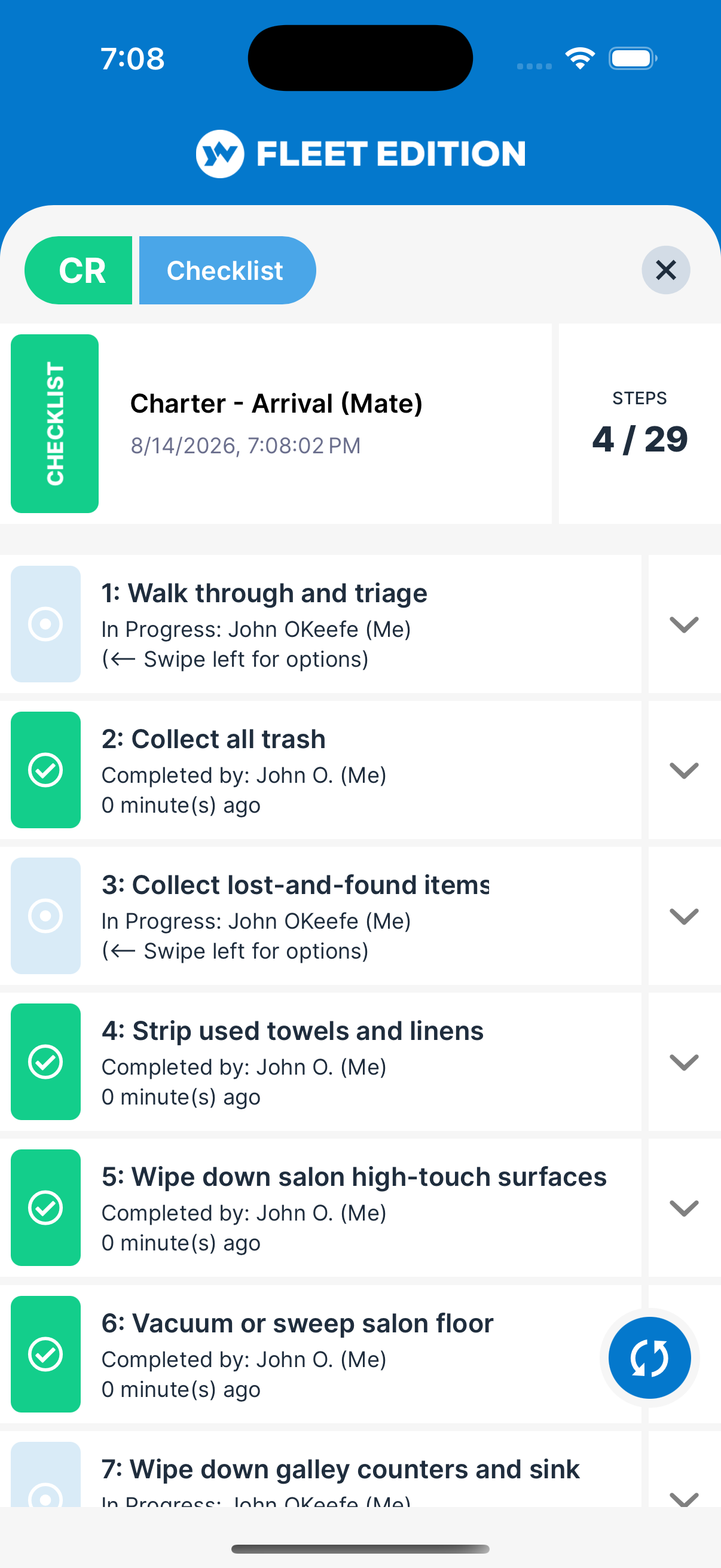
- Step tile (inside an open checklist) — Shows the step, who it’s assigned to, and who completed or excluded it and when. Tap the arrow to read its longer instructions.
- Swipe a step left (Simple checklists) — Check marks it complete, Exclude marks it as not applying. On a marked step, Undo or Include puts it back.
- Swipe a step left (Advanced checklists) — Edit opens the step so you can set its status and note.
- Step status icon — Colored to show state at a glance.
How to Start a Live Checklist
- Tap the + button on the Live tab.
- Pick a Template from the list. Only Published templates appear; global templates show (Global) after the name.
- A fresh Live Checklist is created with all the steps from that Template, all in the “not yet done” state.
Only one unfinished checklist from the same template can run at a time. If one is already in progress, you’ll see Already In Progress — finish or delete it first.
How to Work Through a Simple Checklist
- Open the Live Checklist.
- For each step, swipe left and tap Check to mark it complete, or Exclude if the step doesn’t apply to this run.
- If you need to read the step’s longer instructions, tap the arrow on the step.
- When every step is checked or excluded, the checklist completes itself.
How to Work Through an Advanced Checklist
- Open the Live Checklist.
- Swipe a step left and tap Edit to open it.
- Tap the pencil.
- Pick the Status Type (e.g. OK, Monitor, Needs Attention) and add a Note the crew should see.
- Tap Save to commit the change.
- Repeat for each step.
Tips
- One Live Checklist per actual job. Don’t reuse a checklist across multiple jobs — that’s what Templates are for. Each new run gets a clean copy.
- Use Excluded, not Complete, for “didn’t apply.” If you’re skipping a step because it’s not relevant (e.g. heater check in July), mark it Excluded rather than Complete. The history then accurately reflects what was actually done.
- Use Advanced for things you’ll report on later. If you’ll need to show an insurer or buyer the condition of items, the Advanced multi-state plus notes is the right tool.
- Crew can work on a checklist together. Multiple users with access to the yacht can mark steps as they go. Each step is saved on its own, so you don’t overwrite a crewmate’s work, and your screen picks up the steps others have marked.
Troubleshooting
- “I can’t change a step’s text — I just want to fix a typo.” — Live Checklist steps are locked at the moment the checklist was started. To fix a typo, update the Template — new Live Checklists from that Template will pick up the fix. The current one stays as-is so you don’t lose progress.
- “I started the wrong template — can I delete this Live Checklist?” — Yes, swipe-left on the Live Checklist tile to delete it. The Template it came from is unaffected.
- “My linked Task won’t let me complete it — says the checklist isn’t done.” — That’s the linked-checklist gate working. Open the checklist, finish every step (or mark them Excluded as appropriate), and then return to the Task — it’ll be unlocked.
- “A step says ‘Complete’ but I never touched it.” — You may have an accidental swipe registered. Tap the step and change its state. If the same step keeps marking itself complete, restart the app and try again — a stuck UI control is the usual cause.
- “My crew member’s edits aren’t showing up on my screen.” — Pull-to-refresh on the checklist. Step state syncs between devices but isn’t instant. If still not visible after a refresh, check your network connection.
Frequently Asked
Why can't I edit the steps in a Live Checklist?
Safety. Once you're working through a checklist in the middle of a real operation — say, prepping for a 4 AM departure — you don't want anyone accidentally deleting "verify navigation lights" from the list. All step edits happen on the Template, where they can't disrupt work in progress.
My Template was updated — does my Live Checklist update too?
No. Live Checklists are snapshots of the Template at the moment they were created. The next Live Checklist you start from the updated Template will include the changes. Existing Live Checklists keep their original steps.
Can I see the history of completed checklists?
Yes — completed Live Checklists are kept in your records. They're useful for audit/inspection trails and for showing pattern-of-use to insurers and buyers.
Can a Live Checklist be linked to a Task?
Yes, on plans with the advanced task features. Open a Task, go to its Checklists tab and add one. The Task is gated — it can't be marked complete until every required step in the linked checklist is checked off.
What's the difference between Simple and Advanced again?
Simple uses three states (Complete / Not Complete / Excluded) and a swipe action for speed. Advanced uses multi-state (OK / Monitor / Needs Attention / more) with per-step notes, designed for richer condition reporting. The style is set on the Template when it's created and can't be changed for an existing Template. The Advanced style is part of the Ultimate and Operations plans.
See Also
- Checklist Templates — the master lists that Live Checklists are spawned from. Edit a Template to change future Live Checklists.
- Tasks — link a checklist to a task to enforce step-by-step completion before the task can close.