
What is this? Your to-do list for the boat. Tasks are the actual work — what needs to get done, by when, on which engine or piece of equipment.
The Basics
A Task is the action. If a Service Schedule is the plan (“change the oil every 100 hours”), the Task is the actual to-do (“change the oil — due now”). Tasks land on your list in one of three ways:
- You add them by hand — for one-off jobs like “replace the dock lines” or “fix the broken latch.”
- YACHTWAVE adds them automatically from a Service Schedule — when a Service Schedule comes due, YACHTWAVE creates the task for you and pings you (in-app, plus email/push if enabled). On a boat managed by a company, the company’s settings decide, and a ticket may be created instead.
- YACHTWAVE adds them automatically from a recurring task — when you complete a recurring task, the next copy is created for you, due one recurrence interval after the old task’s due date (or after today, if the old task had no due date). Any checklists attached to the recurring task carry over to the new copy, with their steps reset.
There are two views: My Tasks shows the tasks assigned to you — as the assignee or as an additional assignee — on every boat you crew on. Tasks inside a specific yacht shows every task on that boat, whoever it’s assigned to.
When you mark a task complete, three things can happen automatically:
- If the task is recurring, a new task is created with the next due date — and any checklists attached to the original task carry over to the new copy automatically, so you don’t have to re-attach them every cycle.
- If the task is linked to a specific Mechanical (engine) or Equipment item, a Maintenance Log entry is created for that item automatically. If the task has no Mechanical and no Equipment selected, YACHTWAVE asks whether you want a Maintenance Log for the boat. Tap Yes to create one, or No to skip it. The link is what puts the log in that engine’s or item’s own history.
- If the task has Due Hours, you’re reminded to enter the hours on the new task by hand.
A short summary then lists what the completion created.
Key Things on This Screen
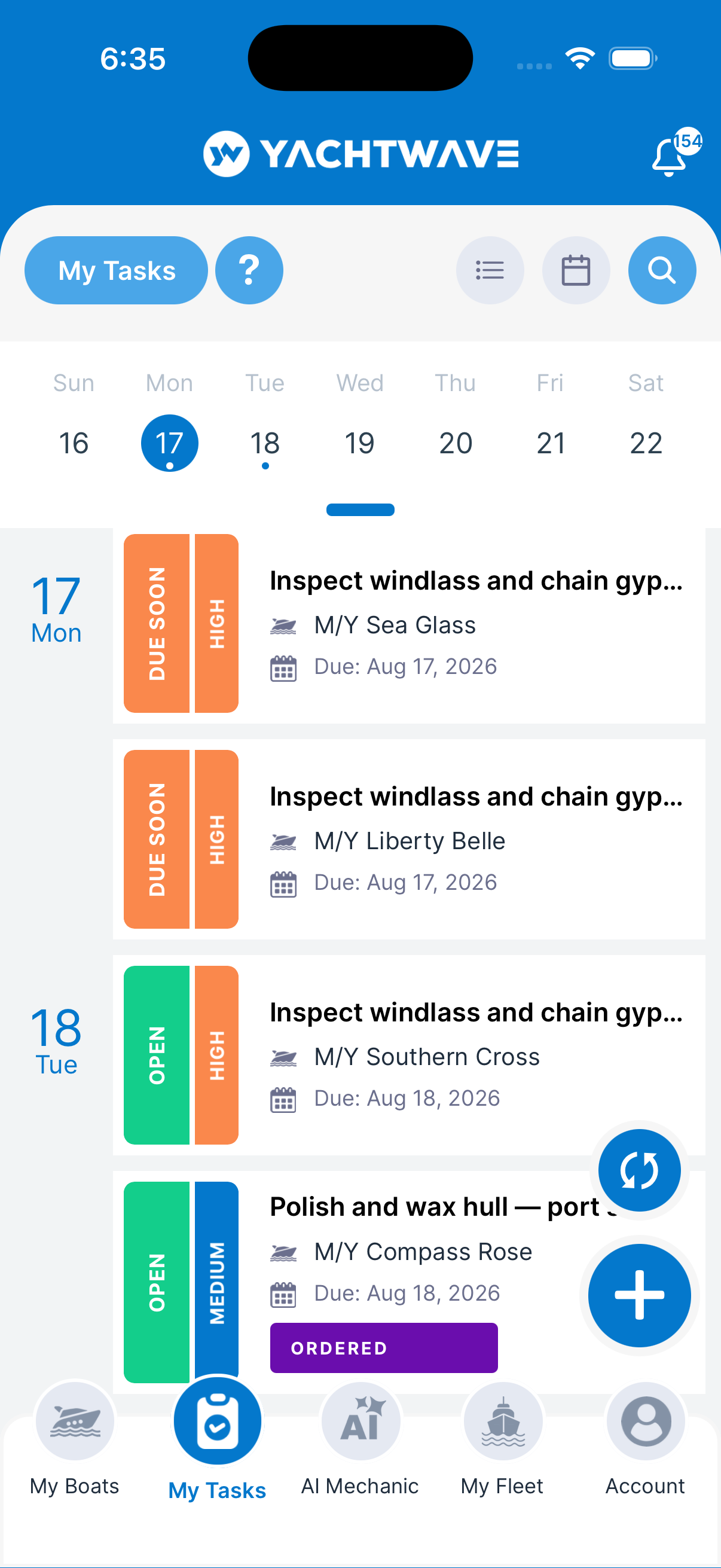
- Counts across the top — Open, Overdue, All and Completed. Tap one to show only those tasks. The list opens on Open.
- Task tile — Tap to view or edit. The status and its color tell you at a glance: open, soon due, overdue, completed. Open tasks also show their priority.
- The task number — On plans with advanced task features, tasks are numbered and shown as
#12342in front of the name on the list and as Task #12342 at the top of the task itself. Use it when you’re talking to someone about a specific task. - Search (top) — Finds tasks by name, task number, status, assignee, boat, type or priority.
- List / Calendar toggle (top, next to search) — Two small grey icons let you flip the screen between the standard tile list and a month-by-month calendar view. The icons are right next to the search button. See Calendar view below.
- Swipe a tile left — Shows Complete and Delete. Both ask you to confirm. Deleting a recurring task warns you that it stops all future copies.
- + button (lower right) — Add a new task.
- “more completed tasks — view all” (top of the list) — On a boat’s Tasks screen, the list loads every open task plus recently completed ones. When there are older completed tasks, this link appears on All and Completed, and the counts show a +. Tap it to load the rest (you need a connection).
- Share icon (top of a task) — Send a link to the task by text, email or any sharing app.
How to Add a Task
- Tap the + button.
- Enter the Name (required) and pick a Type and Priority. Add a Location and a longer Detail if you like.
- Depending on the Type, a Mechanical (engine) or Equipment field appears. Pick the item. This is what puts the Maintenance Log in that item’s history when you complete the task.
- Tap NEXT SCHEDULE >.
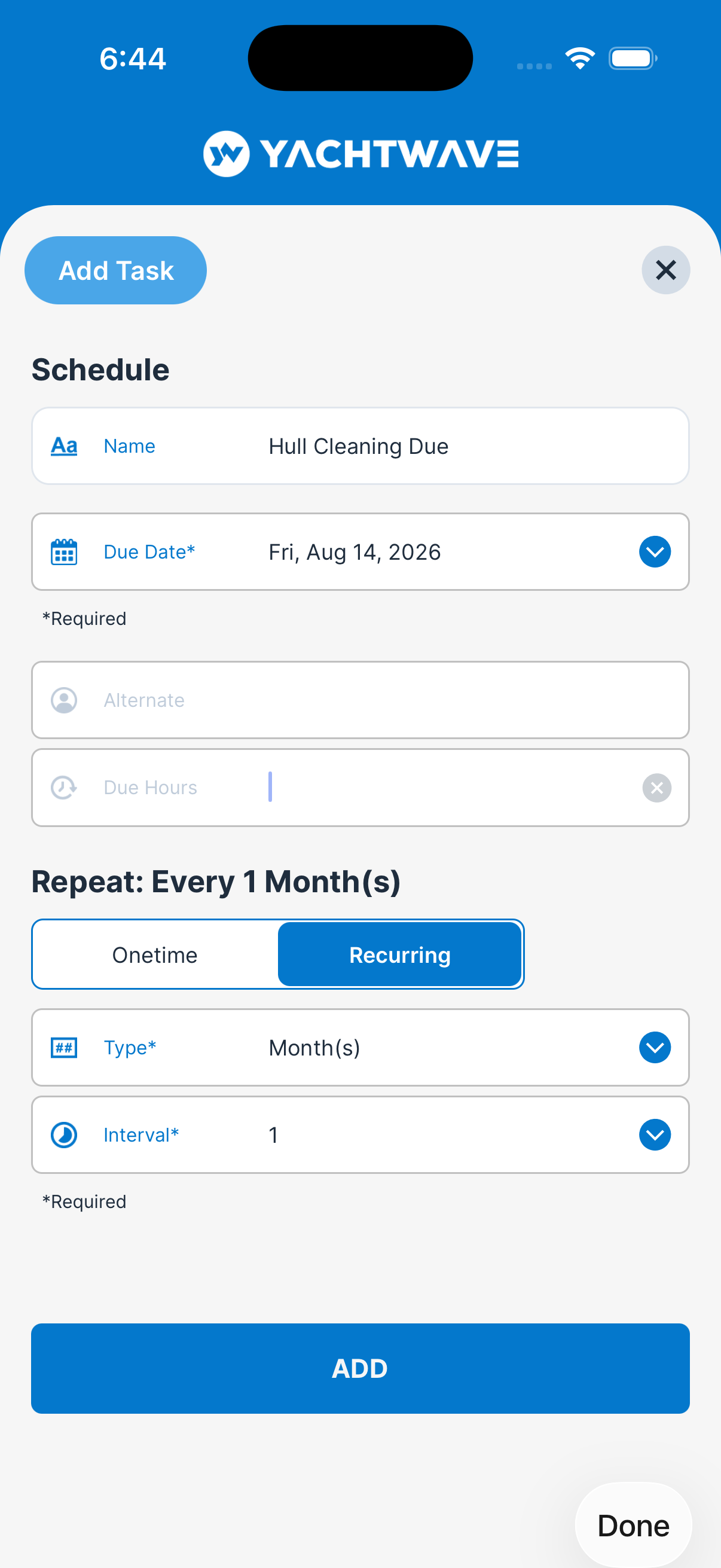
- Set the Due Date (required). Choose the Crew Member it’s assigned to, and optionally an Alternate name or Due Hours (engine hours).
- Optional: switch Onetime to Recurring, then pick the Type (hours, days, weeks, months or years) and the Interval.
- Tap ADD.
How to Complete a Task
- From the list: Swipe the tile left, tap Complete and confirm.
- From the detail screen: Open the task, tap the pencil to edit, and switch Open to Completed. You can change the completed date and time to when the work was really done. Then tap Save.
A completed recurring task can’t be reopened.
About Maintenance Logs — important. A Maintenance Log only lands in an engine’s or equipment item’s own history when the task is linked to that Mechanical (engine) or Equipment item. Completing a linked task creates that log automatically. If the task has neither, YACHTWAVE asks whether to create a Maintenance Log for the boat instead. If you want the work in an item’s maintenance history, make sure the task has a Mechanical or Equipment selected before you complete it.
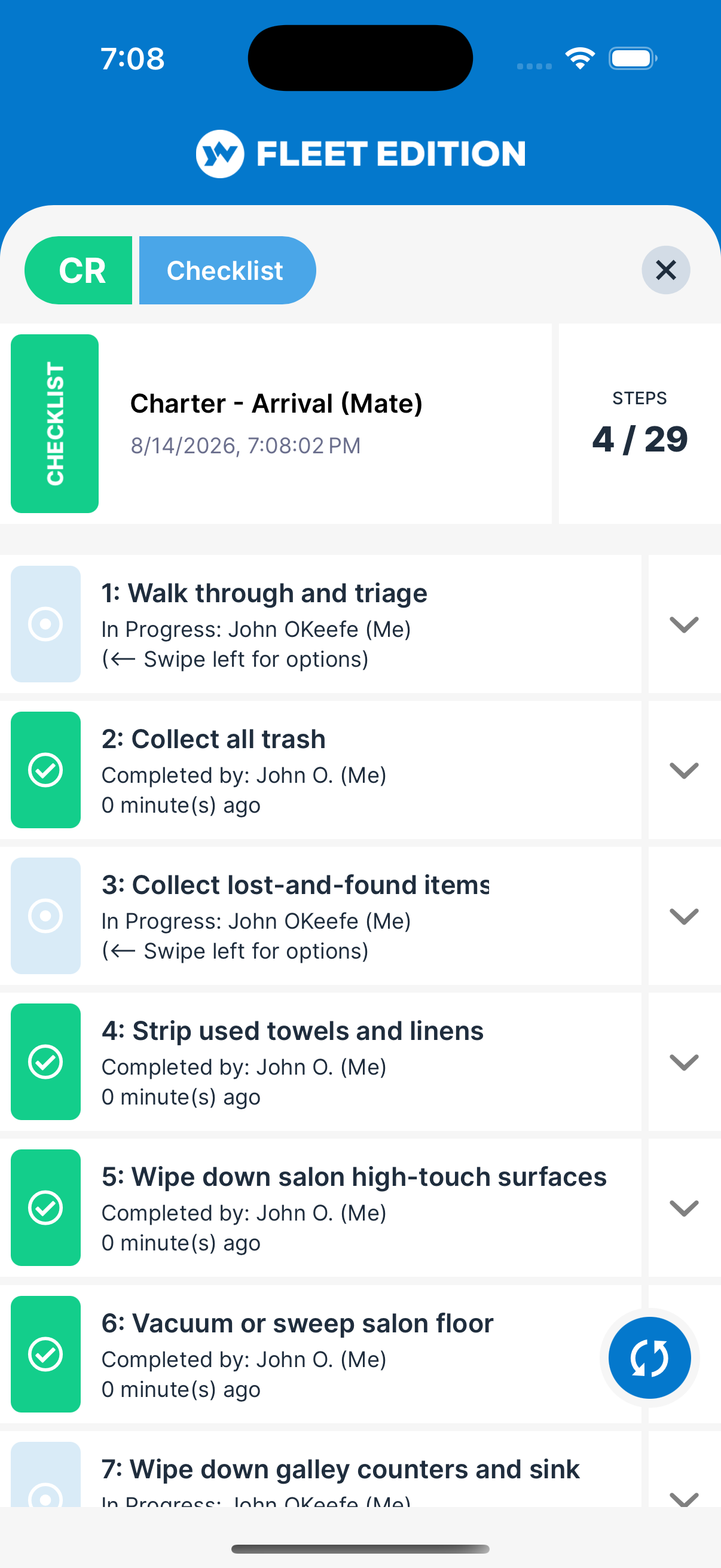
If the task has linked checklists, you’ll need to finish those checklists first. YACHTWAVE blocks completion until every checklist step (other than excluded ones) is checked off.
If the task is recurring and has checklists attached, the next copy that’s created when you complete this one comes with the same checklists ready to go — you don’t have to re-attach them every cycle. Set up the checklist once on the first task in the series, and every future instance inherits it automatically.
Calendar View
For tasks that have due dates, the calendar view is a quick way to see what’s coming and when. Tap the small calendar icon at the top of the Tasks screen (right next to the search button) to switch in.
- The month grid shows up top — tap a day to see the tasks due on that day.
- Each task on the selected day shows the same tile you see in list view. Tap it to open the task. Swiping doesn’t work in the calendar; use the list view to complete or delete.
- Days with at least one task are marked with a small dot under the date number so the busy days are easy to spot.
- Tasks without a due date don’t appear in the calendar (there’s nowhere to put them). Flip back to list view to see those.
Tap the list icon (next to the calendar icon) to return to the standard list view. The counts across the top are hidden in the calendar, but the count you picked and any search still apply to it.
Discussions Tab — Chat with the Crew About a Task
Every saved task has a Discussions tab on the task detail screen (on plans that include advanced task features, unless your organization has turned messaging off). It works like the messaging app on your phone: your messages are blue bubbles on the right, everyone else’s are white bubbles on the left with their name above, and the newest is at the bottom.
- Type in the bar at the bottom and tap send. There’s no separate add-comment screen.
- Tap one of your own messages — or press and hold it — to Edit or Delete it. Only the person who wrote a message can change it; someone else’s message opens nothing.
- Tap any message and choose Create Ticket to raise a ticket straight from it, if your plan includes Tickets.
- Pull down at the top of the thread to get the latest messages.
- Grey centred lines are notices YACHTWAVE writes itself. They’re part of the record, not messages, so they have no actions.
Comments stay on the task forever. They’re great for keeping the back-and-forth in one place instead of scattered across text messages. Full details in Discussions & Comments.
Tips
- Use Service Schedules for anything recurring on an engine or equipment. Tasks are best for one-offs and ad-hoc work. If you find yourself manually creating the same task every 100 hours, that’s a Service Schedule. See Service Schedules.
- Attach a checklist to a task to break it into steps that get checked off as you work. The task can’t be marked complete until the checklist is done — a built-in safeguard.
- Set the checklist up once on a recurring task. When the task is completed and the next copy is created, its checklists carry over automatically. You won’t have to re-attach the same checklist every time the task recurs.
- Link the task to an engine or equipment item for its history. This is the single most-asked support question: “I completed a task and the log isn’t in the engine’s history!” — that’s almost always because the task wasn’t linked to a Mechanical or Equipment item. Set the link before you complete the task.
- Recurrence is precise. You can recur as often as every hour or as rarely as every several years. The next due date is counted from the original due date, not from the day you complete it, so the schedule stays on its rhythm even if you finish a task late or early.
- Use the Discussions tab for the chatty stuff. When you want a quick crew-visible note that doesn’t belong in the formal Details field — “called Mike, awaiting quote” or “the squeak comes back when it’s cold” — pop it in the Discussions tab. The whole crew can see it, and the thread reads top to bottom like a conversation.
Troubleshooting
- “I marked a task complete but it came right back.” — That’s the recurring-task system working. When a recurring task is completed, a fresh task with the next due date is created. Turn off Recurring in the task’s detail screen if you don’t want that.
- “I can’t mark this task complete — the switch won’t stay on.” — The task has one or more open checklists. Open the checklists, finish them, then come back. A warning alert explains this when the switch is rejected.
- “I completed a maintenance task but no log was created.” — The task wasn’t linked to an engine or equipment, and No was chosen when YACHTWAVE asked about a Maintenance Log. You can still create the log by hand from the Maintenance Logs screen.
- “My recurring task has the wrong next-due date.” — The next due date is
today + recurrence interval. If you’re seeing something else, the task was duplicated by hand rather than by completing it — delete the duplicate and complete the original. - “A task is missing from My Tasks.” — My Tasks only shows tasks assigned to you, as the assignee or an additional assignee, on boats you’ve accepted. To see every task on a boat, open the yacht and use its Tasks screen.
- “I can’t find an old completed task.” — Open the boat’s Tasks screen, tap All or Completed, then tap more completed tasks — view all at the top of the list.
Frequently Asked
What's the difference between Tasks and Maintenance Logs?
Tasks are for what's coming up. They're your planned or recurring work — oil changes, filter swaps, safety checks. Maintenance Logs are for what's already done — the record of completed work, with date, hours, and notes. When you complete a task that's linked to a specific engine or piece of equipment, YACHTWAVE automatically creates the matching Maintenance Log so the two stay in sync. Without a Mechanical or Equipment selected, YACHTWAVE asks whether you want a Maintenance Log for the boat.
I completed a task and no Maintenance Log was created. Why?
This is by far our most-asked question. A Maintenance Log is created automatically only when the task is linked to a Mechanical or Equipment item. If there was no engine or equipment selected, YACHTWAVE asked whether to create a log, and No was chosen. Fix going forward: before completing the next task, open it and pick the Mechanical or Equipment item it relates to. To recover the missing history for the task you already completed, go to the Maintenance Logs screen and add the entry by hand.
What's the difference between a Task and a Service Schedule?
A Service Schedule is the rule ("change oil every 100 hours"). A Task is the action ("change oil — due now"). Schedules turn into Tasks automatically when they come due. Use a Schedule for any item on a recurring interval; use a Task for one-offs or anything not tied to a specific engine or equipment.
Can I assign a task to a specific crew member?
Yes — open the task, go to the Schedule tab and pick the Crew Member. The assignee gets the notification when the task is due (subject to their notification settings). On boats with the advanced task features the assignee is changed on the task's Team tab, which also lets you add additional assignees and other people to the task — see Task Team.
Can I get a notification for a task without it being on a Service Schedule?
Every task has a Due Date (it's required), and that's what drives its reminder — just turn on reminders in your notification settings. You can also set Due Hours (engine hours) for an additional hour-based reminder. Like Service Schedule reminders, task reminders are checked once a day in the early morning, not instantly. After the due date, a past-due notice is sent 1, 7 and 14 days later, to the task's team.
What happens if I delete a recurring task?
The series stops — no more future copies will be created. To pause without deleting, edit the task and turn off Recurring.
Do my checklists carry over when a recurring task creates the next copy?
Yes. If the task you completed had a checklist (or several) attached, the new task created for the next interval comes with the same checklists ready to go. You set the template up once and every future instance inherits it — no manual re-attaching, no missed steps.
Can I see my tasks on a calendar?
Yes — there's a calendar icon at the top of the Tasks screen, next to the search button. Tap it to switch to a month view that shows tasks on their due dates. Tap a day to see what's due that day. Tap the list icon next to it to flip back. Tasks without a due date don't appear in the calendar view — they're list-only.
How do I leave a quick note for the crew on a specific task?
Open the task and tap the Discussions tab. Type in the message bar at the bottom and tap send. The whole crew can read it; only you can edit or delete what you wrote. Use it like a chat thread tied to that one task.
See Also
- Service Schedules — the recurring plan that auto-creates these tasks.
- Maintenance Logs — where completed tasks end up, automatically.
- Checklist Templates — attach a checklist to break the task into steps. Checklists on a recurring task carry forward to every future copy automatically.
- Tickets — the informal, crew-facing sibling of Tasks. Use Tickets for shared “hey, this needs attention” items that don’t have a type or due date.
- Readings — log engine hours so hour-based task reminders fire correctly.