
What is this? A quick way to raise an issue, question, or request for the boat — so the whole crew can see it, discuss it, and clear it.

The Basics
The moment something on the boat needs attention, raise a ticket — it’s the quickest way to get it on the record before it’s forgotten. A ticket can be anything worth flagging, big or small: a sticky cabinet, a faded fender, or a question about where the spare halyard is, but just as easily something serious like oil weeping from an engine or a deck light that’s stopped working. Whatever it is, capturing it as a ticket puts it in front of the whole crew.
Raising one asks for two things: a Subject (one line) and a Detail (the longer description). That’s all you fill in. There’s no type to choose, no due date, no recurrence — just enough to capture what’s on someone’s mind and get it on the list.
Every crew member with access to the yacht can raise a ticket, see every ticket on board, and edit or delete any ticket, not just their own. On a boat run by an organization, the app also follows the organization’s permissions for raising, editing and deleting tickets; if you aren’t allowed, the + button, the pencil icon or the swipe-to-delete simply doesn’t appear.
Status and priority are set by the people who manage tickets, not on the phone. A new ticket starts as New. As it’s picked up and worked, its status changes and appears on the coloured strip down the left of the tile. Priority is set the same way, and only shows on the tile when it’s High or Critical — so a strip you can see is a strip worth reading.
Open tickets sit at the top of the list, newest first. Completed ones drop to the bottom.
Key Things on This Screen
- The filter bar across the top — Four counts: Open, New, Completed, and All. Tap one to filter the list. It opens on Open, so what you see first is everything still outstanding.
- The coloured strip on the left of a tile — The ticket’s status, written down the strip in its own colour. It changes as the ticket moves along.
- A second, narrower strip — The ticket’s priority, but only when it’s High or Critical. Low and Medium tickets show nothing, so this strip means “look at me.”
- The ticket number — Tickets are numbered, shown as
#12342in front of the subject on the list and as Ticket #12342 at the top of the ticket itself. Use it when you’re talking to someone about a specific ticket. - Dropdown arrow (right side of the tile) — Expands the row in place so you can read the full Detail without leaving the list.
- + button (lower right) — Raise a new ticket.
- Refresh button (next to the +) — Pull the latest from the server. The list also pulls down to refresh.
- Search — Find a ticket by its subject, detail or number.
- Discussions tab (on the ticket) — A chat thread with the crew about this ticket. See Discussions & Comments.
- Photos tab (on the ticket) — Attach photos, the same way you would on a task.
- Share icon (top of the ticket) — Send a link to the ticket by text, email, or any sharing app on your phone.
- Swipe a tile left — Delete the ticket. You’ll be asked to confirm. On organization boats this only appears if your organization lets you delete tickets.
How to Raise a Ticket
- From the yacht dashboard, tap the Tickets tile.
- Tap the + button in the lower right.
- Enter a short Subject (what the ticket is about).
- Enter the Detail (what’s going on, what you tried, what you need).
- Tap Add.
The ticket is saved right away and starts as New. The screen stays open and switches into view mode — you can keep editing, add a comment, attach photos, or share it with the crew.
How to Update a Ticket
- Tap any ticket in the list to open it.
- Tap the pencil icon to flip the fields into edit mode.
- Change the Subject and/or Detail.
- Tap Save.
How to Discuss a Ticket with the Crew
- Open the ticket.
- Tap the Discussions tab.
- Type in the bar at the bottom and tap send.
Your messages appear as blue bubbles on the right, the crew’s on the left with their names. Tap any of your own messages to edit or delete it. The full behaviour is in Discussions & Comments.
How to Attach Photos to a Ticket
- Open the ticket.
- Tap the Photos tab at the top of the screen.
- Tap + and choose Use Camera or Photos (your photo library).
Photos attach the same way they attach to a task. You need a connection to upload, and the photo appears once the upload finishes.
How to Share a Ticket
- Open the ticket.
- Tap the share icon at the top of the screen.
- Pick how to send it (Messages, Mail, WhatsApp, copy link, and so on).
The recipient gets a YACHTWAVE link to the ticket. Anyone with the link can open it without signing in. The page shows the ticket with its discussion, expenses, checklists and linked engine or equipment, and also the boat’s photos and documents, so share the link carefully.
Tips
- Tickets aren’t tasks. They never show up in the regular Tasks screen or in My Tasks. They live in their own list, on their own dashboard tile. Keep planned maintenance in Tasks; keep informal asks in Tickets.
- Use the New filter as your inbox. New is everything nobody has touched yet. Working that list down is the fastest way to be sure nothing has been quietly ignored.
- Use the Discussions tab, not the Detail field, for updates. Editing Detail over and over buries the original description. Comments keep the back-and-forth readable and stamped with who said what.
- Share is great for quick handoffs. When you’re on the dock and need to point a contractor or a captain at a specific issue, the share link is faster than re-typing the whole thing.
Troubleshooting
- “I don’t see the Tickets tile on my yacht dashboard.” — Tickets is a paid feature. If your plan doesn’t include it the tile won’t appear. Check the Subscription screen, or email [email protected].
- “My ticket disappeared from the Tasks list.” — That’s by design. A ticket lives in the Tickets list only. The Tasks and My Tasks lists deliberately hide tickets so the two stay separate.
- “A ticket vanished from my list entirely.” — Check the All filter first; you may be on Open. Tickets that have been converted — turned into something else — are removed from the list on purpose.
- “Someone else changed my ticket.” — Other crew members can edit tickets too, unless your organization’s permissions say otherwise. If your plan includes the Audit Log, the ticket’s Audit Log tab shows who changed what. For a record of who said what, use the Discussions tab, which stamps every message with its author.
- “I can’t edit or delete a ticket.” — On a boat run by an organization, your organization’s permissions don’t allow it. Ask your organization’s administrator.
- “I can’t change the status or priority.” — Neither is set from the app. They’re managed on our side as the ticket is picked up and worked, and the app shows you where it stands.
- “I can’t see the full Detail on the tile.” — Tap the small chevron on the right of the tile to expand the row, or tap the tile to open it fully.
Frequently Asked
What's the difference between a Ticket and a Task?
A task is structured work — typed, prioritized, optionally tied to an engine or piece of equipment, often with a due date or recurrence. A ticket is a free-form flag to the crew: Subject and Detail. Tickets are for "hey, this needs attention." Tasks are for "here's what to do, by when."
What do the coloured strips on the tile mean?
The wider one is the ticket's status. The narrower one beside it is its priority, and it only appears for High and Critical tickets — so if you see two strips, that ticket is flagged as urgent.
Can I assign a ticket to a specific crew member?
Not from the app. Tickets are a shared list — everyone with yacht access sees the same tickets and can act on any of them. If you want individual assignment, use a Task.
Can I convert a ticket into a task?
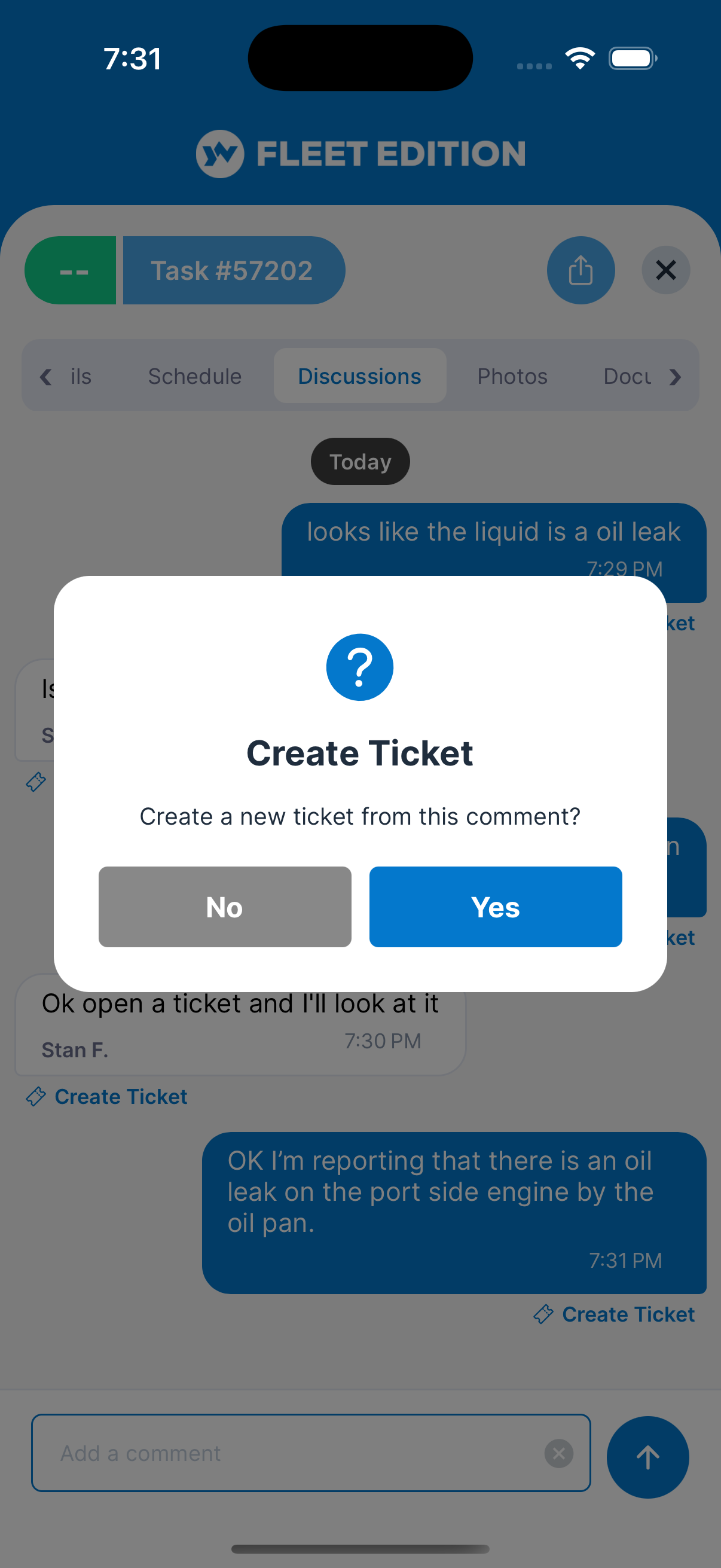
Not in the app. The simplest path is: read the ticket, raise a task, then clear the ticket. Going the other way, you can raise a ticket straight from a comment on a task — tap the comment and choose Create Ticket.
Do tickets show up on the cross-vessel My Tasks list?
No. Tickets are per-boat only. There's no cross-vessel "My Tickets" view in this release.
Who gets notified when a ticket is raised?
On an organization's boat, whoever the organization's new-ticket setting names; unless it's been changed, that is the organization's Owners, Admins and Managers. On a personal boat, the crew with the Owner, Captain or Admin role, plus the person the ticket is assigned to. The person who raised the ticket is never notified. They get a notification in the app, and by email, text and push, following their notification settings. Reassigning a ticket or changing its status sends no notice.
See Also
- Tasks — the structured to-do list, for work that has a type, a priority, or a due date.
- Discussions & Comments — the chat thread on the Discussions tab.
- Sharing & Collaboration — how vessel access works, so you know who can see a ticket.