
What is this? A chat thread attached to a single task or ticket, so the crew can talk about that one job in the place the job lives.
The Basics
A task tells you what needs doing. The Discussions tab is where the crew works out how it’s going — “called the dealer, parts on order,” “check the wear pattern before you reorder,” “done, ran it for an hour and it’s dry.”
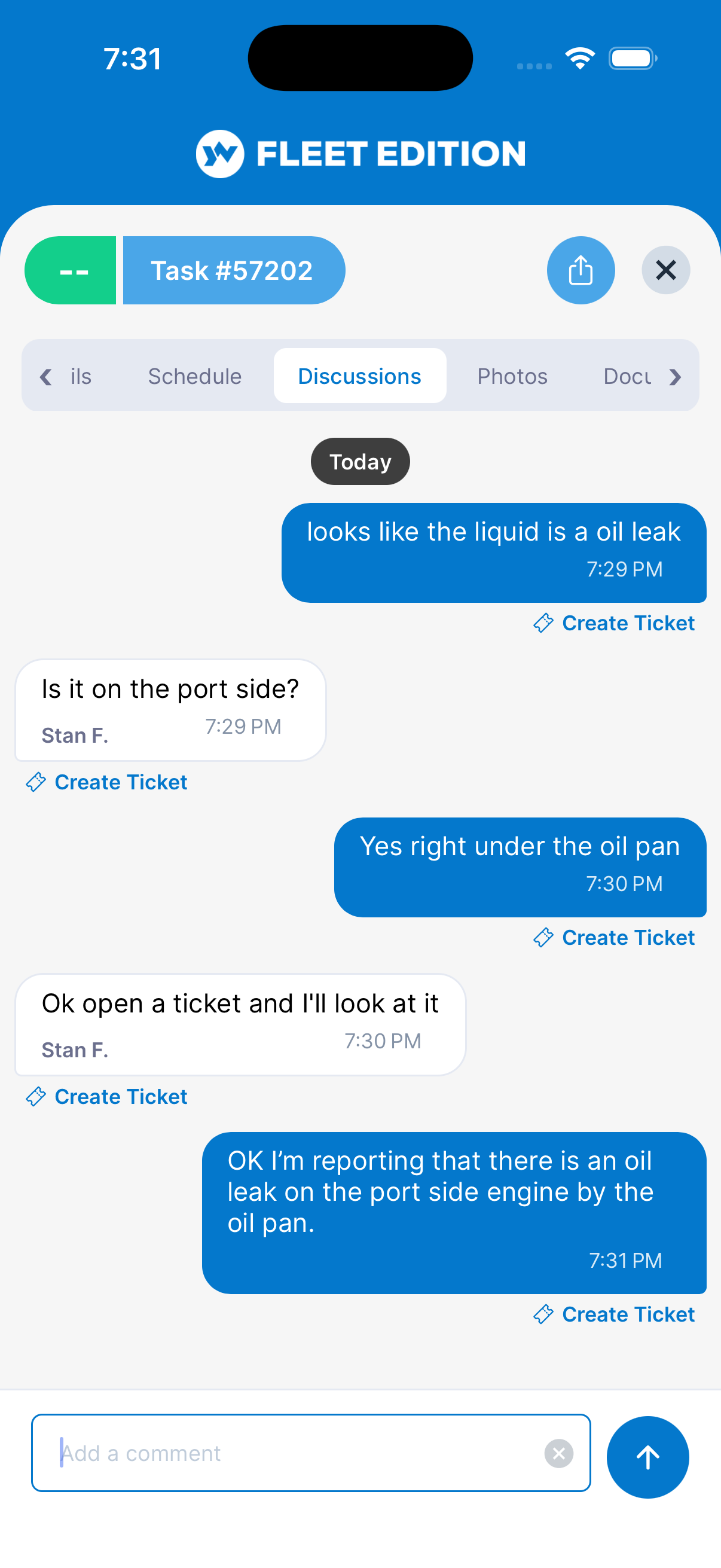
It looks and behaves like the messaging app on your phone. Your messages are blue bubbles on the right. Everyone else’s are white bubbles on the left with their name above. The newest message is at the bottom, and the thread opens scrolled to it. Dates run down the thread as separators, and each bubble carries the time it was sent.
To say something, type it in the bar at the bottom and tap send. That’s the whole flow — there is no separate “add comment” screen.
Everyone with access to the boat sees the same thread, and the conversation stays on the task or ticket permanently.
Comments are part of a paid plan. On tasks the tab appears with Advanced Tasks; on tickets it comes with the Tickets feature. If your plan doesn’t include them, or your organization has turned them off for your role, the tab simply isn’t there.
Key Things on This Screen
- The message bar at the bottom — Type here and tap send. Your bubble appears immediately.
- Your bubbles vs. theirs — Blue and on the right means you wrote it. White, on the left, with a name above means someone else did.
- The “edited” mark — Shown next to the time when a message was changed after it was sent. The message stays where it was in the conversation rather than jumping to the bottom.
- Tap or press and hold a message — Opens the actions for that message: Edit and Delete on your own messages, and Create Ticket on any message when your plan includes Tickets. See below.
- Pull down at the top of the thread — Pulls the latest messages from the server. The thread also refreshes each time you open the tab.
- Grey centred lines — These are notices the app writes itself (for example, when a status changes). They are part of the record, not messages, so they have no actions.
How to Post a Comment
- Open the task or ticket.
- Tap the Discussions tab.
- Type your message in the bar at the bottom.
- Tap send.
How to Edit or Delete Your Own Comment
- Tap the message — or press and hold it — to open the actions.
- Choose Edit or Delete.
- Edit puts the text back into the message bar with a banner above it. Change it and send. Delete asks you to confirm first.
You can only edit or delete messages you wrote. On someone else’s message the only action is Create Ticket (when your plan includes Tickets); otherwise tapping it opens nothing.
How to Turn a Comment into a Ticket
- Tap the message — or press and hold it.
- Choose Create Ticket.
- Tap Yes to confirm.
A new ticket is raised using that comment. This is the fastest way to promote a passing remark — “the port nav light is flickering” — into something the crew will actually see on the Tickets list. It appears only on boats whose plan includes Tickets.
Tips
- Keep the chatter here, not in the Detail field. Editing the task’s Detail over and over buries the original description. The Discussions tab keeps a running conversation without touching the record itself.
- The thread is the memory. Six months later, the comments explain why a job took three attempts. That context is worth more than a tidy record.
- Refresh before you reply on a busy job. Comments arrive when the app syncs, so if two of you are working the same task at the same time, pull down on the thread to be sure you’re replying to the latest.
- Comments need a connection. Posting, editing, and deleting all go to the server, so they don’t work offline.
Troubleshooting
- “There’s no Discussions tab on my task.” — Comments come with Advanced Tasks on tasks and with the Tickets feature on tickets, and your organization can turn them off for your role. Check the Subscription screen, or email [email protected].
- “I can’t edit someone else’s comment.” — Only the person who wrote a message can change or remove it. Reply with your own comment instead.
- “Tapping a message does nothing.” — That message is either someone else’s (on a boat without Tickets), or one of the grey notices the app wrote itself. Neither has any actions.
- “A crew member says they posted, but I don’t see it.” — Pull down at the top of the thread.
- “My comment didn’t send.” — Comments go straight to the server, so they need a connection. Check your signal and send again.
Frequently Asked
Can I comment on anything other than tasks and tickets?
Not in this release. Comments live on tasks and tickets.
Does the crew get a notification when I comment?
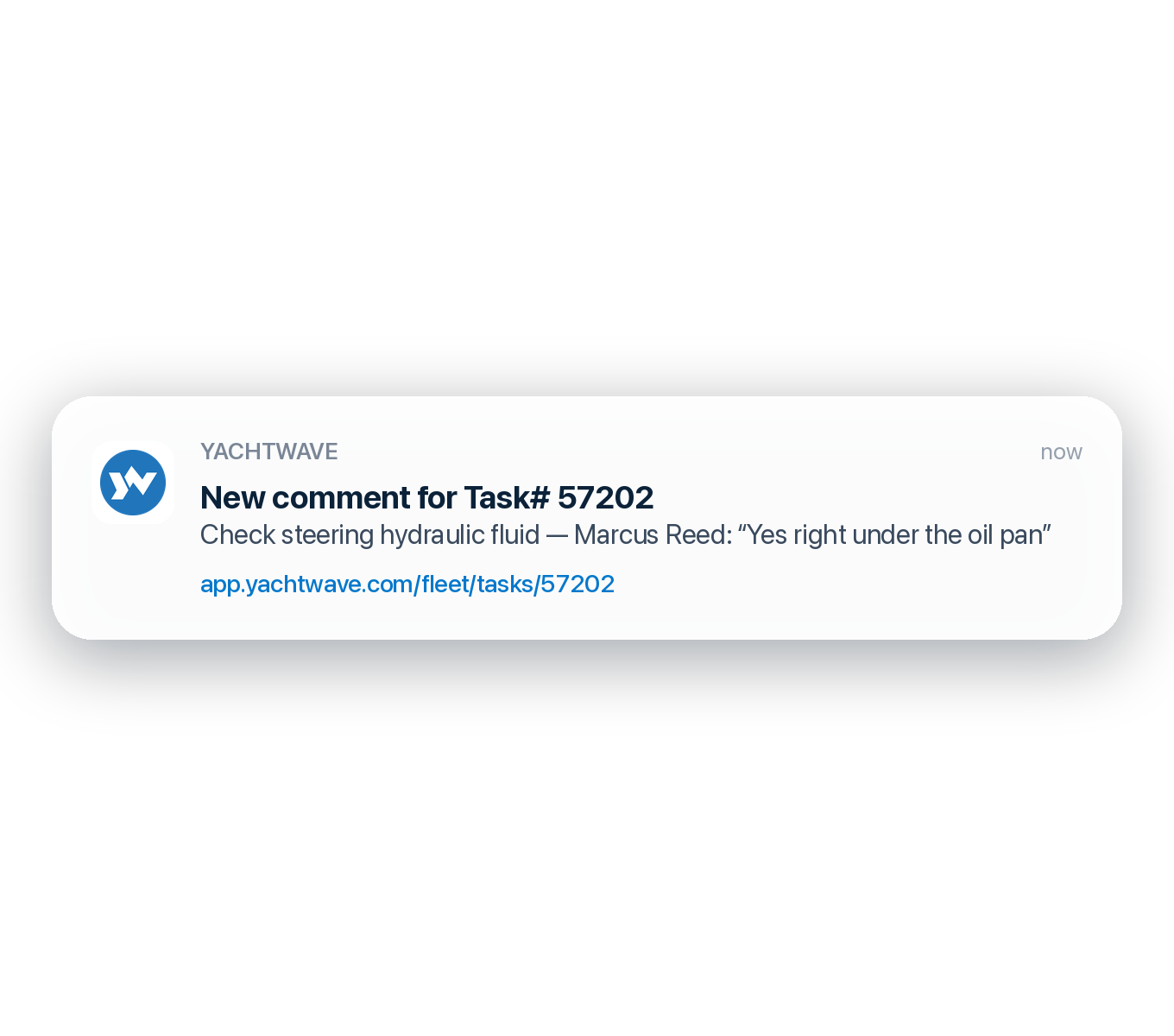
Yes. A new message on a task or ticket notifies the whole team except you: everyone it's assigned to, everyone In the Loop, the always-notified members, and any email addresses on the team (those get email only). It arrives in the app, and by email, text and push, following each person's notification settings; a text is skipped for anyone without a mobile number. Restricted messages notify no one.
Can I attach a photo to a comment?
No — comments are text. Photos go on the Photos tab of the task or ticket, where they stay attached to the record itself.
If I delete a comment, does it go from everyone's thread?
Yes. It is removed for the whole crew.
What are the grey lines in the middle of the thread?
Notices YACHTWAVE writes itself to record something that happened to the task or ticket. They can't be edited or deleted.
See Also
- Tasks — The work the conversation is about.
- Tickets — The informal crew list, which has the same Discussions tab.
- Sharing Your Yacht — Who can see and join the conversation.