
What is this? Inviting other people — co-owners, captains, mates, deckhands, family members — to share access to your yacht in YACHTWAVE. Each person you add can see and (depending on their role) edit the yacht’s data on their own phone.
The Basics
A YACHTWAVE yacht doesn’t have to live on one phone. Add other people as crew members, and they’ll see the same boat in their own app — same tasks, same maintenance log, same documents, same readings. Add a captain so they can manage maintenance. Add your partner so they can see the dock fees. Add a mechanic temporarily so they can see the service history.
Each crew member has a role that labels their relationship to the boat:
- Owner — The boat’s owner. Used for ownership transfer (see How to transfer the yacht below).
- Captain — The day-to-day operator. On a personal boat, Captains and Owners are the ones who receive service-schedule reminders.
- Crew — Everyone else on the team — mates, deckhands, family members.
The role list also offers more specific crew titles: Mate (First), Engineer, Marina, Guest, Stew (Chief), Stew, Mate, Bosun and Deck Officer.
Only the boat’s Owner or Captain can add, change, or remove crew members.
On a boat that is not managed by an organization, every crew member sees all of the yacht’s data — tasks, maintenance log, readings, documents, expenses, the whole picture. Roles label who’s who; they don’t gate what someone can see.
On a boat managed by an organization, the organization can limit what people see and do. Its settings can hide whole areas (for example, the Expenses tile) from a role, and its permissions can decide, per area, who may see, add, edit, or delete. A hidden area simply isn’t there for that person; it isn’t shown greyed out.
Key Things on This Screen
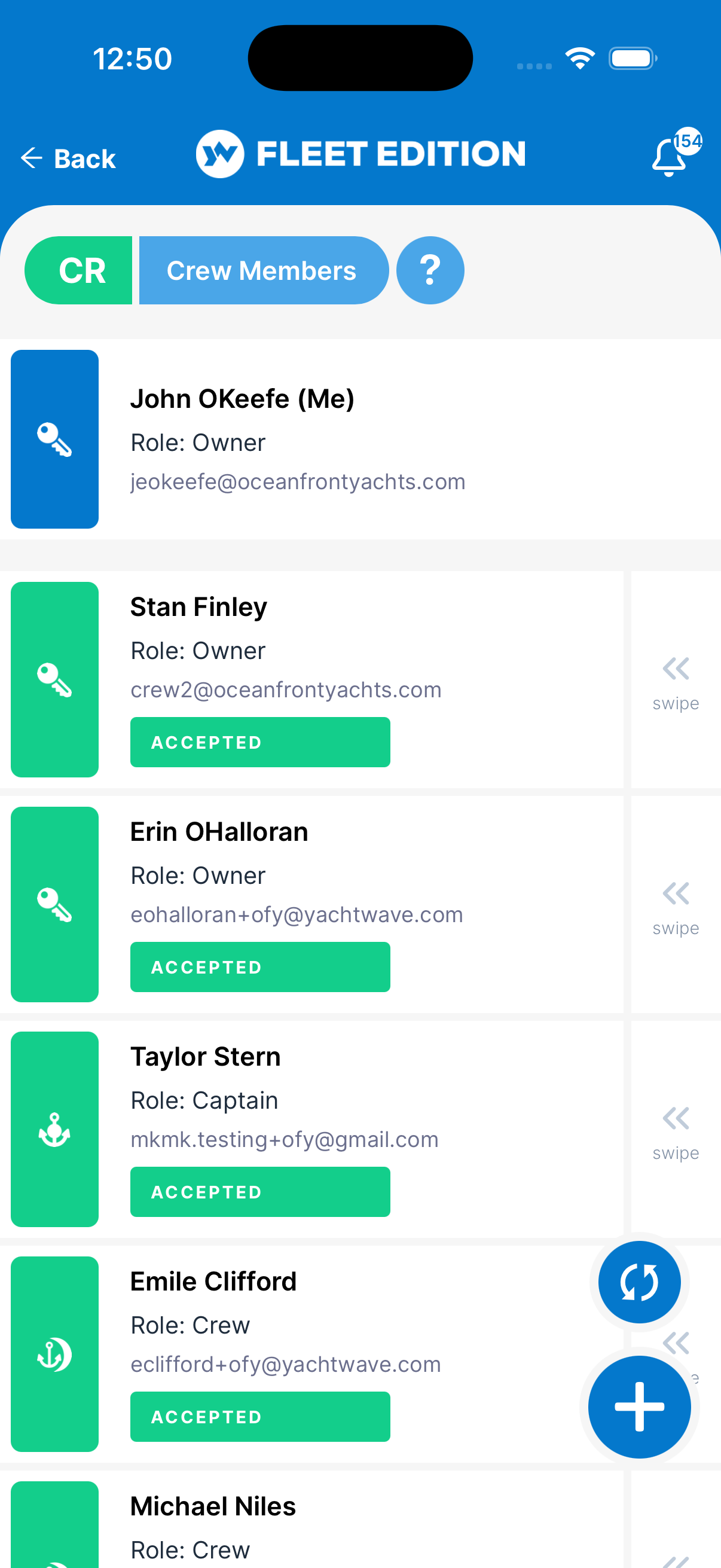
- Crew member tile — Name, email, role, and invitation status (Accepted, Invited, or Rejected). Your own tile is at the top of the list.
- Search bar — Find a crew member.
- + button (lower right) — Invite a new person to this yacht. The round refresh button beside it reloads the list.
- Swipe a tile left — Remove the crew member (only if you’re allowed to; you can’t remove yourself).
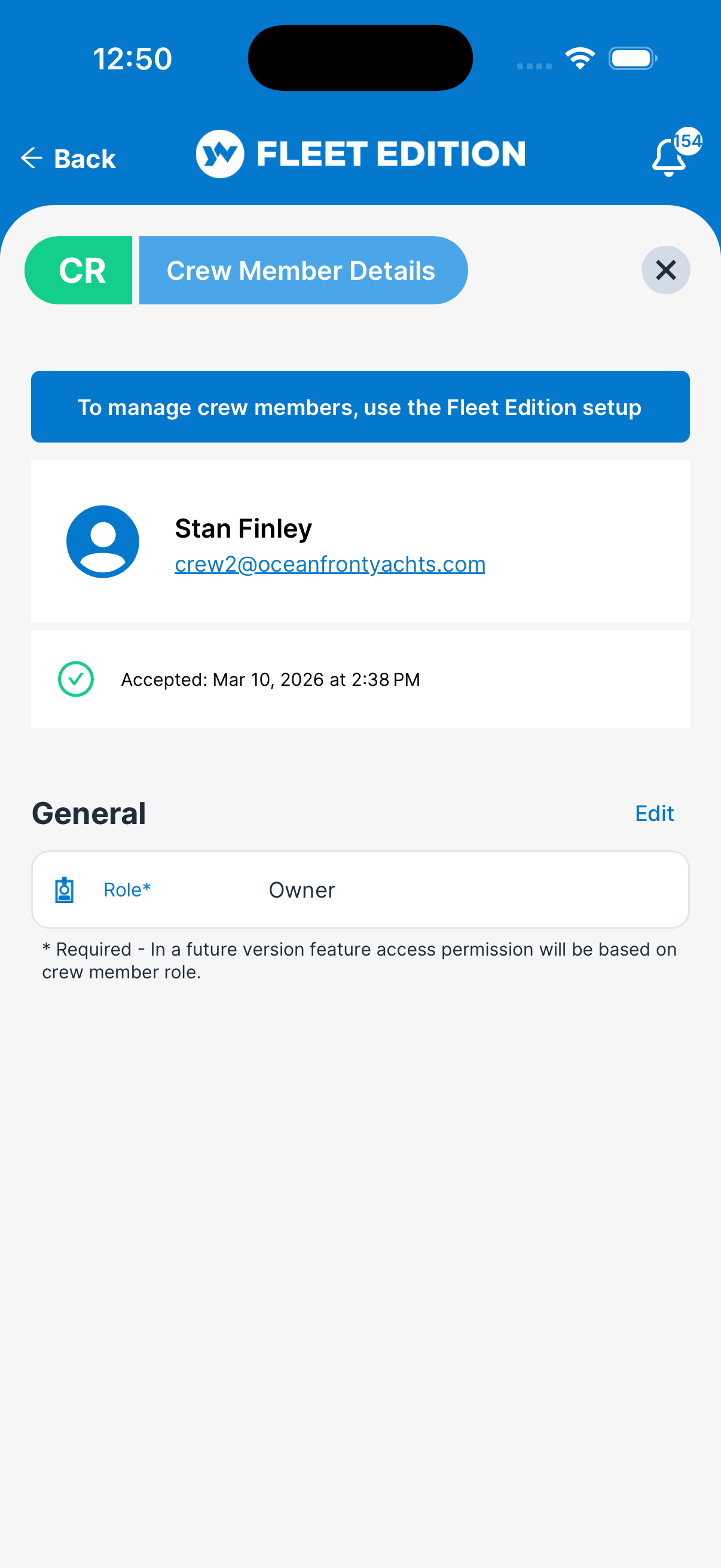
- Tap a tile — Open their details (tabs Details, Documents, and, when the boat’s plan includes it, Audit Log). From there you can change their role or, for a pending invitation, tap RESEND INVITE.
How to Add a Crew Member
The steps depend on whether your yacht is on a free Personal license or under an organization license (Fleet Edition). The difference matters because organizations control their own member list — you can’t free-form invite strangers onto an org-licensed vessel.
On a Personal (free) License
- Tap the + button. You need an internet connection. (During a trial, adding crew here isn’t available; the app tells you so.)
- Enter their Email address — that’s how YACHTWAVE finds or creates their account.
- Pick the Role they should have on this yacht.
- Tap ADD. They’ll get an invitation to accept by email, push and in the app, and by text if their account has a mobile number. You get a push and in-app confirmation that it was sent.
- Once they accept, their tile changes from Invited to Accepted.
On an Organization (Fleet Edition) License
When a yacht is part of an organization, you can only add crew members who already exist in that organization. Instead of an email field, you’ll see a picker listing your org’s members.
Only people with a manager role in the organization (and, if your organization uses permissions, those allowed to add crew) can do this.
- Tap the + button.
- Tap Select Crew Member and pick the person from your organization’s member list.
- Pick the Role they should have on this yacht.
- Tap ADD.
Don’t see who you need in the picker? They need to be added to the organization first. That is done in the YACHTWAVE web app (fleet administration), not on the phone. Once they’re in the organization, they appear here on every yacht the organization manages.
How to Transfer the Yacht to a New Owner
- Add the new owner as a Crew Member with the Owner role.
- The new owner accepts the invitation. Now both of you are Owners.
- The new owner removes you as a crew member (or you can remove yourself).
- The transfer is effectively complete — the yacht now has one owner, and it’s them.
This is how YACHTWAVE handles ownership transfers — through the regular crew system, with both old and new owner briefly co-owning during the handoff.
How to Give the Support Team Temporary Access
If you need YACHTWAVE support to investigate something on your yacht:
- Bottom tab bar → My Account → Settings.
- Under Support, turn on Permit Support Team Access and tap Confirm. This applies to your whole account, not just one yacht.
- Email
[email protected]to let them know they can log in. - When they’re done, turn the switch back off.
Alternatively, the support team may ask to be added as a Crew member temporarily — same idea, more visible in your Crew list.
Tips
- Pick the role that fits. Owner is for actual owners (and ownership transfer); Captain for day-to-day operators (they get reminders); Crew for everyone else.
- Remove crew when they leave. Even a former crew member you trust shouldn’t keep access forever. Removing them is one swipe.
- Watch the Audit Log when sharing. The Audit Log shows who made what changes. Useful if you’re collaborating with several crew and want to know who did what.
- Names with email addresses you actually use. A crew member’s account is tied to their email. Make sure they enter the address they’ll keep — switching emails later is harder than getting it right the first time.
- Don’t rely on roles to hide data on a personal boat. Every crew member sees everything on the yacht — tasks, maintenance, expenses, documents, all of it. Only an organization’s settings can hide areas, and only on boats it manages. If something is sensitive on a personal boat, keep it out of YACHTWAVE.
Troubleshooting
- “My crew member didn’t get the invitation.” — Check that the email is correct. Have them check spam. Resend the invitation. If still nothing, email
[email protected]. - “An invitation still says Invited even after they say they accepted.” — Pull down to refresh the Crew Members list. If still stuck, the crew member can sign out and back in on their device to refresh.
- “I accidentally removed someone.” — Re-invite them with the same email. Their existing data and previous role history don’t come back automatically, but their YACHTWAVE account is the same — they accept and are back in.
- “I see a picker of names instead of an email field.” — Your yacht is part of an organization license, so crew has to come from your organization’s member list. Add the person to the organization first in the YACHTWAVE web app, then they’ll appear in the picker here.
- “I tap + and get a message that I can’t add crew.” — Only the boat’s Owner or Captain can add crew. On an organization’s boat, your organization role (or its permissions) must allow it.
Frequently Asked
Can a crew member see my other yachts?
Only the ones you've invited them to. Sharing is per-yacht — adding someone to Sea Breeze doesn't give them access to Wave Runner.
How many crew can I have on one yacht?
There's no hard cap for typical use. If you're a charter operator with dozens of crew rotating on/off, consider Fleet Edition for fleet-wide crew management.
How is per-yacht Sharing different from fleet Crew?
This screen (Sharing on a single yacht) is available to all users including the free Personal edition. Fleet Crew is a read-only list of everyone in your organization, with their email and organization role.
Does removing a crew member delete the data they added?
No. Data they entered (tasks, maintenance logs, etc.) stays. The Audit Log preserves their record of what they did. Removing them just stops them from making new changes or seeing your boat going forward.
Can I share my yacht with someone who doesn't have a YACHTWAVE account yet?
Yes — enter their email when you invite them. They'll get an email inviting them to join YACHTWAVE. Once they've created their account, share the boat with them again.
See Also
- My Boats — the list of all yachts you have access to (yours plus shared).
- Crew (Fleet Edition) — managing crew across multiple yachts.
- Audit Log — see who made what changes.
- Account, Profile & Settings — turn on Support Team Access from your account settings.