
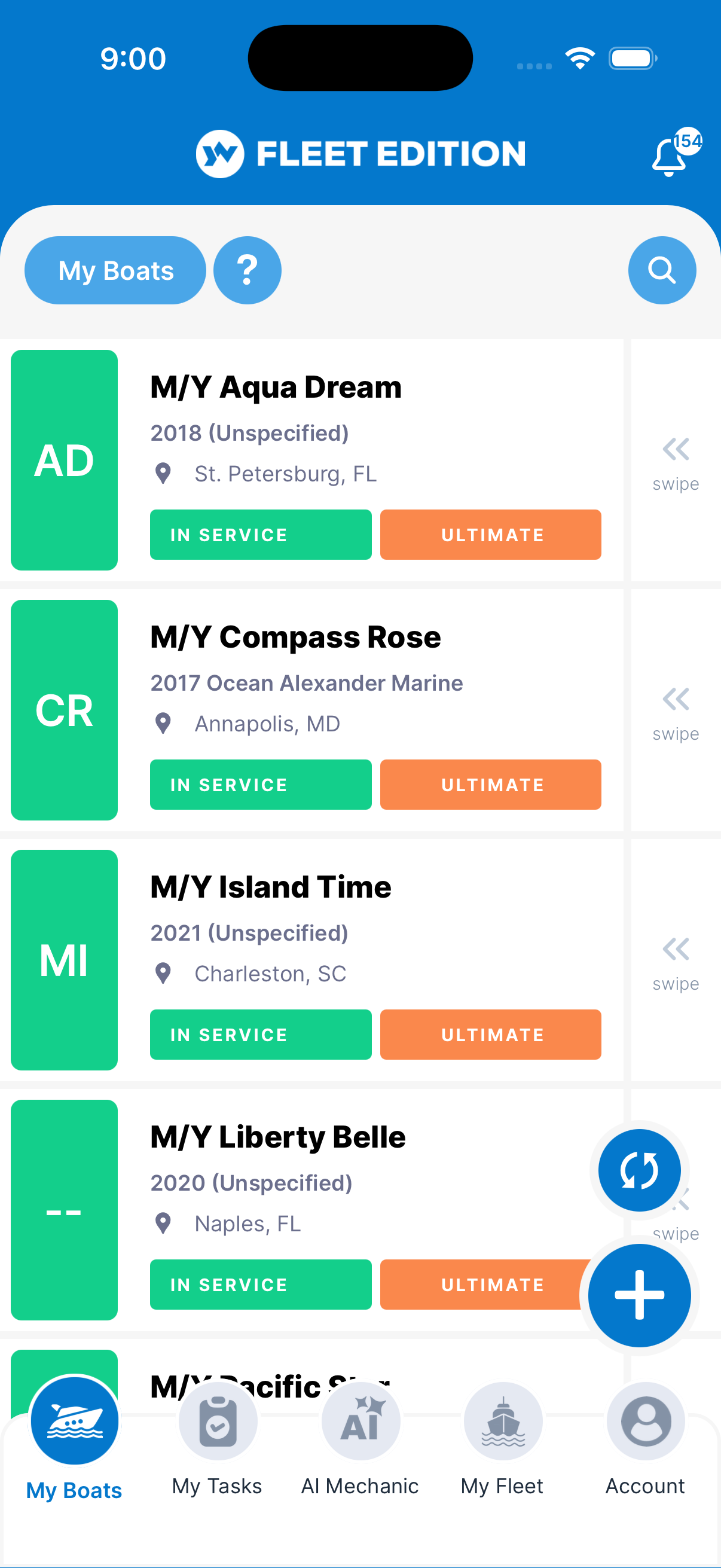
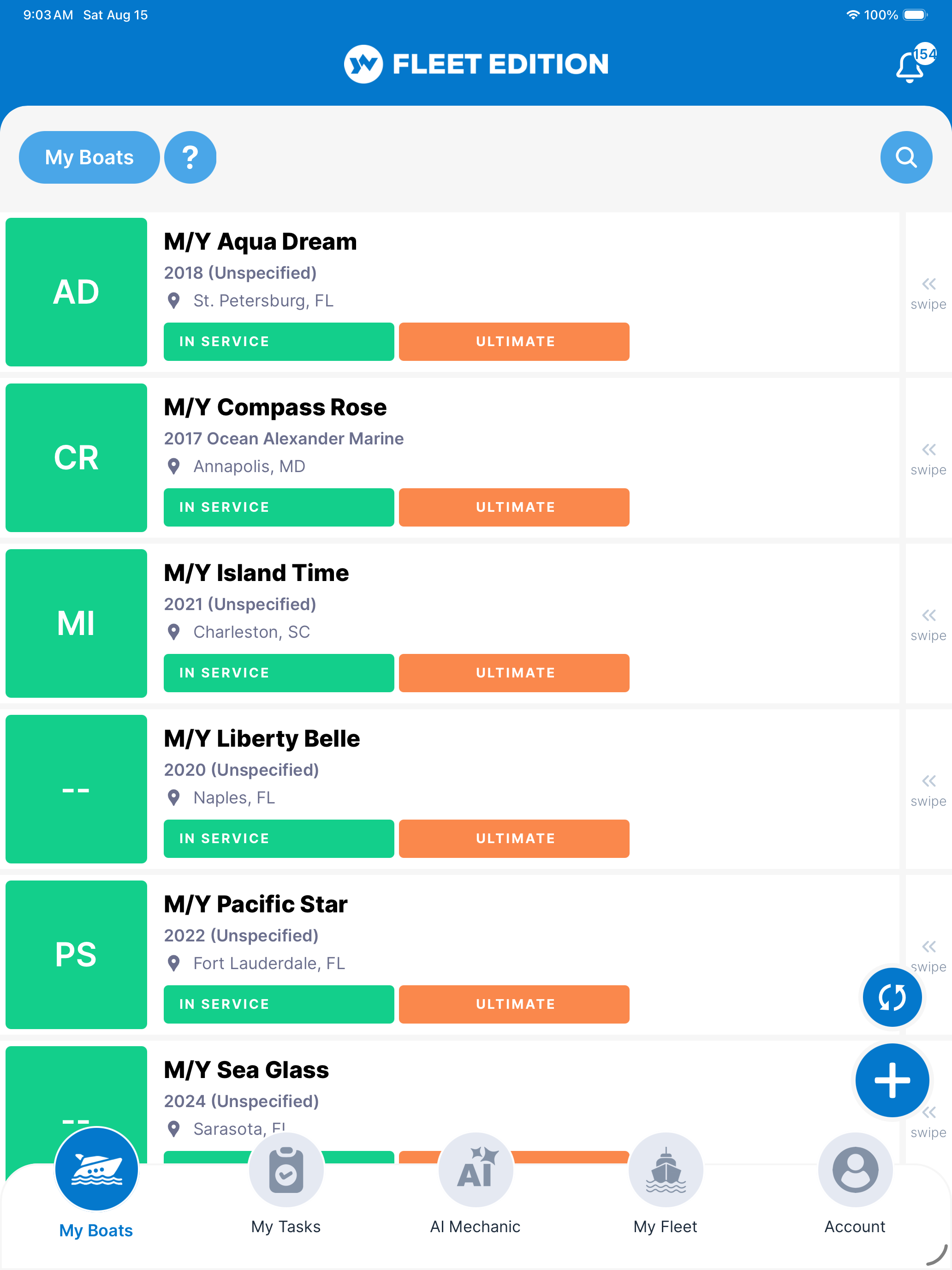
What is this? The home screen of YACHTWAVE — the list of every boat you own, captain, or crew on. Tap a yacht to open it; tap + to add a new one.
The Basics
The My Boats screen is the front door to YACHTWAVE. Each yacht you have access to shows as a tile with its initials, name, home port, status, and plan status. Boats are listed A to Z by name; a boat you just added shows at the top until it finishes saving. Tap a tile and the rest of the app (Dashboard, Mechanical, Equipment, Tasks, etc.) is scoped to that yacht.
You’ll see three kinds of yachts here:
- Yachts you own — boats you added.
- Yachts you crew on — boats someone else added and invited you to via Sharing.
- Pending invitations — yachts where you’ve been added but haven’t accepted yet. The tile shows Accept and Reject buttons; you can’t open the boat until you accept.
The screen is intentionally simple — pick a boat, go from there.
Key Things on This Screen
- Yacht tile — Initials, name, and home port. Tap to open the yacht.
- Search bar (top) — Type to find a boat by name, status, manufacturer, brand, or model.
- + button (lower right) — Add a new yacht. The round refresh button beside it reloads your boats, the same as pulling down on the list.
- Pending invitation tiles — Show Accept and Reject buttons instead of the boat’s status.
- Status badge on tile — Shows the boat’s status in its own color.
- Plan status — On a trial, the home-port line shows how many trial days are left. A boat whose plan has expired, or that needs a plan, is marked on its tile, and tapping it explains what to do.
How to Add a New Yacht
- Tap the + button. You need an internet connection to add a boat.
- Enter the yacht’s Name and, if you like, change its initials (the short badge shown on the tile).
- Pick a Type (sail, power, etc.) and a Status. Both are required.
- Optional: enter the HIN (Hull Identification Number) if you have it handy. A recognized US-format HIN, 12 letters and numbers with no country prefix (e.g.
HAT12345D404), fills in the manufacturer and year for you. A HIN with a country prefix (e.g.US-HAT12345D404) is saved as you typed it but doesn’t fill anything in. - Tap ADD.
- The new yacht appears in your list. Tap it to open the Yacht Overview and start filling in details.
How to Accept (or Reject) a Yacht Invitation
- Find the pending yacht tile on My Boats. It has Accept and Reject buttons.
- Tap Accept — the app confirms you now have access, and the yacht becomes a normal tile you can open.
- Tap Reject — the invitation is removed from your My Boats page. If you rejected it by mistake, ask the boat’s owner to send the invitation again.
Tips
- Add the basics first, fill in detail later. Don’t try to enter everything (HIN, model, engines, equipment) in one sitting. Get the boat created, then build it out gradually — or use the web version for bulk setup.
- One physical boat = one yacht entry. If you sell and buy a new boat, add the new boat as its own entry; don’t rename the old one. That way your old boat’s history is preserved if a future owner asks.
- Yacht invitations from other people show up here. If a yacht owner adds you as crew, you’ll see a pending tile here. Pull-to-refresh if you don’t see an invitation you expect.
Troubleshooting
- “I don’t see a yacht I just added.” — Pull-to-refresh on the My Boats screen. Brand-new yachts can take a moment to sync.
- “A yacht I was using is gone.” — If you were a crew member, the owner may have removed your access. If you owned the yacht and it’s gone, contact
[email protected]— the support team can investigate (deletions usually require deliberate action). - “I tapped Accept on an invitation but the yacht didn’t open.” — Pull-to-refresh. If still missing, sign out and back in — the access change sometimes needs a session refresh.
- “My HIN isn’t being recognized.” — If you entered a country prefix (such as
US-), YACHTWAVE saves the HIN but doesn’t look up the manufacturer. Remove the prefix and enter just the 12 letters and numbers. YACHTWAVE checks the code against its own list of manufacturer codes, so a mistyped character, or a maker that isn’t on the list, means nothing is filled in; pick Manufacturer and Year yourself. Both forms are accepted; only the one without a prefix fills in the details. - “I tap + and get a message that I don’t have permission.” — On an organization’s account, only people your organization allows to add boats can do it. Ask your organization’s administrator.
Frequently Asked
Can I have more than one yacht?
Yes. Add as many as you like. The My Boats screen lists all of them.
How do I transfer a yacht to a new owner?
Add the new owner as a Crew Member with the Owner role on the yacht. Once they accept, they have full control. They can then remove you, and the transfer is complete. See Sharing & Crew.
Can I delete a yacht?
Yes, but think carefully — deletion is hard to undo. On the My Boats list, swipe the boat's tile to the left to reveal the delete (trash can) button, tap it, then confirm. Deleting also deletes the boat's logs, images, and attachments. Only the boat's owner or captain (or, on an organization's boats, people the organization allows to delete boats) can swipe to delete. If you change your mind, email [email protected] quickly; recent deletions can sometimes be restored from backup.
What's the Brand field for?
Most boats are sold under their manufacturer's name (e.g. Hatteras) — leave Brand blank in that case. The Brand field is only used when a boat is marketed under a different name from the actual builder. Example: Prestige boats are built by Jeanneau, so Jeanneau is the manufacturer and Prestige goes in Brand. If you're not sure, leave it blank.
Why am I being asked to pick from a list instead of typing in my yacht's manufacturer?
Structured manufacturers feed verified data to the AI Mechanic® so it can give brand-specific advice. If your manufacturer isn't on the list, pick "Other Unregistered Vessel" and email [email protected] to get it added — usually same day.
See Also
- Yacht Overview — the screen you land on after tapping a yacht tile.
- Yacht Dashboard — the day-to-day view for an active yacht.
- Sharing & Crew — invite others to your yacht, or accept an invitation.
- Subscription & Licensing — what’s included for free vs. the paid editions.