
What is this? The “about this boat” screen — name, status, home port, hull number, type, year, manufacturer, model, dimensions, and registration numbers. The facts that don’t change often but matter a lot when they do.
The Basics
The Boat Details screen has four tabs, in roughly the order you’d fill them in:
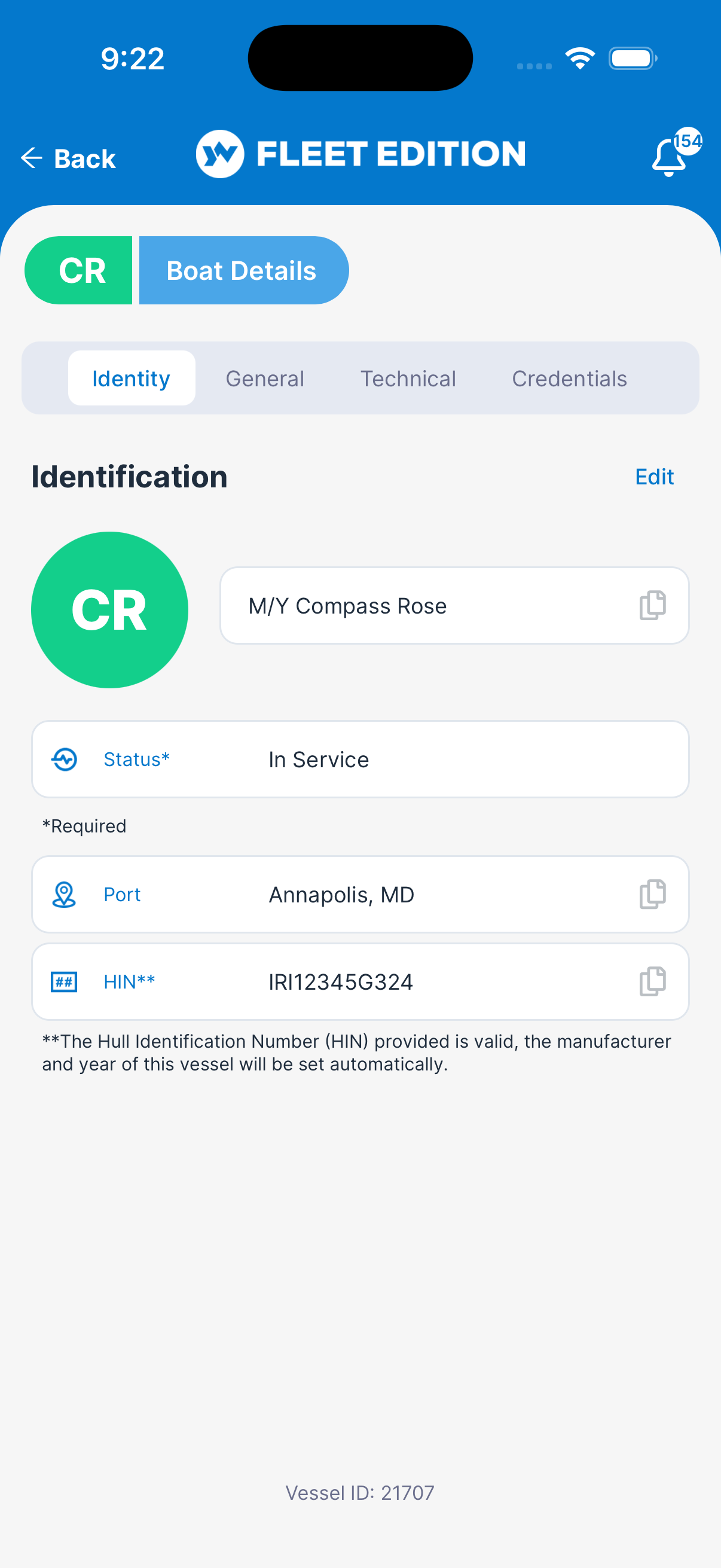
- Identity — the boat’s name and initials, status, home port, and hull ID (HIN).
- General — type, year, manufacturer, brand, model, and flag.
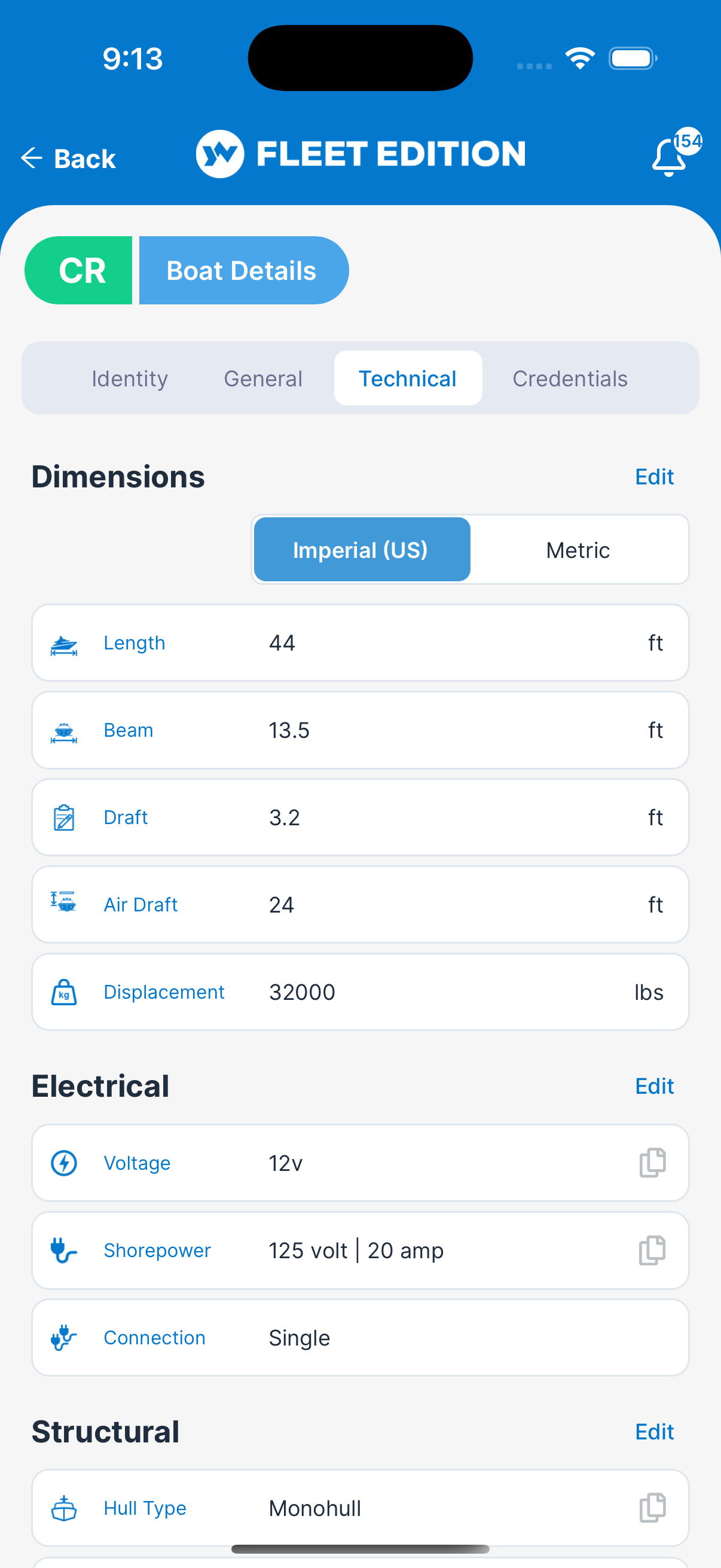
- Technical — dimensions (length, beam, draft, air draft, displacement), electrical (voltage, shore power, connection), and structure (hull type, hull material).
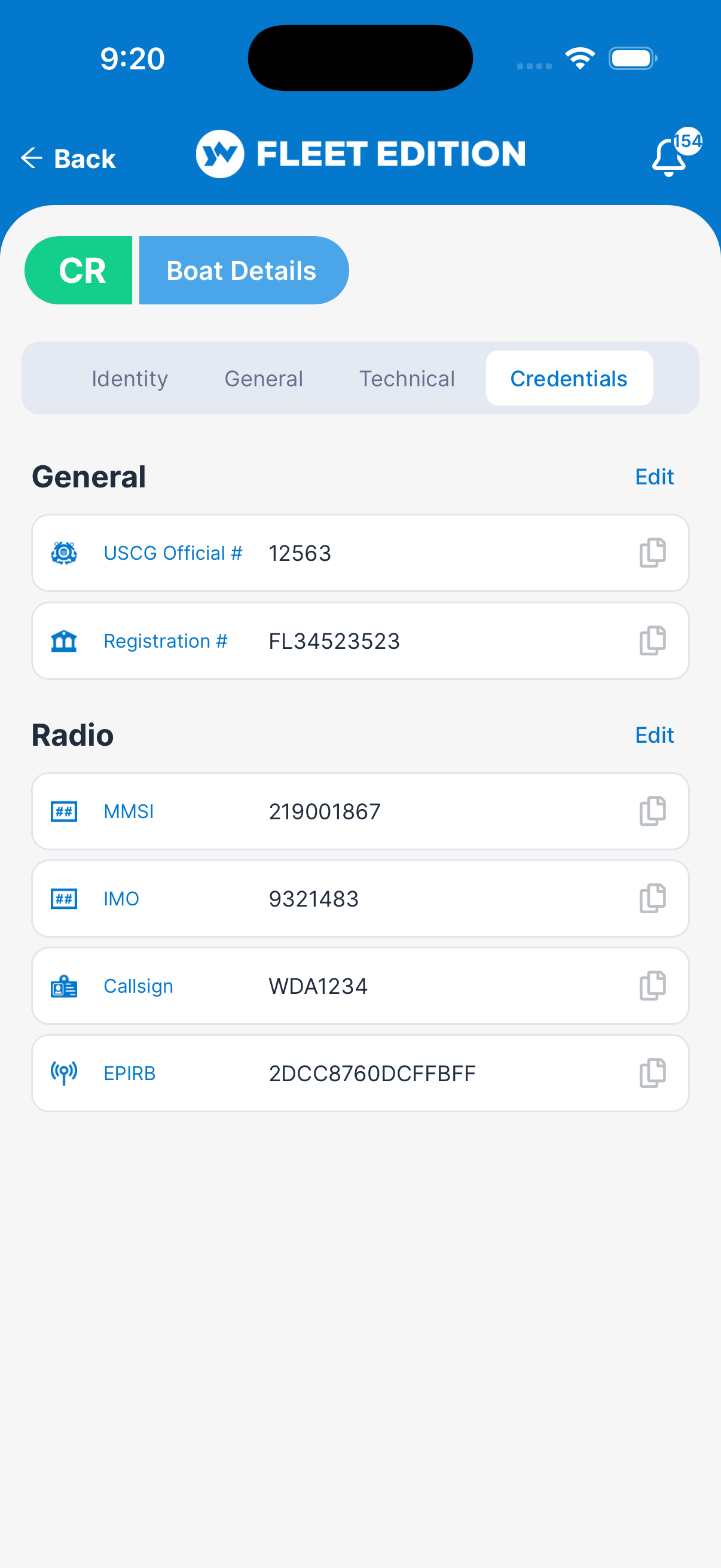
- Credentials — USCG official number, registration number, and radio IDs (MMSI, IMO, callsign, EPIRB).
If your boat’s plan includes change history, a fifth tab, Audit Log, shows who changed what.
Each tab is split into sections. To change a section, tap EDIT on its header, make your changes, then tap SAVE (or CANCEL). Fill in what you know now and come back later for the rest; the web version is faster for bulk entry.
Key Things on Each Tab
Identity
- Name and initials — what shows in My Boats and across the app. The initials are the boat’s badge.
- Status — required. Its color is used for the boat’s badge.
- Port — the boat’s home port.
- HIN (Hull Identification Number) — 12 to 15 letters and numbers, stamped on your hull. The note under the field tells you whether YACHTWAVE recognized it. A recognized HIN sets the manufacturer and year for you.
- Vessel ID — the boat’s YACHTWAVE number, shown at the bottom. Support may ask for it.
General
- Type — required (sail, power, etc.).
- Year and Manufacturer — picked from lists. When a valid HIN is entered, both are set automatically and marked that way.
- Brand — leave blank for most boats. Only used when the marketed name differs from the manufacturer (see FAQ).
- Model — typed in.
- Flag — the country the boat is flagged in.
Technical
- Imperial (US) / Metric switch — on the Dimensions section. Switching it while editing converts the numbers you’ve entered. Press and hold it (when not editing) to preview the other units.
- Length, Beam, Draft, Air Draft, Displacement — the boat’s dimensions.
- Voltage, Shorepower, Connection — the electrical system.
- Hull Type and Hull Material — the boat’s structure.
Credentials
- USCG Official # — for documented vessels, the official number.
- Registration # — your local or state registration number.
- MMSI, IMO, Callsign, EPIRB — the boat’s radio and safety-beacon IDs.
Locked Fields
- A green notice at the top means some settings on this boat are restricted by the manufacturer; those fields can’t be edited. A padlock on a field means it is locked the same way.
- On an organization’s boat, you may not see EDIT at all if your organization doesn’t allow you to edit boat details.
How to Enter Your Boat’s HIN Correctly
- Find the HIN on the boat — usually on the transom (starboard side), upper right.
- Open the Identity tab and tap EDIT on the section header.
- Enter the full code into the HIN field.
- If your boat was manufactured or sold in the US, omit the country prefix (e.g.
HAT12345D404, notUS-HAT12345D404). YACHTWAVE checks the 12-character code against its own list of manufacturer codes and fills in Manufacturer and Year. - If your boat is international, enter it with its country prefix (for example, starting with
AU-). YACHTWAVE accepts it but won’t auto-identify the manufacturer — fill in Manufacturer and Year on the General tab yourself. - Tap SAVE.
Tips
- Get the HIN right. It’s your boat’s unique identifier — wrong digits will compound every time you reference it (insurance, sale paperwork, registration renewal).
- Use the web version for initial setup. Especially the Technical tab — typing a dozen specs on a phone is slower than on a keyboard.
- Attach a photo of the HIN plate to Documents. The day someone disputes the HIN, the on-boat photo settles it.
- Credentials with expiration dates feed reminders. Set the Expiration on your registration and insurance documents (Documents screen) so YACHTWAVE warns you before they lapse (30 and 5 days before the expiration date).
Troubleshooting
- “My manufacturer isn’t in the picker.” — Email
[email protected]to have your manufacturer added (the picker says the same when a search finds nothing). The team adds new manufacturers regularly — usually same day. - “My HIN isn’t recognized.” — Drop the country prefix if you have one (US format). If the HIN is mistyped, even by one digit, the lookup will fail — double-check against the hull stamp.
- “The wrong manufacturer is auto-filled from my HIN.” — The manufacturer comes from YACHTWAVE’s list of manufacturer codes, read from the first three letters of the HIN; check those letters against the hull stamp first. Manually override and email
[email protected]if you’d like the team to verify. - “My length / beam / displacement seems wrong.” — Check the Imperial (US) / Metric switch on the Technical tab’s Dimensions section. It is set per boat; switching it while editing converts the numbers.
Frequently Asked
What's the Brand field for, and when should I use it?
Most boats are sold under their manufacturer's name — for those, leave Brand blank. Brand is only used when a boat is marketed under a separate product-line name. Example: Prestige Yachts are built by Jeanneau. The hull was made by Jeanneau (that's the manufacturer), but it's marketed and recognized as a Prestige (that's the brand). Use Brand only in cases like this.
International vs US HIN format — does it matter?
Both are accepted. The difference is manufacturer auto-identification. A 12-character HIN with no country prefix is checked against YACHTWAVE's list of manufacturer codes and fills in Manufacturer and Year. A HIN with a prefix is saved as you typed it and never fills anything in. For US-built boats, drop the prefix to get the auto-fill.
Can I edit this information after I've set it?
Yes — open the relevant tab and tap EDIT on the section header. Identity fields like the HIN are editable but change them carefully (and ideally only once, when you got the original entry wrong).
How is this different from the Yacht Dashboard?
Overview is reference material — facts about the boat that don't change often. Dashboard is operational — a tile for every area of the boat (tasks, logs, engines, and more), your day-to-day way in.
Why no Crew tab?
Crew/access management moved out of the Overview to its own dedicated screen. See Sharing & Crew.
See Also
- My Boats — the list this yacht came from.
- Yacht Dashboard — the operational view.
- Mechanical and Equipment — for the systems and gear on board.
- Documents — for registration, insurance, USCG paperwork.
- Pictures — for the boat-wide photo gallery.