
What is this? Your boat’s filing cabinet. Manuals, certificates, warranties, registration, insurance — anything you’d want at hand when you need it, and which you’d hate to lose to a fried hard drive or a wet phone.
The Basics
Each Document has a Type, a Name, an optional Detail, and up to two kinds of content. The Type you pick decides which sections appear:
- Attachment — a file (PDF, image, scanned doc) stored with YACHTWAVE. Most types use this.
- Link (URL) — a web address pointing to an external resource. The link types are the Online Manual types, Online Specifications, Online Warranty, Video (Orientation) and Video (Other); they take a URL instead of a file.
- Expiration date — when the document expires. Shown for these types: Agreement, Contract, Credentials, Estimate, Inspection Certificate, Insurance, License, Notice, Official Document, Online Warranty, Registration, Reminder, Subscription, Warranty and Other.
Documents can live at the vessel level (your insurance, your USCG documentation) or attached to a specific item — an engine, a piece of equipment, a task, a note, and more (an engine’s manual, a chartplotter’s quick-start guide). Item-level documents appear on that item’s Documents tab so they’re a tap away when you need them. To attach a document to an item, add it from that item’s Documents tab.
Key Things on This Screen
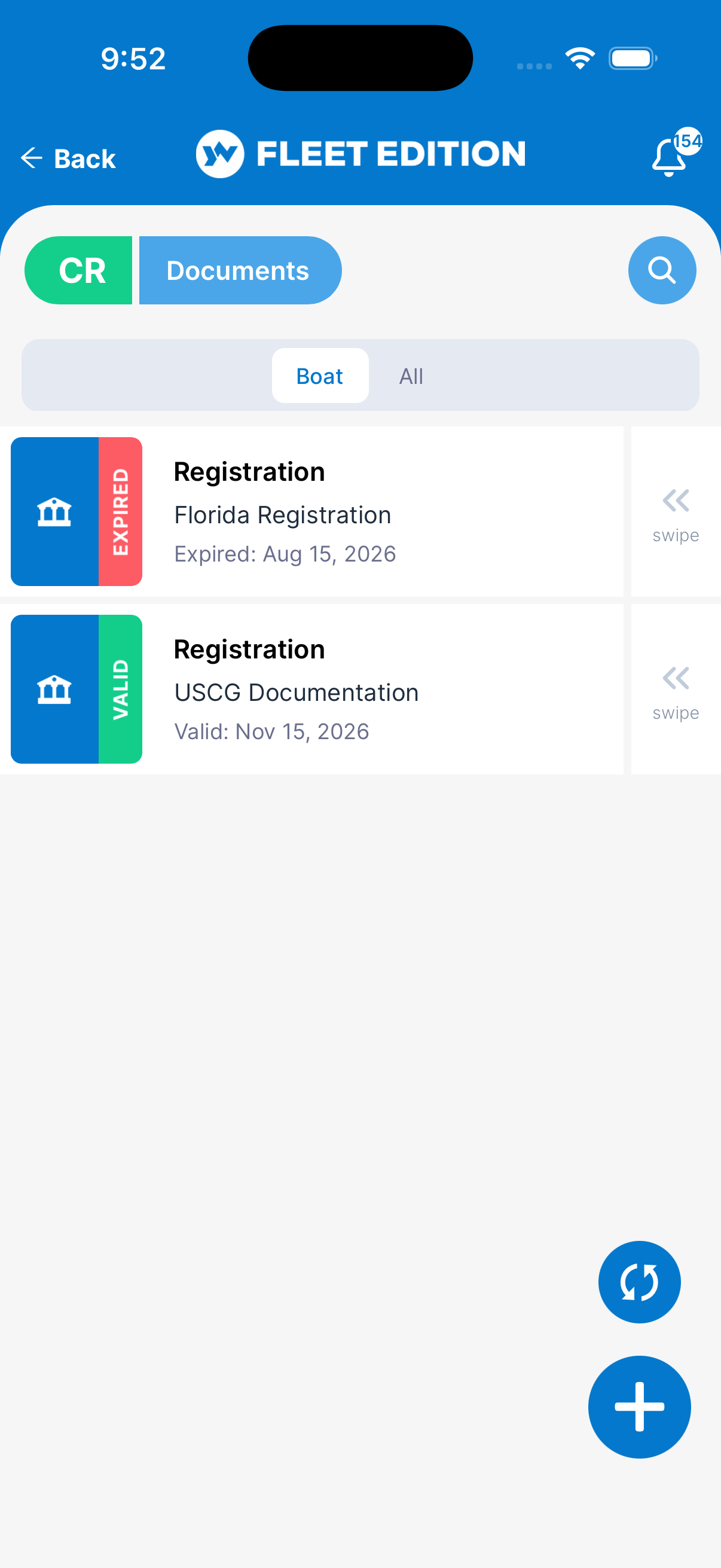
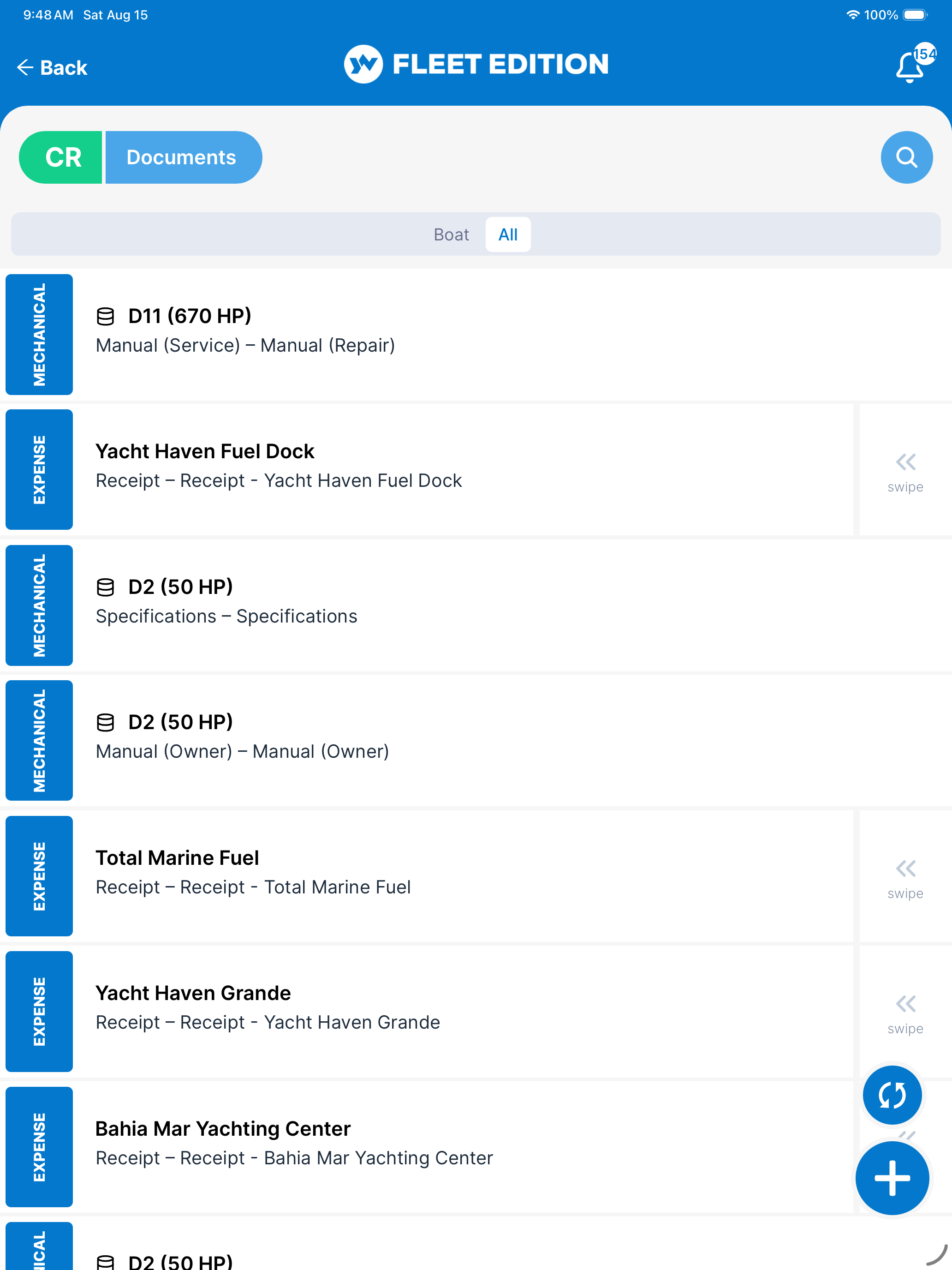
- Boat / All — Boat shows the boat’s own documents. All shows every document on the boat, including those attached to engines, equipment, tasks, and other items; the colored strip on each tile says where it’s attached.
- Document tile — Type, name, an icon for the type, and the expiration date with an Expired, Expiring, or Valid label (if set). A small database icon in front of the title means the document came from the YACHTWAVE Catalog. Tap the tile to open it.
- Expiration banner (top of an open document) — A coloured band showing where the document stands: green while it’s valid, orange when it expires within 30 days, red once it has expired. The date is written on the band. It only appears on documents that have an expiration date, so a document without one shows nothing.
- + button (lower right) — Add a new document.
- Search icon — Search by name, type, or expiration label. There are no other filters.
- Swipe a tile left — Shows Delete, and View when the document has a file.
- Opening a file — Files and links open in your phone’s own viewer or browser, outside YACHTWAVE.
- Share icon (top of an open document) — Shares a link to the document’s file.
How to Add a Document
- Tap +.
- Pick a Type (Registration, Insurance, Manual (Owner), Warranty, Inspection Certificate, etc.).
- Enter a Name (e.g. “USCG Documentation — 2026”) and, if you like, a Detail.
- Fill in the sections the type shows: - Attachment — choose Include, then tap Select File to pick a file, or Scan Document to use the camera. - URL — paste a web address (for Online and Video types). - Expiration — choose Expires and set the Date.
- Tap ADD.
To attach a document to an engine or other item, open that item and add it from its Documents tab instead.
How to Find a Specific Document Quickly
- For documents tied to a specific engine, open that Mechanical item → Documents tab.
- For documents tied to specific equipment, open that Equipment item → Documents tab.
- For boat-wide documents (registration, insurance), use the Documents screen on the yacht.
- On the yacht’s Documents screen, tap All to see every document on the boat in one list.
- Use Search at the top of any document list when you remember a word from the name or type.
Tips
- Scan in good light. Scan Document uses your camera. For a cleaner multi-page PDF, scan with your phone’s own scanner first, then use Select File.
- Set expirations on registrations, insurance, and USCG safety equipment. The All tab with its Expired / Expiring labels collects everything in one place. Getting caught with lapsed paperwork at a marina is preventable.
- Attach the engine manual to the engine. When something goes wrong dockside and someone asks “what does the manual say about that error code?”, having the PDF on the engine’s Documents tab is the difference between a 30-second answer and a 30-minute search.
- Bulk-load documents on the web version. Drag-and-drop a folder of PDFs into the web is much faster than the mobile flow for the first-time setup.
Troubleshooting
- “My PDF won’t upload.” — Check the file size. There’s a maximum upload size. Reduce the PDF with your phone’s tools (Share → Markup → reduce file size) or split it into smaller parts.
- “The attachment type isn’t supported.” — Files open in your phone’s own viewer, so a type your phone can’t open shows a “not supported by your device” message. PDF, JPG, and PNG are safest — convert other types to PDF first.
- “There’s no coloured banner on my document.” — The banner only appears on documents that have an expiration date, and only when you’re viewing the document rather than editing it. Add a date in the Expiration section and it will show. If the Type you picked has no Expiration section, that type doesn’t expire.
-
“I set an expiration but I’m not getting reminders.” — Expiration reminders are checked each morning and sent 30 and 5 days before the expiration date, then 1, 5 and 10 days after it, not every day in between. If you haven’t received one on those days, check your notification settings.
-
“I uploaded a document but it’s not showing on my engine’s Documents tab.” — It was probably added from the boat’s Documents screen, so it belongs to the boat, not the engine. A document can’t be moved; add it again from the engine’s Documents tab and delete the boat-level copy.
Frequently Asked
Where are my attachment files actually stored?
In YACHTWAVE's cloud storage (Amazon Web Services).
Are documents visible to my crew?
Yes — anyone with access to the yacht can see and download the documents. For sensitive paperwork (e.g. anything containing personal financial data), consider keeping that out of YACHTWAVE altogether.
Can I share a document with someone outside YACHTWAVE?
Yes. Open the document and tap the share icon at the top. It sends a link to the file through your phone's share sheet.
What happens to my documents if I sell the boat?
When you transfer the yacht to a new owner (see Sharing & Crew), the new owner inherits all documents tied to that yacht. To remove personal paperwork (e.g. financing documents) before handing over, delete them first.
Why do different documents show different sections (Attachment / URL / Expiration)?
The Type decides. A manual is usually a file (Attachment), an online manual is a web address (URL), and paperwork that lapses also gets an Expiration date. Pick the type that matches what you have.
See Also
- Mechanical and Equipment — attach manuals and warranties directly to the items they’re for.
- Notes — for short text that doesn’t need to be a separate file.
- Pictures — for photos that are part of the boat’s record (not document scans).