
What is this? Your boat’s hour-metered systems — main engines, generators, transmissions, stabilizers, thrusters, watermakers. Anything serviced on a “every X hours” schedule.
The Basics
Mechanical is for any item that runs on an hour meter and gets serviced based on usage hours. The simple rule: if it has an hour meter, it’s Mechanical. If it doesn’t, it’s Equipment.
Each Mechanical item is a self-contained little hub. Tap one and you’ll see tabs for:
- Details — type, location on the vessel, manufacturer, model, year, serial and part number, install date, and (for engines that use them) fuel and horsepower.
- Maintenance — the service history for this item.
- Photos — pictures of the item.
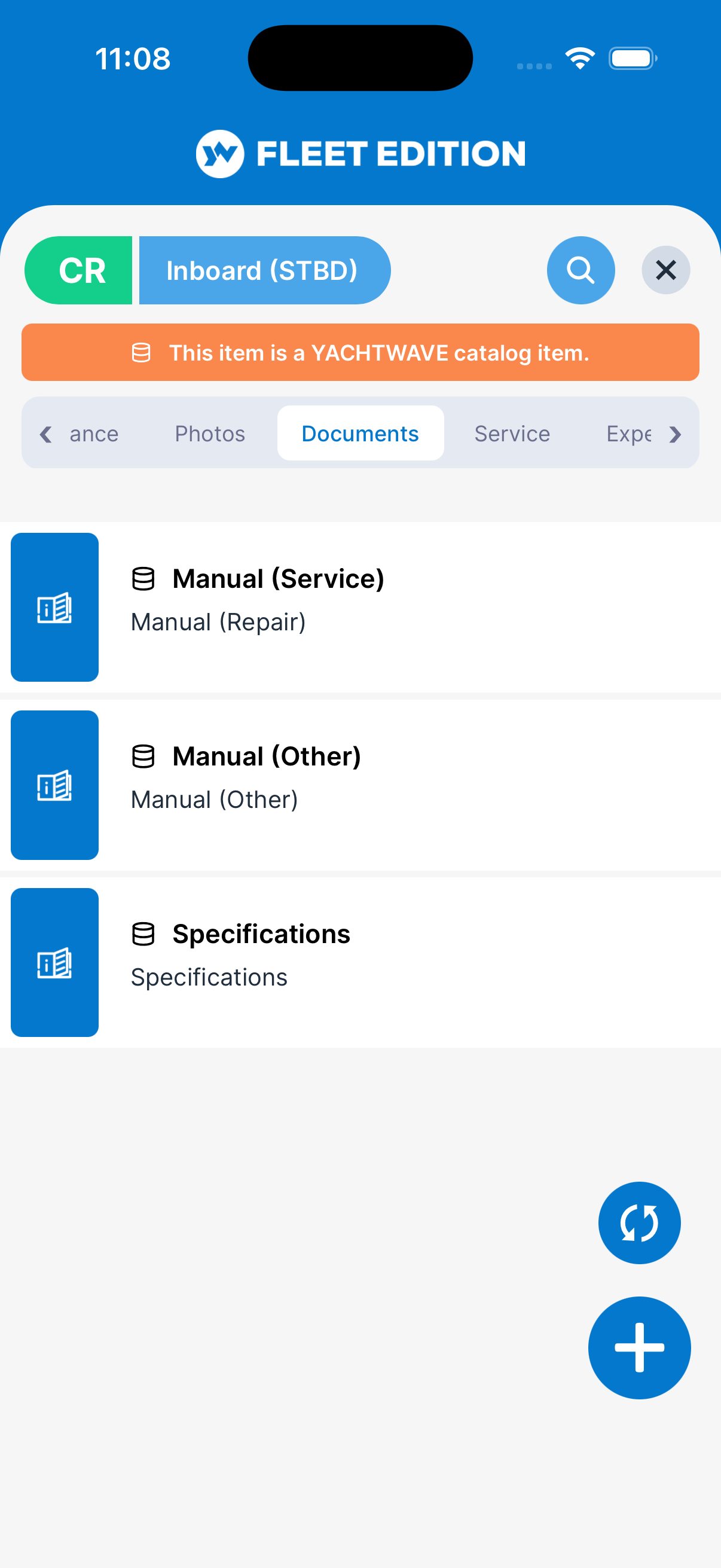
- Documents — manuals, schematics, warranty documents.
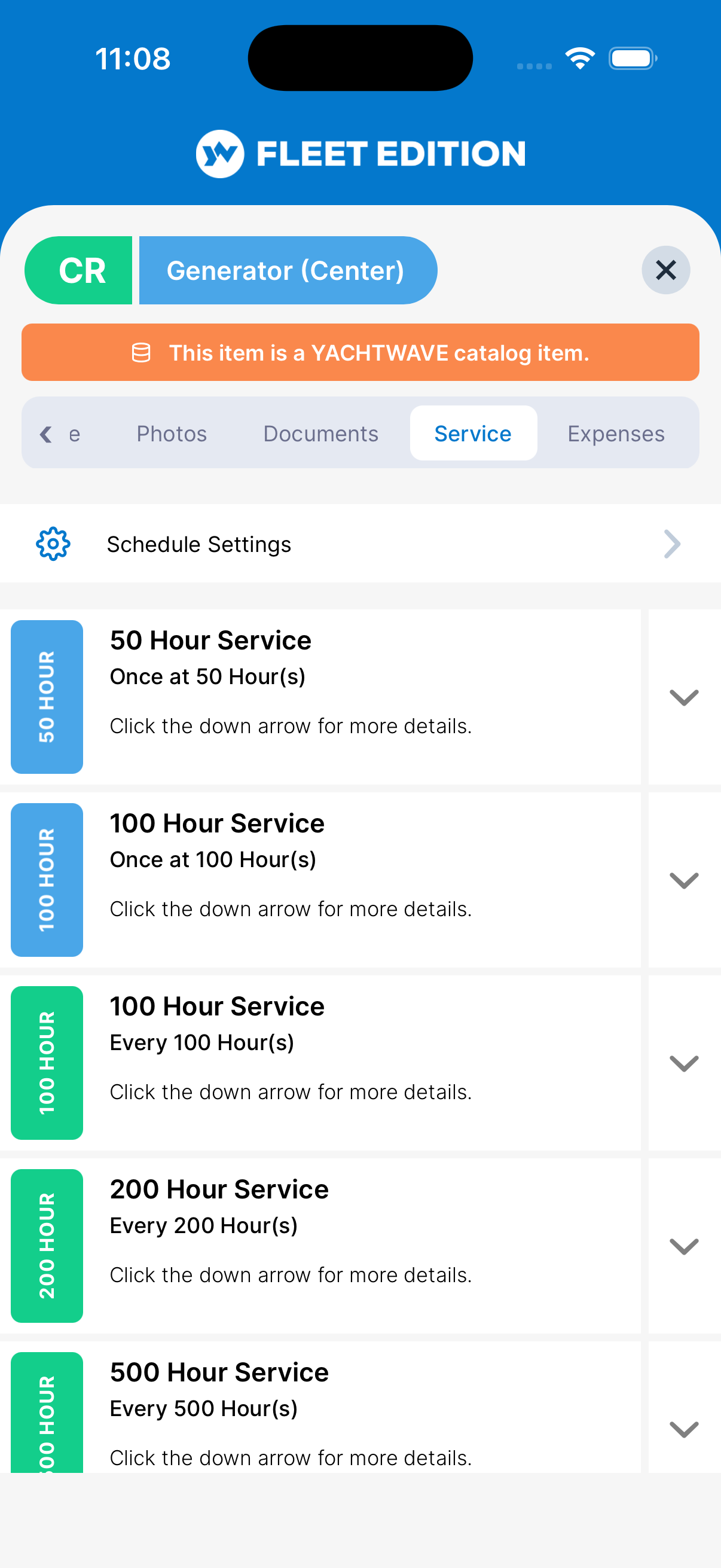
- Service — recurring maintenance intervals (every 100 hours, every 6 months, etc.).
- Expenses — what you’ve spent on this item (on plans that include it).
- Audit Log — who changed what, and when (on plans that include it).
The point of putting everything under one Mechanical item: when you tap “Main Engine — Port”, everything you need about that engine is right there.
Key Things on This Screen
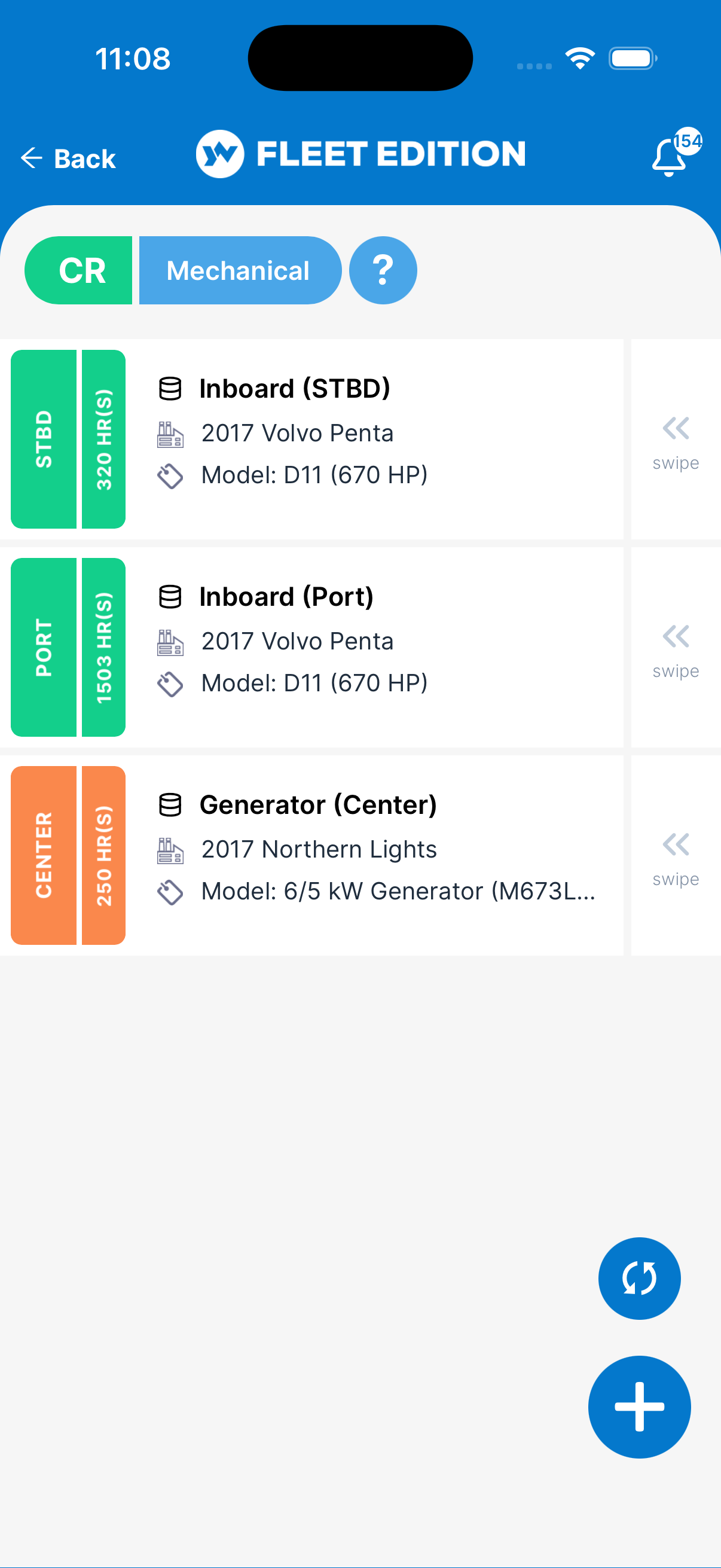
- Mechanical tile — One per item, titled with its type and location. Tap to open its full detail hub.
- + button (lower right) — Add a new Mechanical item.
- Swipe a tile left — Delete (with a confirmation).
- Tab strip across the top of the detail screen — Switch between Details / Maintenance / Service Schedule / etc. for the open item.
How to Add a Mechanical Item
- Tap the + button on the Mechanical list.
- Pick the Type (Main Engine, Generator, Transmission, Thruster, Stabilizer, etc.). The list of types is curated — pick the closest match.
- Pick the Location (port, starboard, center, etc.).
- Pick the Manufacturer from the list — it’s a set list so the AI Mechanic® can give you accurate, brand-specific advice (see the FAQ). Then type the Model.
- Add any specs you have handy: Year, Serial, Part #, Installed date, and Fuel and Horsepower when they’re shown.
- Tap Add.
- While the item is open, add your initial Service Schedule items (oil every 100 hr, impeller every 250 hr, etc.) — that’s what turns these items into automatic task reminders.
How to Add One from the Catalog Instead
If your plan includes it, the + button offers two choices instead of going straight to a blank form:
- Catalog — pick the manufacturer and model from our reference library and we fill in the specifications for you.
- Custom — the manual add described above, unchanged.
Records that came from the Catalog show a small database icon in front of their name on the list, and a band across the top of the detail screen. Everything the Catalog fills in stays editable. Full instructions are in The YACHTWAVE Catalog.
Tips
- Bulk-add Mechanical items using the web version. The mobile app is great for daily use; the web is better for the initial 30-minute setup when you’re entering 4 engines, 2 generators, and a thruster with all their model numbers.
- One hour meter, one Mechanical item. If your generator runs independently of your main engine, give them separate Mechanical entries so each one’s hours are tracked accurately.
- Log hours regularly in Readings. The Service Schedule reminder system uses your most recent reading to figure out whether a schedule is due. Stale readings = missed reminders.
- Fill in the specifications. Having the engine serial number and model on the Details tab pays off the first time a tech asks you for them dockside.
Troubleshooting
- “My manufacturer isn’t in the picker.” — Pick “Other (Not Listed)” or contact YACHTWAVE support (
[email protected]) to get it added. The picker is curated so the AI Mechanic® can provide brand-specific guidance — see the FAQ. - “My service reminders aren’t firing.” — Most often: stale hour readings. Open Readings, log the current engine hours, and wait until the next morning (the reminder job runs nightly).
- “My generator is using a Mechanical entry meant for my main engine.” — Mechanical items aren’t engine-specific by type; each Mechanical entry is independent. If you’ve been logging generator hours under the main engine’s tile, create a separate Mechanical entry for the generator and start fresh.
- “I tapped Delete and it’s gone — can I get it back?” — Deleted items are removed from your active list. Email
[email protected]if you need a recovery; if it was very recent, the support team may be able to restore it from backup.
Frequently Asked
What's the difference between Mechanical and Equipment?
Mechanical = anything with an hour meter (engines, generators, transmissions, stabilizers, thrusters, watermakers). Equipment = everything else (electronics, plumbing, appliances, safety gear, deck hardware). Both can have service schedules and maintenance logs, but only Mechanical items can have hours-based schedules. See also: Equipment.
How is Mechanical different from Inventory?
Mechanical and Equipment are installed assets — they live on the boat. Inventory is for consumables — oil, filters, fluids, cleaning supplies, spare parts you keep on board to use up over time.
Why can't I type in a custom manufacturer?
The Model is typed in, so any model works. The manufacturer comes from a list so the AI Mechanic® can give you accurate, brand-specific advice (selecting "Yanmar" carries verified specs about Yanmar engines into the AI; typing "yanmar " or "Yanm" doesn't). If your manufacturer isn't on the list, email [email protected] and the team will add it — usually same day.
Can I share Mechanical info between two boats?
No — each Mechanical item belongs to a specific yacht. If you sell one boat and move the engine to another, add a new Mechanical entry on the new boat (you can copy specs over manually).
Do I need to add my engines if I don't track maintenance?
Not strictly, but you're leaving most of the app's value on the table. Even without active service schedules, having your engines documented (specs, photos, manuals, hours) is the foundation of a strong service history and resale package.
See Also
- Equipment — the non-hour-metered counterpart.
- Service Schedules — recurring intervals attached to each Mechanical item.
- Readings — log engine hours so hour-based schedules can fire.
- Maintenance Logs — service history for each Mechanical item.
- Inventory — for the consumables (oil, filters, parts) you use on these items.
- The YACHTWAVE Catalog — add a known make and model without typing in the specifications.