
What is this? Numbers from your boat — engine hours, tank levels, GPS position, temperatures, speeds. The values that change over time and tell the rest of YACHTWAVE when to do things.
The Basics
A Reading is a single measurement at a point in time. The most important kind is engine hours — the running total your engine displays on its meter. Logging engine hours regularly is how YACHTWAVE knows when an hour-based Service Schedule is due.
Beyond engine hours, you can log other types from the Type list, such as:
- Tank levels — fuel, water, waste (as percentages).
- Coordinates — GPS positions, particularly during a cruise.
- Degrees — temperatures (engine room, sea, ambient).
- Speed — boat speed.
Readings follow the NMEA 2000 standard, so a YachtLINK® device on board can already send readings to YACHTWAVE automatically. On this screen, readings are entered by hand — quick to do, well worth the few seconds.
Each reading records the Date / Time it was taken. It defaults to now, and you can set an earlier time when you’re back-filling (never a future time). Readings can’t be edited after you add them.
Key Things on This Screen
- Reading tile — Which engine, equipment item or the vessel it relates to, the type and value with its unit, and the reading’s date and time.
- + button (lower right) — Add a new reading. You need a connection to add one.
- Search — Searches the type and the engine or equipment name.
- Unit — For values that can be measured more than one way (for example speed or temperature), pick the unit you read it in next to the Value.
- Swipe a tile — Swipe to delete a reading.
- Tabs on a reading — Details, Photos, and Audit Log when your plan includes it.
How to Log Engine Hours
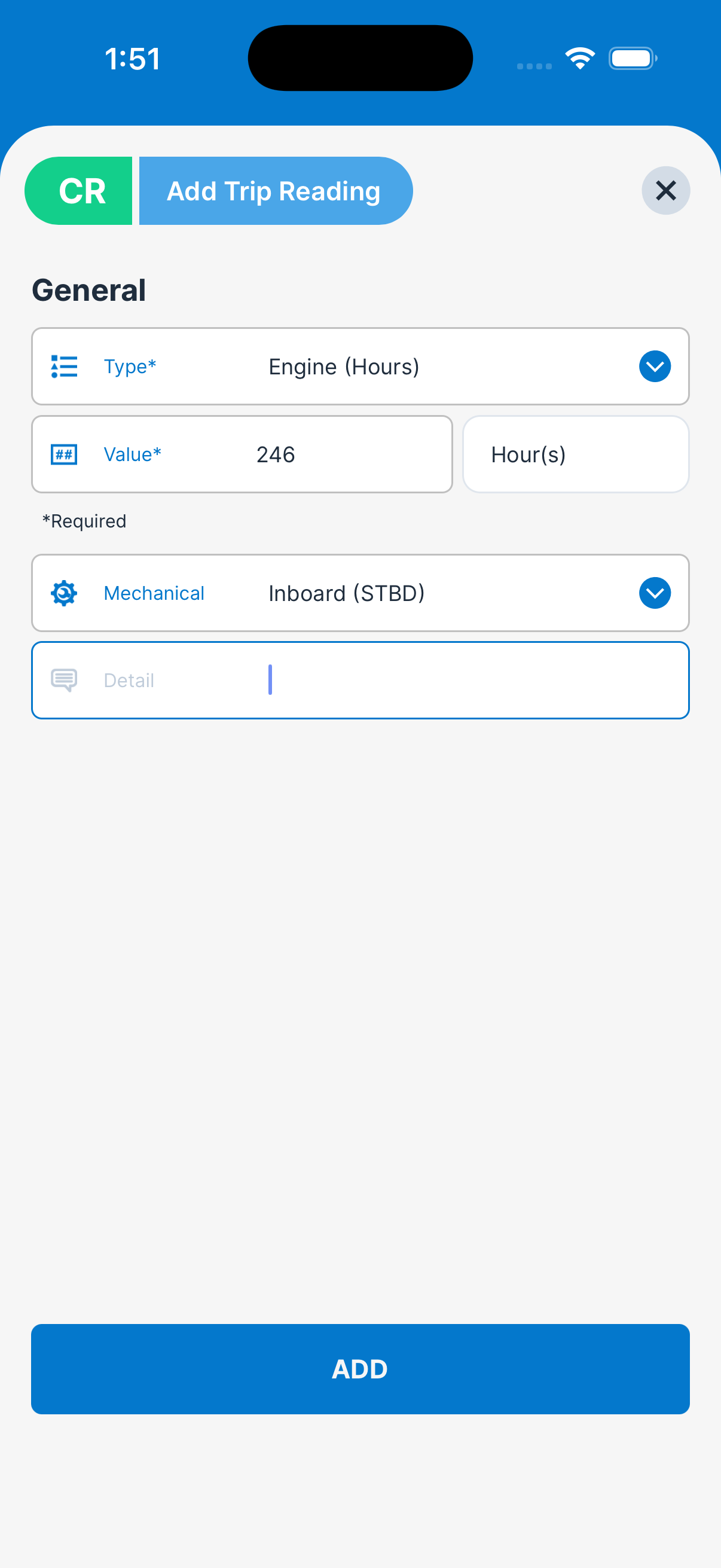
- Tap the + button on the Readings list.
- Pick the engine-hours Type.
- Pick the Engine (your engine, generator, etc.).
- Enter the Value from the engine’s hour meter. Use the full reading, not the delta since last time.
- Date / Time defaults to now — change it only if you’re back-filling an older reading.
- Tap Add.
How to Log a Tank Level
- Tap the + button.
- Pick the tank-level Type.
- Pick the Equipment item (the tank).
- Enter the current level as a percentage (0–100).
- Tap Add.
For a GPS position, pick the coordinates type: YACHTWAVE fills in Latitude and Longitude from your phone’s location (allow location access when asked).
Tips
- Log engine hours on every trip, even rough estimates. Hour-based Service Schedules use your latest reading — even a once-a-week reading is dramatically better than nothing.
- Use the most recent meter value, not the delta. The hour meter on the engine accumulates total run-time. Always enter that running total, not “I ran 3 hours today.”
- Back-fill old readings if you know them. If you bought the boat with 1,200 hours on it, log that as your install-date reading so the history tab makes sense.
- Cruise logging captures readings too. When you’re using Cruise Log, each trip point holds its own readings and position as part of the trip.
Troubleshooting
- “My hour-based Service Schedule isn’t firing.” — Almost always a stale or missing reading. Add a current hour reading for the engine and wait until the next morning (the reminder system runs nightly).
- “I see Engine hours too low.” — Engine hours only go up. YACHTWAVE won’t add an hours reading that is lower than an earlier reading for the same engine; the message shows the earlier hours and date. Check for a wrong digit, or check the Date / Time — a reading dated before the earlier one is compared only with readings before it.
- “I logged a reading but it didn’t sync.” — Pull-to-refresh on the readings list. If still not appearing across other devices, check your network connection. Adding or deleting a reading needs a connection.
- “My tank-level reading doesn’t show on the dashboard.” — Readings you add by hand are kept in the Readings list; the boat dashboard does not show reading values. Live tank levels appear on the Summary page for a boat with YachtLINK®.
Frequently Asked
Do I need to log readings to use YACHTWAVE?
Only if you want hour-based service reminders to work. Tasks, maintenance logs, expenses, and most other features don't depend on readings. But if you want "remind me when the engine hits 250 hours for the next service," you need to keep readings current.
How often should I log engine hours?
At minimum, once a month if you're actively using the boat. Once a trip is better. The system uses your latest reading to project current hours — long gaps mean less accurate projections.
Can YACHTWAVE pull readings from my instruments automatically?
Yes, with a YachtLINK® device. It reads the boat's NMEA 2000 instruments and sends engine hours, tank levels and other values to YACHTWAVE on its own. You see them on the boat's Summary page. Readings you add by hand stay in this Readings list.
Can I see a chart of my readings over time?
Not in the app. The Readings list shows every reading with its date and time; search for an engine's name to see just its history.
Can I delete a wrong reading?
Yes — swipe the tile and tap delete. Readings can't be edited, so if you typed the wrong number, delete it and add it again.
See Also
- Mechanical — readings attach to a specific Mechanical item (engine, generator, etc.).
- Equipment — for tank-level and similar non-hour readings.
- Service Schedules — uses your most recent readings to know when to fire.
- Cruise Log — captures readings automatically as part of trip waypoints.