
What is this? A record of each trip your boat takes — where you went, when, who was on board, the engine hours and fuel burned, the weather, and the checklists you ran along the way.
The Basics
A Cruise is one trip — Lauderdale to Bimini, a weekend up the ICW, Tuesday afternoon at the sandbar. Each cruise captures three kinds of data:
- Where and when — start point, end point, any waypoints in between, total duration, total distance.
- Who — guest list and crew on the trip.
- What happened — engine hours and fuel readings logged along the way, photos, completed checklists, notes.
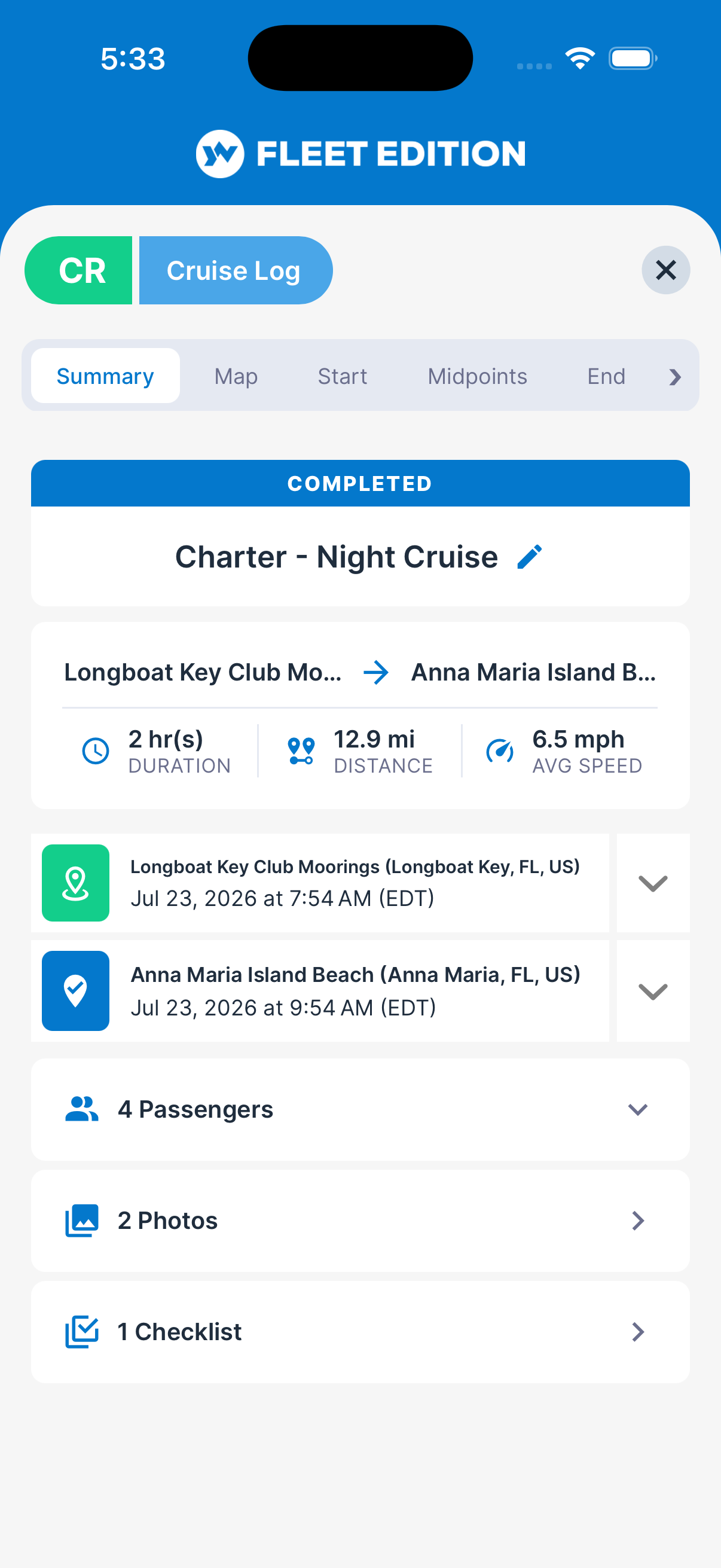
You can build a Cruise by hand — tap +, name the trip, enter the start point, work the trip, then enter the end point when you’re back — or, with a YachtLINK® device on board, let the device record it (see Recording a trip with YachtLINK® below). Either way the summary fills in automatically — total time, distance run, average speed.
A cruise has a status:
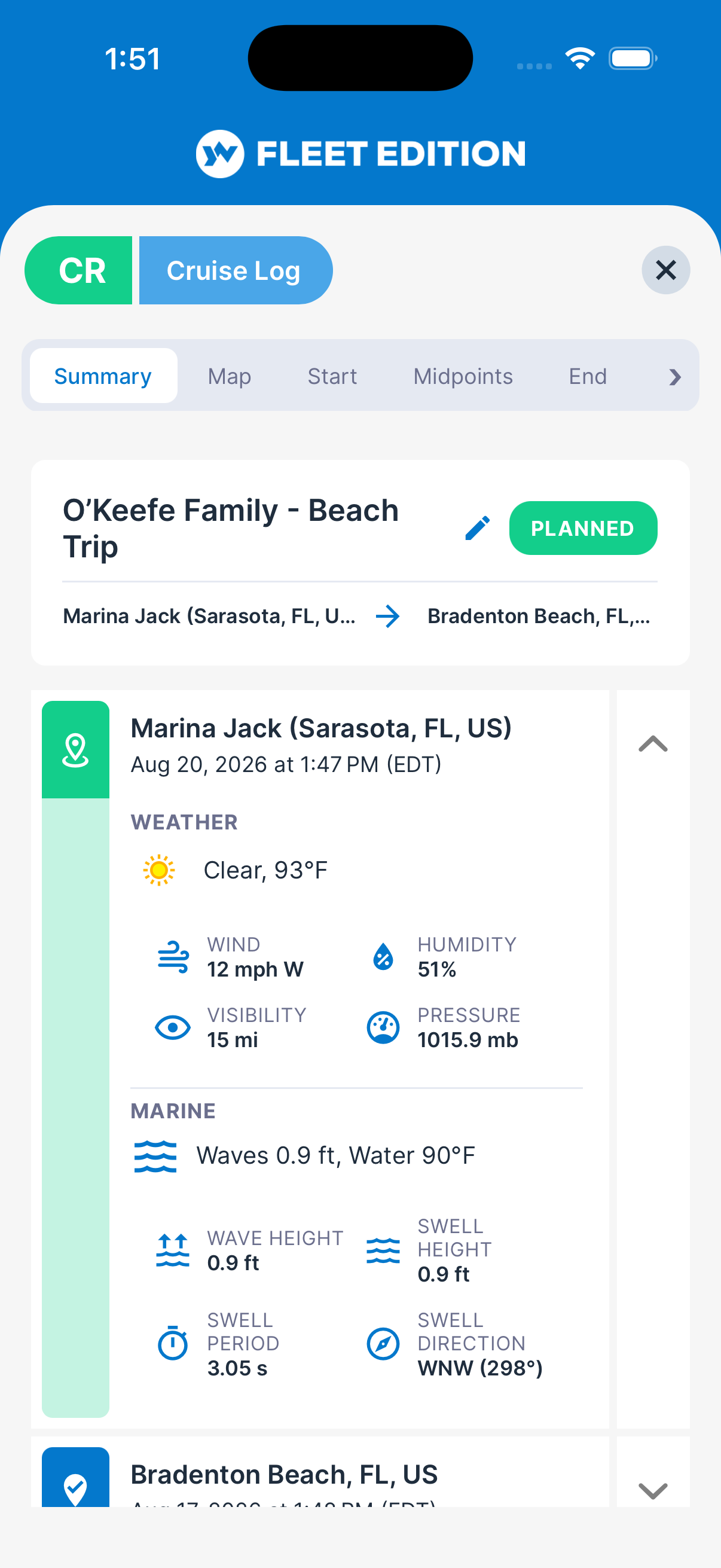
- Planned — added but not yet started (green tag).
- En route — the start point’s date and time have passed, and there’s no end point yet (orange tag). A trip whose start point is dated in the future stays Planned until that time.
- Completed — end point logged (blue tag). The trip is closed.
Key Things on This Screen
- Cruise tile — One per trip. Title is Start → End, or the cruise name if you’ve set one.
- + button (lower right) — Add a new cruise (start a new trip log).
- Status tag — Planned / En route / Completed with a color.
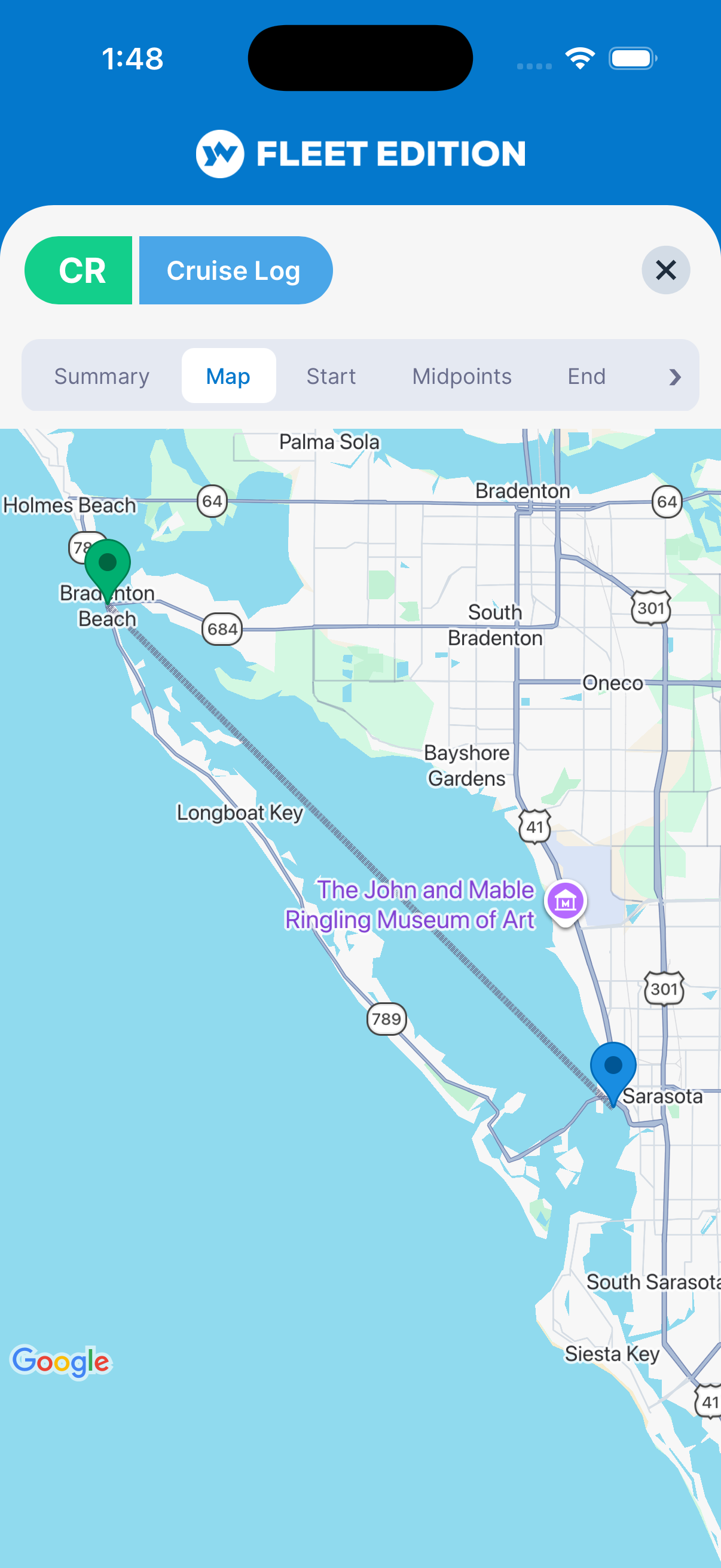
- Tabs (inside a cruise) — A new trip shows only Start. Once the start point is in: Map, Start, Midpoints, End, Guests, Photos, Checklists, Expenses (when your plan includes it) and Summary; Summary moves to the front once the trip has an end point. An Audit Log tab appears when your plan includes it. The Map tab draws the trip from its points; use the + / − buttons to zoom.
- Connection needed — Adding a trip, a point or a checklist needs a connection.
How to Log a Cruise
- Tap + on the Cruise Log list, enter a Trip Name and tap Add.
- The new trip opens on its Start tab. Enter the start point — date/time, location (port name, or lat/long; the GPS button fills in where you are, the Home button fills in your home port) — and tap Add.
- The cruise is now En route.
- During the trip, add Midpoints (waypoints, fuel stops, anchorages) — open the cruise, switch to the Midpoints tab, tap +.
- Add Guests (who’s onboard) on the Guests tab.
- Add Photos on the Photos tab.
- Run Checklists (e.g. anchor watch, pre-departure) on the Checklists tab — see Live Checklists.
- When you arrive, open the End tab and enter the end point (date/time, location, final readings).
- Tap Add. The cruise becomes Completed, distance/duration are calculated automatically.
Recording a Trip with YachtLINK®
If your boat has a YachtLINK® device installed, the device can write the trip for you. Trips are recorded only by the YachtLINK® device; the app does not record a trip from your phone’s GPS.
- Add the cruise (name only) as above, or open a planned trip.
- On the Start tab, tap Start Recording and confirm. The start point is written from the device’s latest position, with the weather and conditions at that moment. If the trip already has a start point, YACHTWAVE asks first (Replace & Record): the device’s position, time, weather and readings replace the old start point, and your notes are kept.
- Go boating. While the trip is recording, the device adds trail points as the boat moves, and the card at the top of the Start tab shows Recording with the time it began. Pull down to refresh to see the newest points on the Map and Midpoints tabs.
- When you are back, tap Stop Recording and confirm. The end point is written from the device’s latest position and the trip becomes Completed.
Start Recording appears only on a trip that is not complete, and only when your boat’s plan includes the YachtLINK® device and one is installed. One trip records at a time per boat; if another trip is already recording, open that trip and stop it first.
How Many Points a Recorded Trip Keeps
The device reports its position every few seconds, but a trail does not need every fix to draw well, and every point travels to every phone and tablet on the boat each time the app syncs. So the device writes a trail point only when something changed:
- the boat has moved about a quarter mile since the last point, or
- the boat has changed course, or
- 15 minutes have passed and the boat is under way.
A boat sitting at the dock or at anchor writes no points at all; the boat has to move at least about 165 feet (50 meters) before a point is considered.
A trip keeps at most 500 device trail points. When a long trip passes 500, YACHTWAVE thins the trail: it keeps every point where the boat turned (a course change of 20° or more) and removes every tenth point along the straight runs, from departure to the current position evenly, so the trail stays smooth end to end rather than detailed at one end and sparse at the other. Recording then continues, and the thinning repeats each time the count passes 500. Removed points are gone for good.
What that means in practice:
| Trip length | Trail points kept | Spacing between points |
|---|---|---|
| up to about 108 nautical miles | every point written, up to 500 | about a quarter mile |
| about 216 nautical miles | about 450–500 | about half a mile |
| about 430 nautical miles | about 450–500 | about a mile |
| about 880 nautical miles | about 450–500 | about two miles |
Thinning only ever touches the trail points the device wrote. It never removes:
- the start and end points, with their weather, conditions, port and readings;
- any midpoint you entered yourself, or the notes and readings on it;
- readings the device took during the trip (engine hours, fuel, tanks, batteries) — those live in the boat’s readings history, not in the trail;
- the trip’s distance, duration and average speed, which are recalculated from the points that remain (removing points on a straight run changes the distance by a very small amount).
How to Add a Waypoint Reading
- Open the cruise, switch to Midpoints.
- Tap + to add a new midpoint.
- Enter date/time, location and any notes.
- Tap Add Midpoint. The weather and sea conditions are usually filled in for you. They stay empty if the point is more than about two weeks in the future, if there is no weather data for that spot, or if the weather service is down.
- Open the midpoint to add readings (engine hours, fuel level, etc.). The midpoint shows up in the cruise’s distance + duration math.
Tips
- Log the start point before you cast off. A cruise without a start point is just a tile with no data — the trip stats only build once start and end are in place.
- Use Midpoints for fuel stops and anchorages. A trip with three midpoints tells a much richer story than a start-and-end pair — and lets you reconstruct the day for the logbook.
- Don’t forget the end point. A cruise stuck on “En route” status is incomplete. If you forget, you can add the end point days later on the End tab.
- Photos go on the Photos tab inside the cruise. A weekend at the sandbar with a dozen photos is way easier to find later than scrolling through your camera roll.
- Distances are calculated from coordinates. If you enter lat/long for your start, midpoints, and end, YACHTWAVE computes the distance and average speed automatically. Port names alone don’t give you the math.
- A recorded trip looks sparse at the dock on purpose. The device writes a point only when the boat moves; the first trail points appear once you are under way.
Troubleshooting
- “I can’t add a trip, point or checklist.” — These need a connection. Wait until you have signal, then try again.
- “My cruise shows zero distance and zero duration.” — One of your points is missing a date/time or coordinates. Open the cruise, check that Start, every Midpoint, and End all have a date/time. Distance also needs lat/long on at least two of the points.
- “I tapped End but the cruise is still En route.” — Make sure you tapped Add on the End tab, not just Back.
- “My cruise tile shows the wrong title.” — Title comes from the cruise’s name (if set), otherwise Start → End from the points. Edit the cruise’s name field on the Summary tab.
- “I want to run a checklist during the cruise.” — Open the cruise, go to the Checklists tab, and start a Live Checklist from a Template. Checklists run during the cruise are kept with the cruise’s history.
Frequently Asked
What's the difference between Cruise Log and Official Log?
Cruise Log is for trips — a journey with a start, midpoints, and end, with distance and duration math. Official Log is for free-form events — engine starts, mooring inspections, weather observations, anything that's not specifically a trip.
Can I edit a cruise after it is Completed?
Yes. Open the cruise and edit any field — including back-filling additional midpoints, photos, or guests. The status stays Completed.
How are distance and duration calculated?
Duration = end timestamp − start timestamp. Distance = the great-circle distance summed across every point that has valid lat/long, following your route from start through the midpoints to the end. It's measured in nautical miles and shown to you in miles or kilometers based on your device's region. If a point doesn't have coordinates, it's skipped for the distance math but still kept on the timeline. The distance comes straight from YACHTWAVE's servers, so it reads the same on your phone, tablet, and the web app.
Can I share a cruise log with someone?
Crew members on the yacht see the cruise log automatically. To share outside YACHTWAVE, use the export feature on the web version.
Can I see my cruise on a map?
Yes. Open the cruise and switch to the Map tab. Every point with coordinates is pinned and the route is drawn between them; tap a pin to see its name. The map opens showing about 20 miles around the trip (more for a longer trip) and has + / − buttons to zoom.
Why does my long recorded trip have fewer points than it used to?
A trip keeps at most 500 device trail points. Once a trip passes that, YACHTWAVE removes every tenth point along the straight runs (turns are always kept) so the trail stays smooth from start to finish. Your start and end points, anything you entered yourself, and the trip's distance and duration are not affected. See How many points a recorded trip keeps above.
See Also
- Official Log — for non-trip events.
- Readings — engine hours and fuel readings can be entered both standalone and as part of cruise midpoints.
- Live Checklists — run pre-departure, anchor watch, or arrival checklists during a cruise.
- Pictures — boat-wide photo gallery (separate from cruise-attached photos).