
What is this? Your boat’s photo gallery. Photos of the boat itself, specific equipment, problems to show a mechanic, the view from the bow — anything visual you want kept with the vessel rather than lost in your camera roll.
The Basics
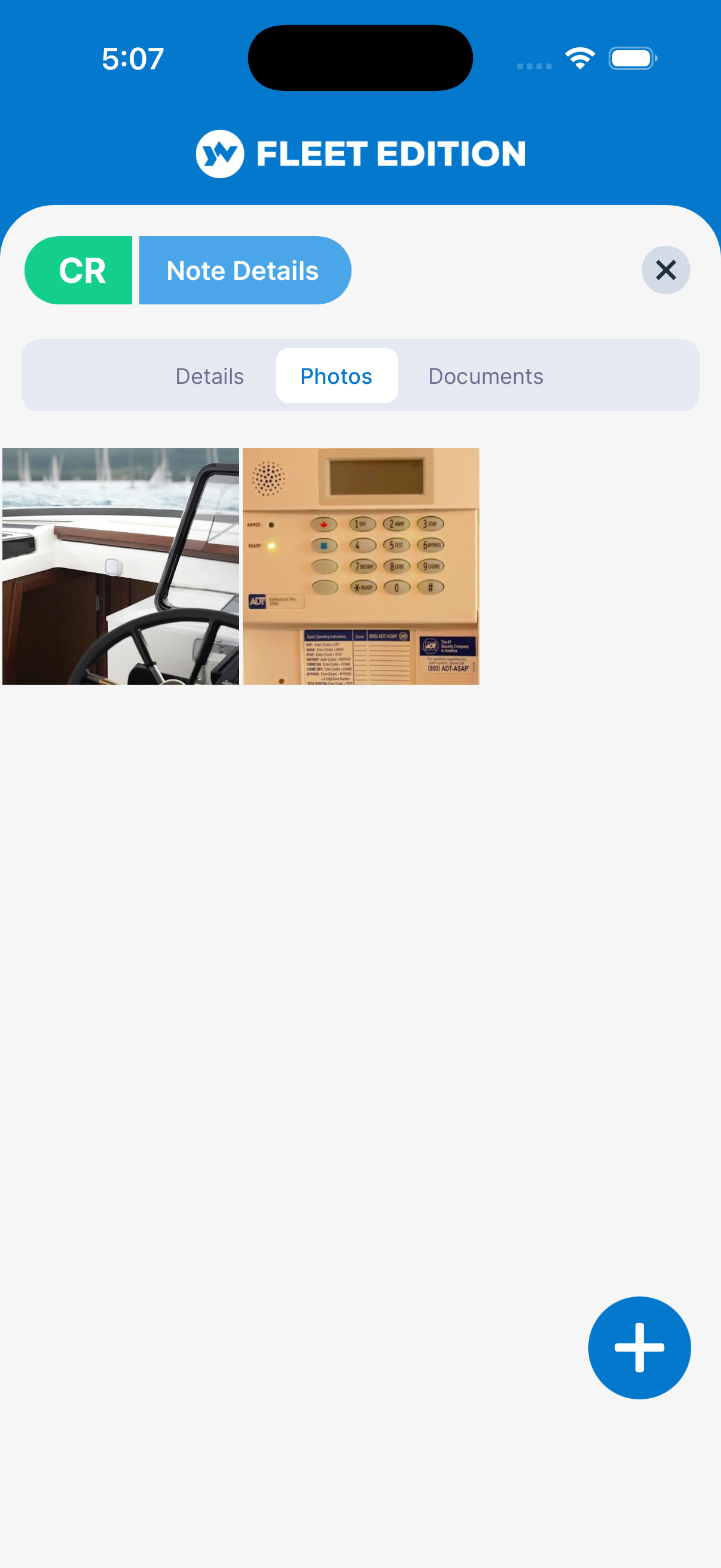
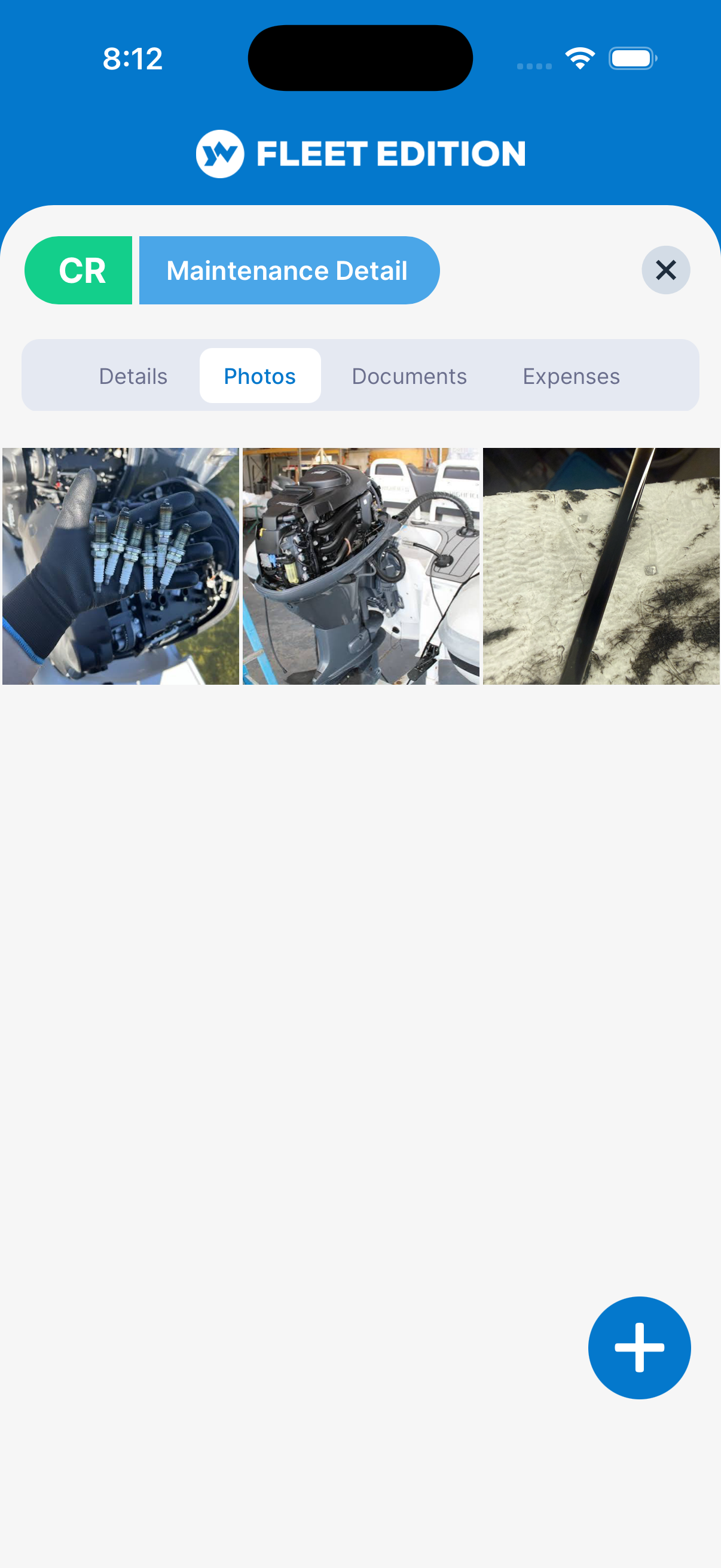
Pictures live with the yacht. Add photos here when they’re about the boat (not a specific trip — trip photos belong on a Cruise Log entry). Browse them as a grid or swipe through them full-screen.
Photos can also be attached to specific items — Mechanical items, Equipment, Cruise Log entries — from those screens. The Pictures screen here is the boat-wide gallery.
Key Things on This Screen
- Photo grid — Thumbnails of all the yacht’s photos, newest first. The order can’t be changed.
- + button (lower right) — Add a photo from your camera or library.
- Tap a thumbnail — Open the full-screen viewer; swipe left/right to flip through, and pinch or double-tap to zoom.
- Trash can icon (top of the full-screen viewer) — Delete the photo on screen, after you confirm.
- Share icon (top of the full-screen viewer) — Share a link to the photo.
- Pull down on the grid — Refresh from the cloud.
How to Add a Picture
- Tap the + button.
- Choose Use Camera (opens the camera) or Photos (your photo library).
- If from the library, you can pick more than one — they’re all uploaded together.
- Wait while they upload. You need a connection, and the upload happens right then, not in the background — stay on the screen until it finishes.
- The new photos appear at the top of the grid.
Tips
- Take “before” photos before maintenance work — the way wiring was routed, what the bilge looked like, the part number on a label. The 5 seconds it takes to snap is gold three years later.
- Photograph serial numbers and labels so they’re searchable later. Better than transcribing tiny stamps.
- Trip photos belong on the trip. A cruise’s own photo tab keeps trip pictures grouped with their cruise — much easier to find later than scrolling the whole boat’s gallery.
- Delete blurry shots. Storage isn’t unlimited, and a clean gallery is more useful than a cluttered one.
Troubleshooting
- “I only selected one photo, but the picker added several.” — Known issue with photo selection on some devices. Pick photos one at a time as a workaround. We’re tracking and tightening this.
- “My new photo doesn’t show up.” — A photo appears only once its upload has finished. Pull down on the grid to refresh. If it’s still missing, add it again on a stronger connection.
- “My photo upload failed.” — Network issue, or the file is too large. If the photos are over the size limit you’re told so before anything uploads — pick fewer photos or smaller ones. Otherwise try again on a stronger connection.
Frequently Asked
How is this different from my phone's camera roll?
Photos in YACHTWAVE travel with the yacht. If you change phones, sell the boat (and transfer it to a new owner), or just lose the phone, your boat's photo history is intact. They're also visible to your crew with access to the yacht.
Where do photos taken during a cruise go?
Open the cruise on the Cruise Log screen and use its Photos tab — those photos are kept with that specific cruise, not in the boat-wide gallery.
Can I attach a photo to a specific engine or piece of equipment?
Yes — open the Mechanical or Equipment item and use its Photos tab. Photos there appear on that item, not the boat-wide gallery.
Are photos visible to crew with access to the yacht?
Yes. For private photos, keep them in your camera roll rather than uploading to YACHTWAVE.
Can I share a photo via text or email?
Yes — open the full-screen viewer and tap the share icon. It sends a link to the photo through your phone's share sheet.
See Also
- Documents — for scans of paperwork (manuals, registrations, certificates).
- Cruise Log — for photos that belong to a specific trip.
- Mechanical and Equipment — for photos of a specific item.
- Notes — text version of “things you want to remember about the boat.”