
What is this? A simple notepad for your boat. Anything you want to remember that doesn’t fit elsewhere — quirks of the boat, dock contacts, recipes, “the trick that makes the windlass behave.”
The Basics
Notes are unstructured reference material — the digital version of the steno pad in the navigation table. Each note has a Type (such as Code, Keys, Password, Serial No., Miscellaneous, or Other), a Name, and the note text itself. Type and Name are required; the text is optional. There’s no date timeline.
Common uses:
- Boat quirks — “The shower drain pump needs the auto switch flicked off when leaving the boat for >2 weeks.”
- Settings and preferences — “Cruise RPM 1850 — fuel burn balanced ~6gph per side.”
- Recipes and crew favorites — “Captain John’s storm-cooked chili (one-pot).”
People and companies go in Contacts, a separate list with phone and email fields. Contacts, not notes, feed the Paid To Contact picker in Expenses.
Key Things on This Screen
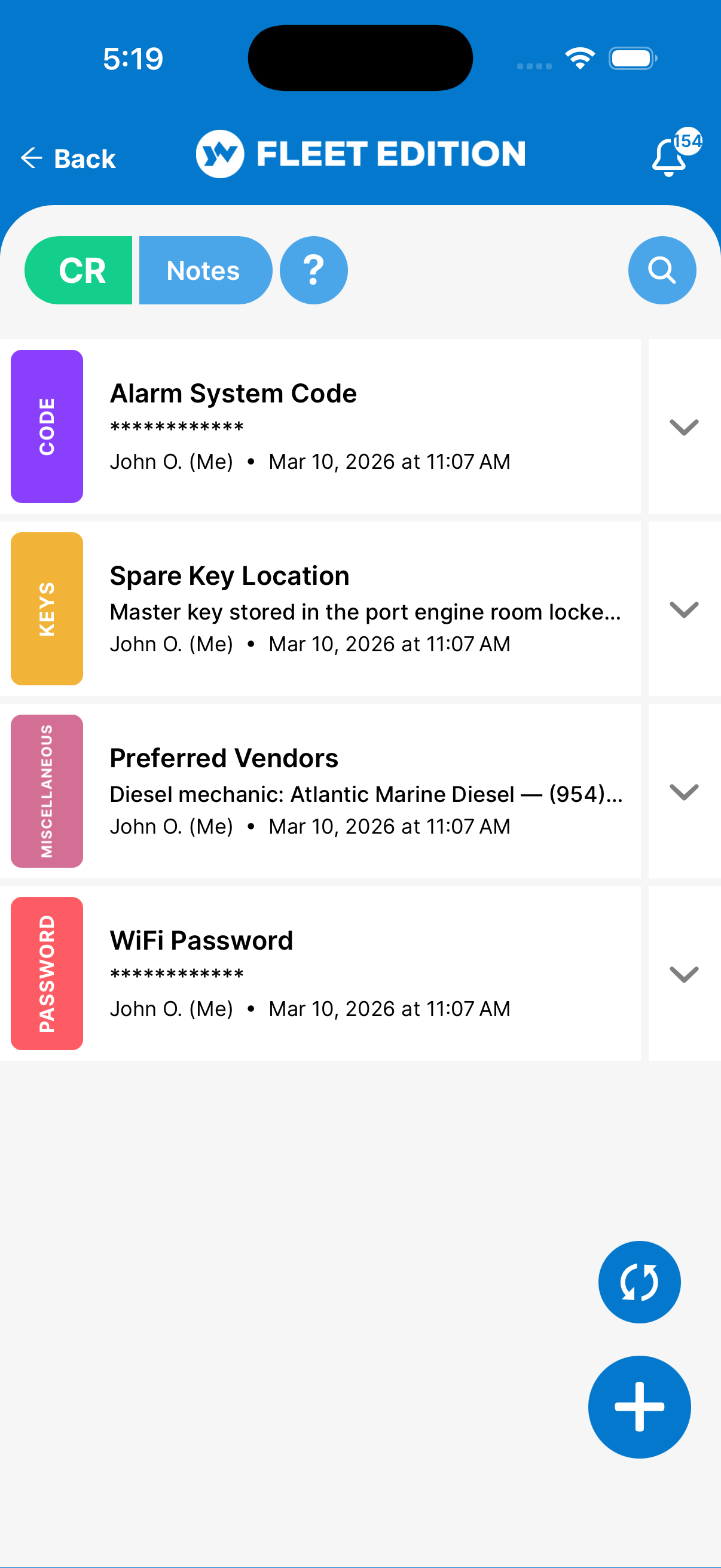
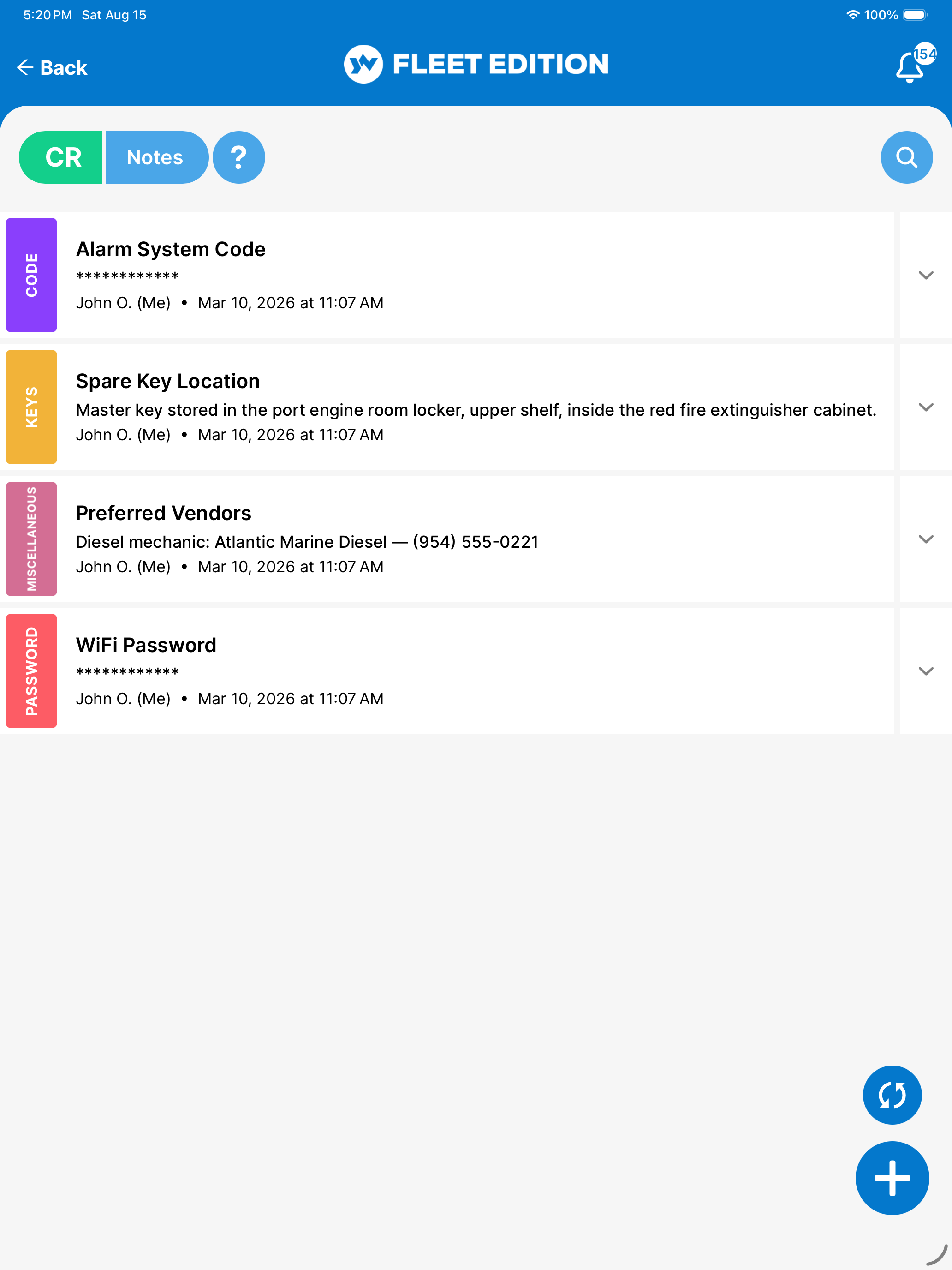
- Note tile — Type, name, the first line of the text, and who added it and when. Notes are listed by type, then by name. Tap the tile to open it.
- Expand arrow — Shows the full note text right in the list.
- Hidden text — Some types, such as passwords, show stars instead of the text in the list. Tap the expand arrow or open the note to read it.
- + button (lower right) — Add a new note.
- Search icon — Search by name or type. There are no other filters.
- Swipe a tile left — Shows Delete.
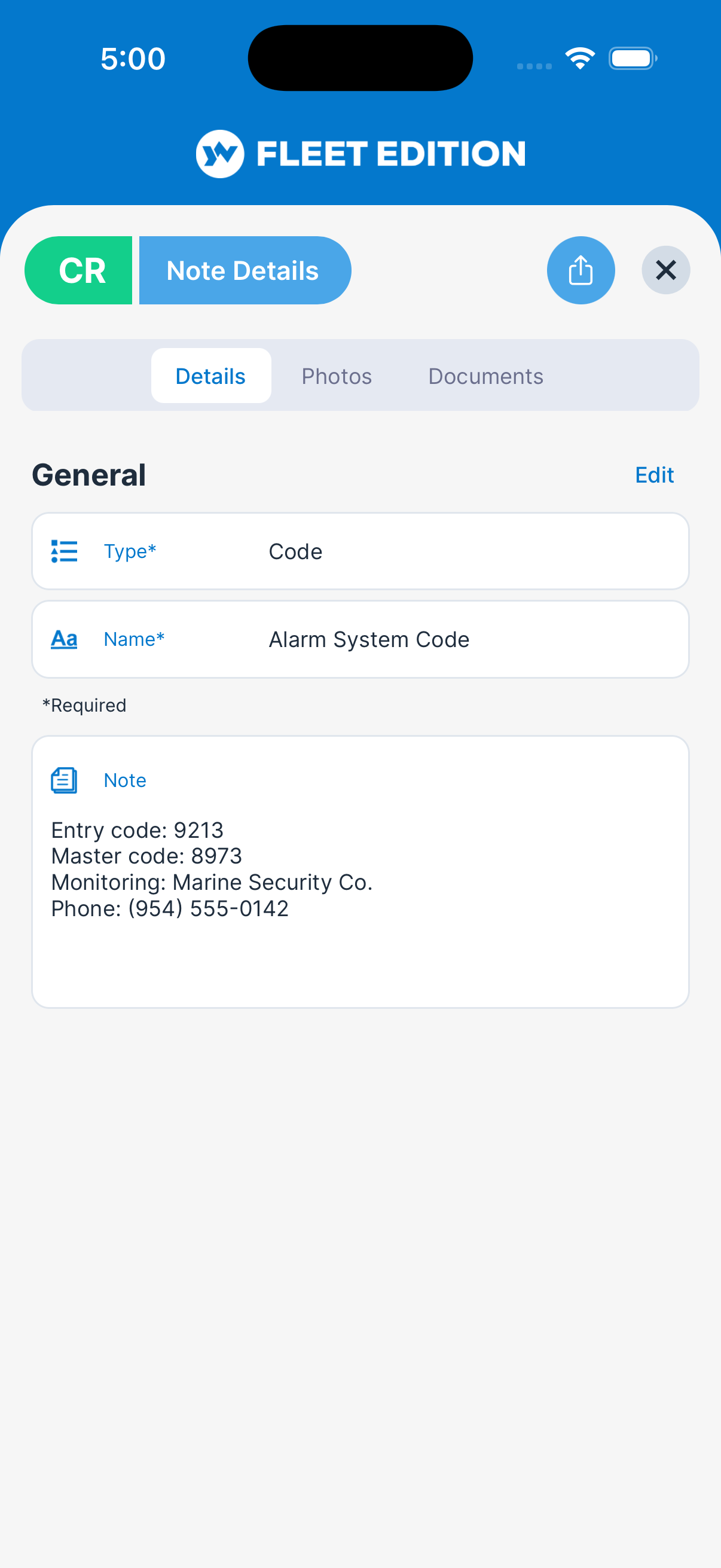
- Tabs on an open note — Details, Photos, and Documents (plus Audit Log on plans that include it).
- Share icon (top of an open note) — Shares a link to a web page of the note.
How to Add a Note
- Tap the + button.
- Choose a Type.
- Enter a Name.
- Enter the Note text — plain text, up to 10,000 characters.
- Tap ADD.
To change a note later, open it, tap Edit, make your changes, and tap Save.
Tips
- Use Notes for the things you keep telling yourself you’ll remember. That’s exactly what they’re for.
- A good note name is searchable. “Windlass quirk” beats “Notes about the boat.” Search looks at the name and type, not the note text, so put the words you’ll search for in the name.
- The Official Log is for events; Notes are for facts. If you find yourself dating a Note, it probably belongs in Official Log instead.
Troubleshooting
- “My note didn’t save.” — Make sure you tapped Save (or ADD for a new note). If you tap Cancel while editing with unsaved changes, you’re warned and can still save.
- “I can’t find a note I made.” — Search by a word from its name or its type. Search doesn’t look inside the note text.
- “A person I need isn’t in the Expenses picker.” — The Paid To Contact picker lists Contacts, not notes. Add the person as a contact.
Frequently Asked
What's the difference between Notes and Official Log?
Notes are reference material — facts you want to keep around. Official Log is a timeline of dated events. "Windlass quirk" is a Note. "Windlass failed 2026-04-12 — sourced replacement at West Marine" is an Official Log entry.
Can I attach a photo or file to a Note?
Yes. Open the note and use its Photos or Documents tab.
Can I share a Note with my crew?
All notes are visible to anyone with access to the yacht. There's no per-note privacy switch.
Can I share a Note via text or email?
Yes — open the note and tap the share icon in the header. It sends a link to a web page of the note through your phone's share sheet (Messages, Mail, your favorite messaging app).
See Also
- Official Log — for dated events.
- Documents — for files (PDFs, images) you want to keep with the boat.
- Pictures — for boat-wide photos.
- Contacts — people and companies, which also appear in expense pickers.