
What is this? Your boat’s address book — mechanics, marina managers, surveyors, parts suppliers, the dive crew, the diesel guy. The phone numbers and emails you keep going back to.
The Basics
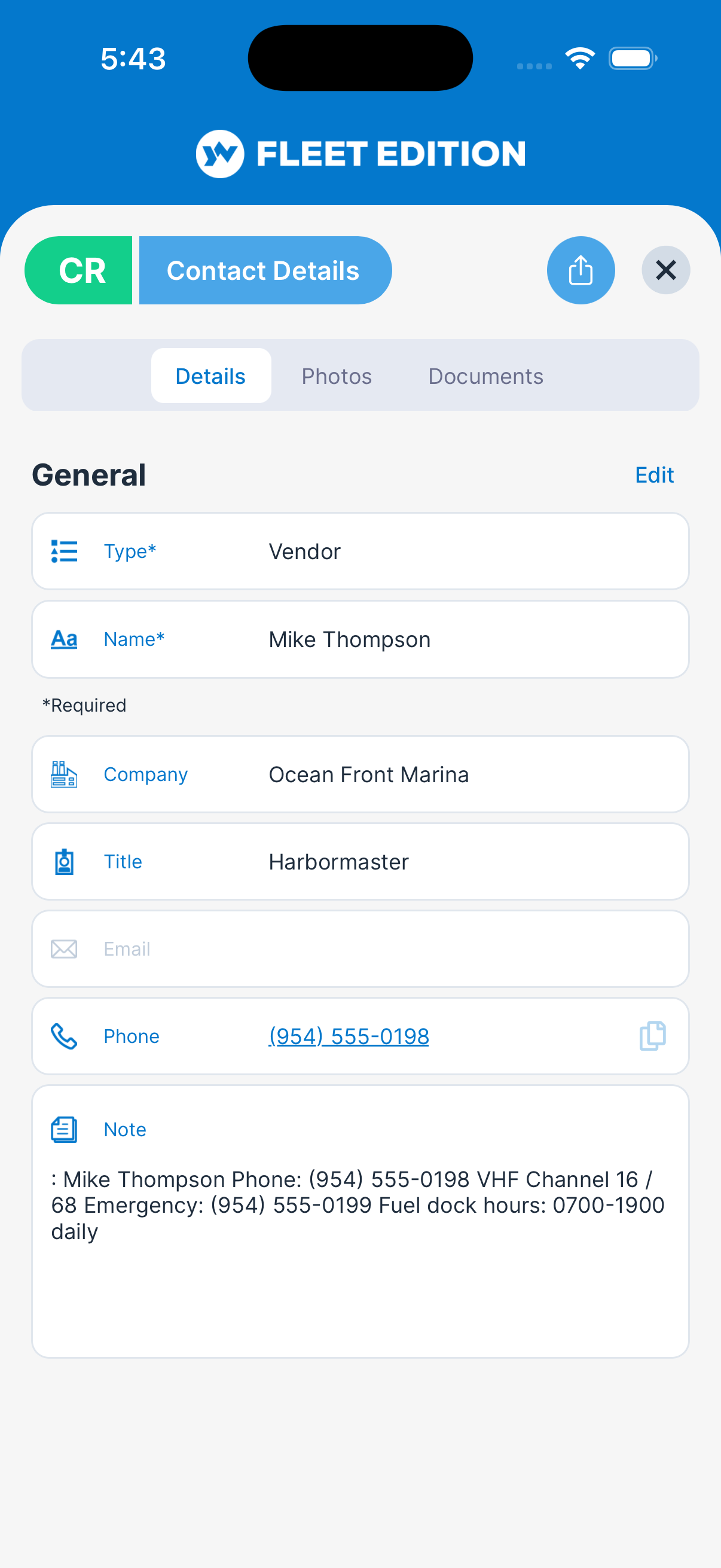
A Contact is a special kind of Note — same underlying storage, but with a contact Type, so it includes structured fields:
- Type — the kind of contact. The list offers contact types only.
- Name — the person’s name.
- Company.
- Title — what they do (Diesel Mechanic, Marina Manager, Hull Surveyor, etc.).
- Email and Phone.
- Note — anything else worth remembering (best time to call, who their assistant is, what they’re known for).
Contacts get their own dashboard tile so they don’t get lost in your general notes, and they feed the Paid To Contact picker on Expenses. So adding the mechanic to Contacts once means every future engine service expense can pick them from a dropdown.
Key Things on This Screen
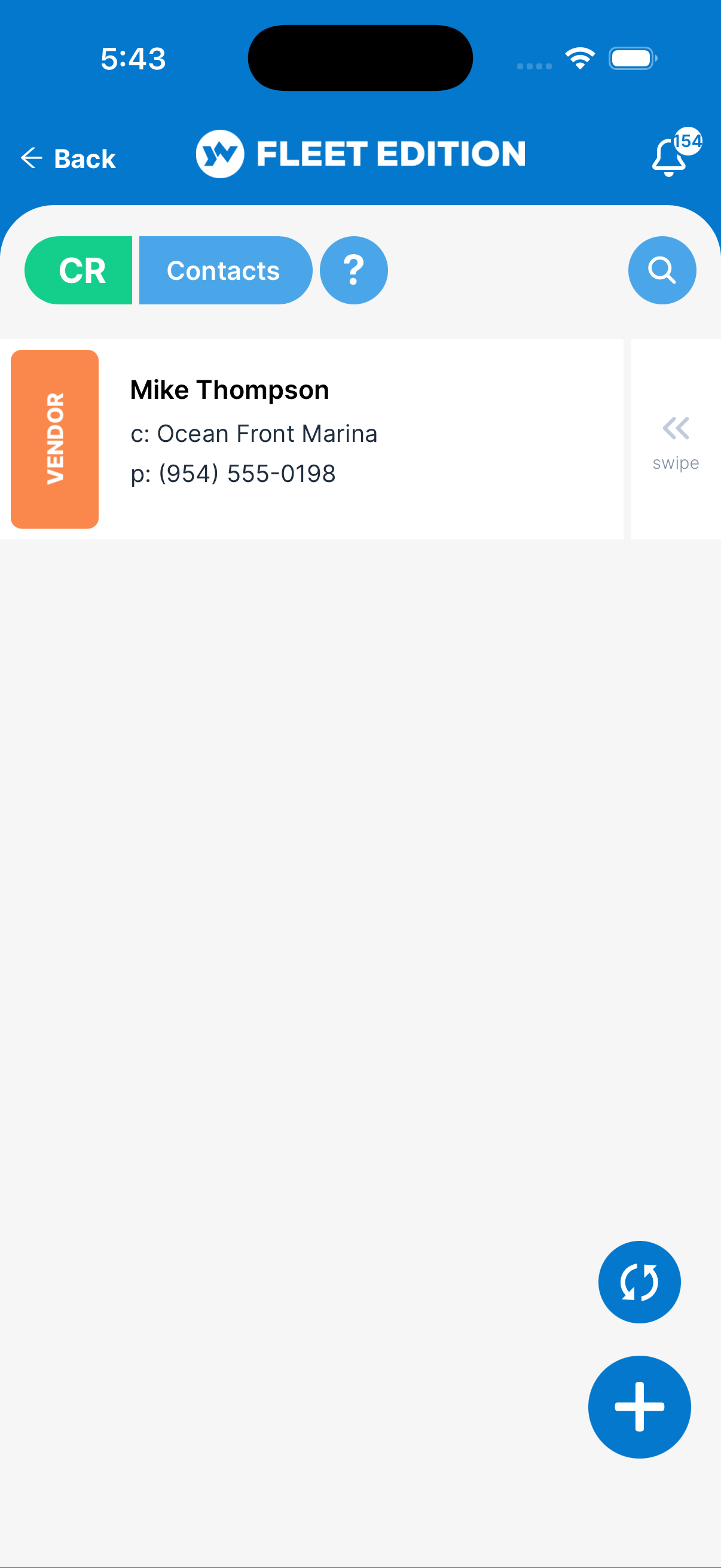
- Contact tile — Name, type, and two short lines: company (c:), phone (p:), or email (e:). Contacts are listed by type, then by name. Tap the tile to open it.
- + button (lower right) — Add a new contact.
- Phone and Email on an open contact — Tap the phone number to call, or the email address to start an email. Each also has a copy button.
- Search icon — Search by name or type. There are no other filters.
- Swipe a tile left — Shows Delete.
- Tabs on an open contact — Details, Photos, and Documents (plus Audit Log on plans that include it).
How to Add a Contact
- Tap the + button.
- Pick the Type. Only contact types are offered here.
- Enter the Name (the person’s name) and optionally the Company.
- Add the Title (a free-text descriptor like “Diesel Mechanic” or “Hull Surveyor”).
- Enter Email and Phone.
- Add any Note — best time to call, whose assistant to ask for, what they specialize in.
- Tap ADD.
How to Call or Email a Contact
- From the Contacts list, tap the contact to open it.
- Tap the Phone number to call.
- Or tap the Email address to compose an email in your mail app.
Tips
- Add the why in the Note field. “Joe at Marine Diesel — he replaced our injectors in 2024, knows the boat” beats “Joe — 555-1212” every time. Future-you (or your crew) will thank you.
- Capture the contact the same day you used them. The card you got at the dock will be lost by next month. Type it in now, even with only a name and number.
- Use consistent names and types. Search looks at the name and the type, so a contact you can’t remember the name of is easiest to find by its type.
- Contacts feed Expenses. When you record a paid invoice, the Paid To Contact picker pulls from this list. Adding contacts means future expense entries become two-tap pickers instead of typing.
- Crew share contacts. Everyone with access to the yacht sees the contact list. Adding the great parts supplier here helps the next captain who joins.
Troubleshooting
- “My contact isn’t showing up in the Expense picker.” — Make sure you added it from the Contacts list, not from Notes. Notes don’t appear in the picker.
- “The phone icon doesn’t dial.” — Make sure the phone number is in a format your phone can understand. International numbers need the
+prefix. If a contact has an extension, store the extension in the Note field — the call action won’t dial extensions automatically. - “My contact shows under Notes instead of Contacts.” — It was added from the Notes list, so it has a note type. The Type list on a note offers note types only, so add the person again from the Contacts list and delete the note.
- “I imported contacts from my phone, but YACHTWAVE doesn’t have them.” — YACHTWAVE contacts are separate from your phone’s address book. Add them here individually (or use the web version for faster bulk entry).
Frequently Asked
How is a Contact different from a Note?
A Contact is a Note with a contact Type. That does three things: (1) it shows in the Contacts list, (2) it gets the company/title/email/phone fields, (3) it appears in the Paid To Contact picker on Expenses. A regular Note doesn't have any of those.
Can a Contact be tied to a specific engine or piece of equipment?
Not directly — contacts belong to the yacht, not to an item on the yacht. But you can write the engine/equipment context into the contact's Note field ("Replaced impellers on the port engine in 2024").
Can my YACHTWAVE contacts sync with my phone's address book?
Not currently. YACHTWAVE contacts are kept inside the app so they're shared with crew on this yacht (and not on every other yacht you own or crew on). Sync with the phone address book is on the roadmap.
Can I share a contact with someone outside YACHTWAVE?
Open the contact and use the share icon. It sends a link to a web page of the contact through your phone's share sheet (Messages, Mail, etc.) — not a vCard.
Are contacts visible to all crew?
Yes — anyone with access to the yacht sees the full contact list. Don't put anything you wouldn't share with the boat's whole team.
See Also
- Notes — for general notes and reference material that aren’t people.
- Expenses — the Paid To Contact picker pulls from this list.
- Sharing & Crew — to give a crew member access to add to the contact list.
- Documents — for storing contract documents from the people in your contacts list.