
What is this? Your maintenance plan for an engine or piece of equipment. Each schedule item says “do this every X hours” or “do this every X months” — and when one comes due, YACHTWAVE creates a task for you automatically.

The Basics
A Service Schedule is the plan. A Task is the action. You set the schedule once (“change the oil every 100 hours”), and YACHTWAVE turns that plan into a real task on your to-do list when the time comes.
Each engine or equipment item has its own list of schedule items. You’ll typically build this list from the manufacturer’s manual the first time you set up the boat, then leave it alone.
Three things to know up front:
- Schedules are not instant. YACHTWAVE checks every night in the early morning. If you add a schedule today and it’s already due, the task shows up after the next morning’s check, not right now.
- Engine schedules can use engine hours. For this to work, you need to log your engine hours in Readings. Equipment schedules are calendar-only.
- The engine or item needs a starting point. Calendar intervals count from the item’s install date, and hour intervals from the engine’s hours. If one is missing, you’ll see a Configuration Required message when you save. The item still saves; add the missing date or hours so it can count down.
- You can turn off auto-tasks per schedule. If you want reminders but not a task on your list, set Create Tasks to Disable in Schedule Settings for that engine or item.
Key Things on This Screen
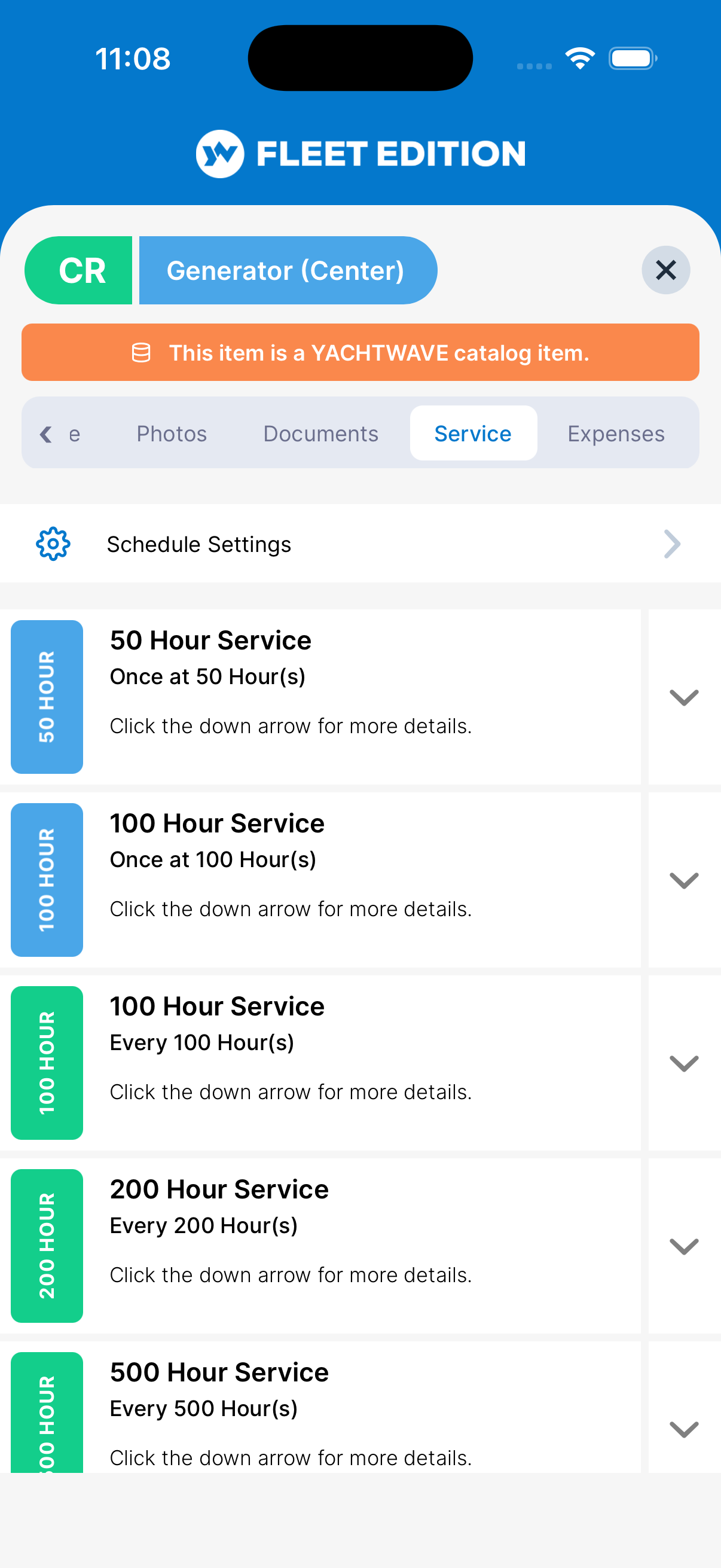
- Schedule tile — One entry in your plan (e.g. “100 Hour Service”). Tap a tile to view or edit it. The title fills in from the interval you choose. If you gave the item a Name (e.g. “Oil & Filter Change”), it shows on its own line under the title. General items show the name you wrote.
- Down arrow on a tile — Opens the tile in place to show the item’s steps.
- Vertical status bar — At a glance: “100 HOUR”, “6 MONTH”, or “GENERAL”.
- Subtitle — Reads “Every 100 hours or 6 months” for recurring items, “Once at 500 hours” for one-time, or “General Service” for ad-hoc items with no trigger.
- + button (lower right) — Add a new schedule item.
- Swipe a tile left — Delete that schedule item.
- Schedule Settings (top of the list) — Opens the Create Tasks switch for this engine or item. Set it to Disable if you want the reminders but not auto-generated tasks. The link appears once there is at least one item.
How to Add a Service Schedule Item
- Tap the + button.
- Choose a type using the three-way switch at the top: - One-time — fires once (e.g. “first 25-hour break-in service”) - Recurring — fires every cycle (e.g. “every 100 hours”) - General — no trigger, just a name (engines only — for ad-hoc items)
- For One-time or Recurring on an engine, choose the interval kind in Schedule (equipment always uses a calendar interval): - Calendar interval — days, weeks, months, or years - Hours — engine hours (engines only) - Calendar Interval or Hours — whichever comes first (engines only)
- Enter the interval values (e.g.
100hours, or6months). Optionally give it a Name, like “Oil & Filter Change”. - Tap ADD. The form stays open so you can add maintenance steps on the Details tab.
How to Add Maintenance Steps to a Schedule
- Open the schedule item (tap its tile).
- Switch to the Details tab.
- Add each step on its own line. When YACHTWAVE creates the task, the steps are copied into the task’s Details, separated by |.
- Tap Save.
Tips
- Build your initial schedules on the web version (
app.yachtwave.com) — copy-paste and a full keyboard make adding a dozen items much faster than on phone. - Schedules sort the General items to the top, then by hours, then by calendar interval — so your one-offs are always easy to find.
- For an engine, log hours in Readings at least every couple of trips. If the system doesn’t know your current hours, hours-based reminders can’t fire.
- If you tow a boat with a generator or pump that also has hours, give it its own engine entry (or equipment, if it’s calendar-only). One engine per hour-meter.
Troubleshooting
- “I added a schedule and nothing happened.” — The reminder job runs nightly, not instantly. Check again tomorrow morning. If it still hasn’t fired, see the next item.
- “My schedule never creates tasks.” — Open Schedule Settings at the top of the Service tab and confirm Create Tasks is set to Enable. If it’s disabled, you’ll still get notifications (if you have those on) but no task is added to your list. On a boat managed by a company, the company’s settings decide this instead of the switch.
- “My hour-based schedule isn’t firing.” — YACHTWAVE only knows your current engine hours from Readings. If you haven’t logged recent hours, the system can’t tell whether the schedule is due. Add a current reading and wait until the next morning.
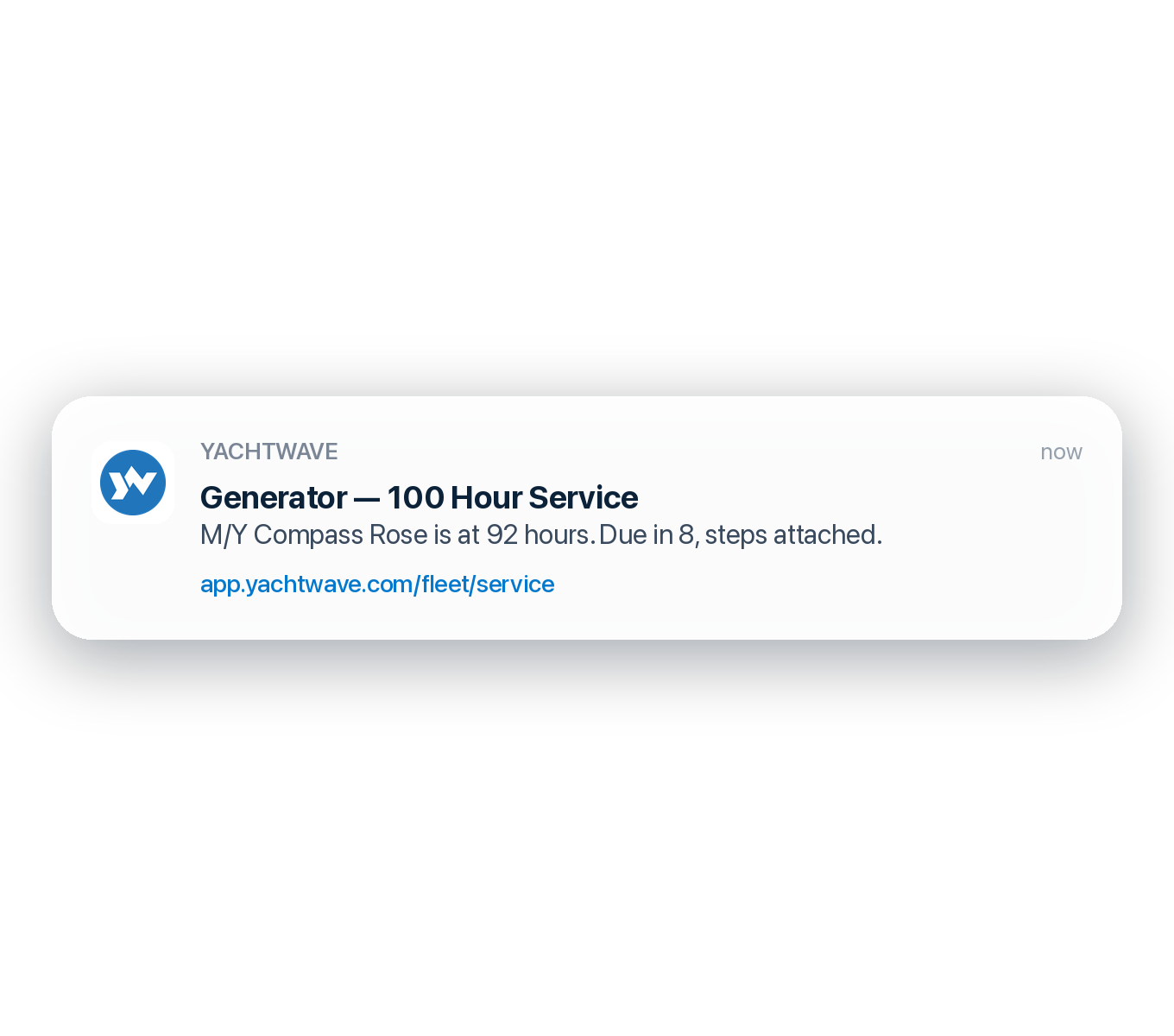
- “The reminder came too early / too late.” — That’s the notification window. For calendar schedules, a reminder can fire from 30 days before the due date up to 181 days after it, if it hasn’t fired yet. For hours schedules, from 10 hours before to 49 hours after. Whichever comes first schedules use both. Each reminder fires once per service cycle.
- “I only want this on one yacht.” — Schedules live inside an engine or equipment item, and engines/equipment live inside a single yacht — so they’re already vessel-specific. They don’t leak between boats.
Frequently Asked
What's the difference between a Service Schedule and a Task?
A schedule is the plan: "change the oil every 100 hours." A task is the action: "change the oil — due now." YACHTWAVE turns your schedules into tasks automatically when each one comes due. See also: Tasks, Maintenance Logs.
What does "General" mean as a schedule type?
A General schedule item has a name you write yourself and no automatic trigger — no hours, no date. Use it for seasonal jobs, ad-hoc services, or anything that doesn't fit a clean "every X" rule but should still appear in your schedule list. General is engines only.
When does the reminder actually go out?
The check runs once a day in the early morning. When a schedule falls inside its notification window (see Troubleshooting), YACHTWAVE sends the reminder in the app and by email, text and push, following each person's notification settings. On a personal boat it also creates a task if Create Tasks is on and the boat has an active Owner or Captain to assign it to. On a boat managed by a company, the company's settings decide whether a task or a ticket is created. Email, text and push are delivered between 8 AM and 8 PM in the recipient's local time. On a personal boat the reminder goes to the boat's Owners and Captains who have accepted their invitation; other crew don't get it.
Why doesn't Equipment have hour-based or General schedules?
Equipment items don't track operating hours — only engines do. So hour-based schedules don't apply, and the General type isn't available for equipment in this release. Use a calendar interval (days/weeks/months/years) instead.
Can I turn off reminders but keep the schedule?
Yes. Open Schedule Settings at the top of the Service tab and set Create Tasks to Disable. The plan is still recorded and visible in your list, but YACHTWAVE won't add anything to your task list when it comes due.
See Also
- Tasks — where your auto-generated tasks land. Mark them complete to log the maintenance.
- Maintenance Logs — the historical record of completed services.
- Engines — schedules live inside each engine.
- Equipment — schedules live inside each equipment item.
- Readings — log engine hours here so hour-based schedules know when you’re due.