
What is this? Your boat’s service history. A record of what was done, when, on which engine or piece of equipment, with the notes and hours captured.
The Basics
Maintenance Logs are the historical record — what already happened on the boat. Each entry captures the date, the type of work, which engine or equipment it was performed on, the engine hours at the time (if applicable), and any notes.
Two ways an entry shows up here:
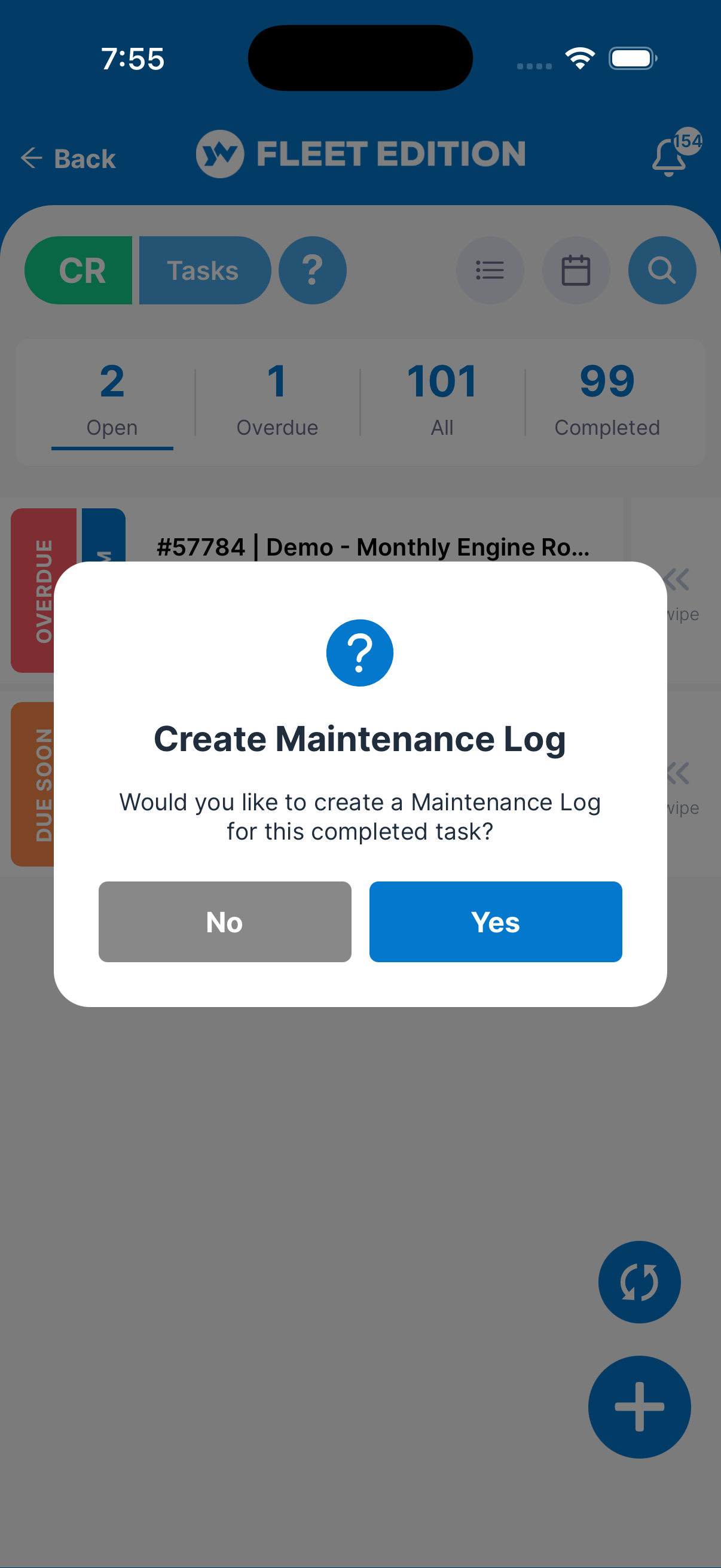
- Automatically, when you complete a Task that was tied to an engine or piece of equipment. The entry is created for you, and a summary tells you so — no extra typing. If the task wasn’t tied to an engine or equipment, YACHTWAVE asks whether to create a log for the boat.
- By hand, when you did the work without a task — for example, an unscheduled fix, or work the previous owner did before you bought the boat. Tap the + button and fill in the entry.
Maintenance Logs are what you’ll show a buyer at resale, the warranty rep, or the surveyor at a pre-purchase inspection. The more complete and accurate, the more your vessel is worth — and the easier it is to spot patterns (“the starboard engine eats impellers every 250 hours”).
Key Things on This Screen
- Entry tile — Date, what was done, the engine or equipment involved. Tap to open the full entry.
- + button (lower right) — Add a new log entry by hand.
- Search — Finds entries by their detail or type. To see one engine’s or item’s history, open it and use its Maintenance tab.
- Swipe a tile left — Delete the entry. You’ll be asked to confirm.
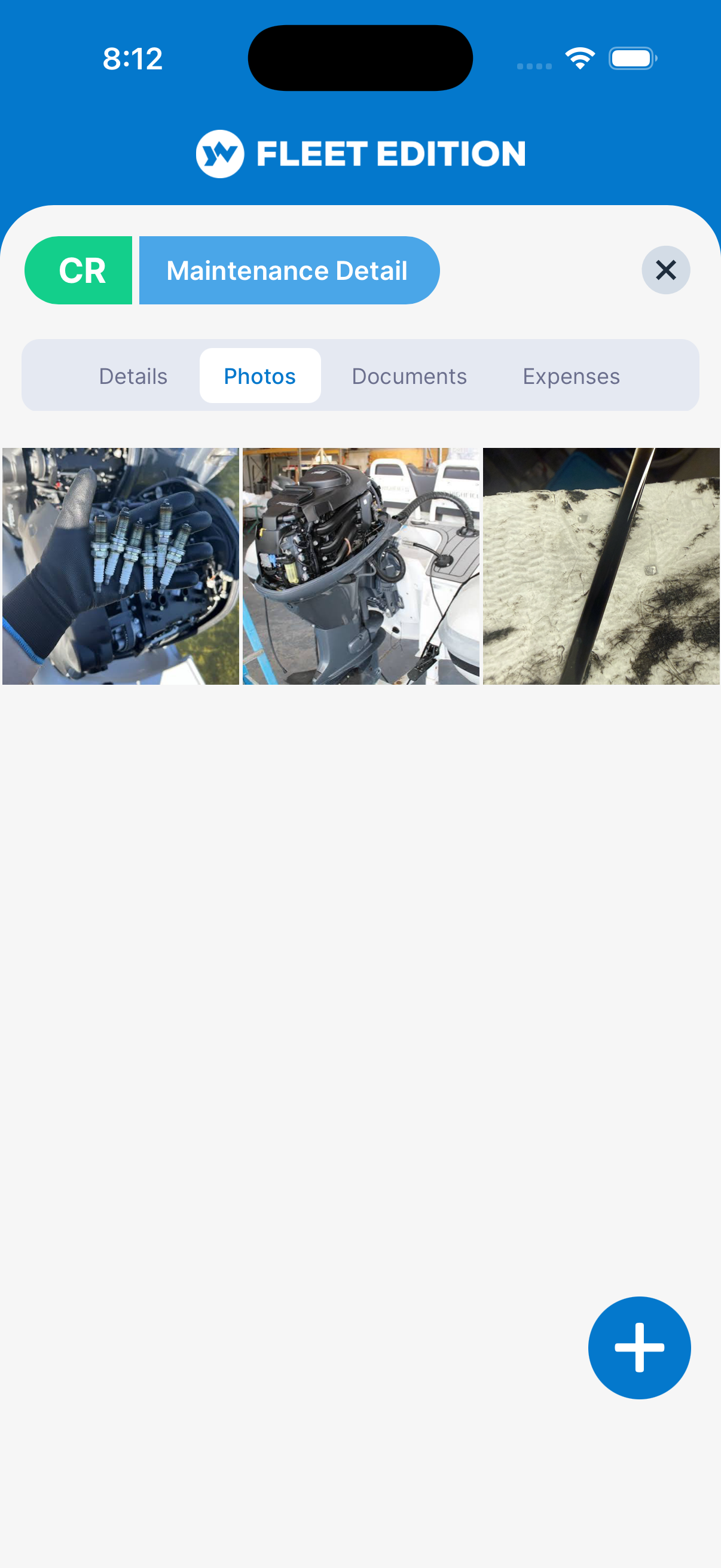
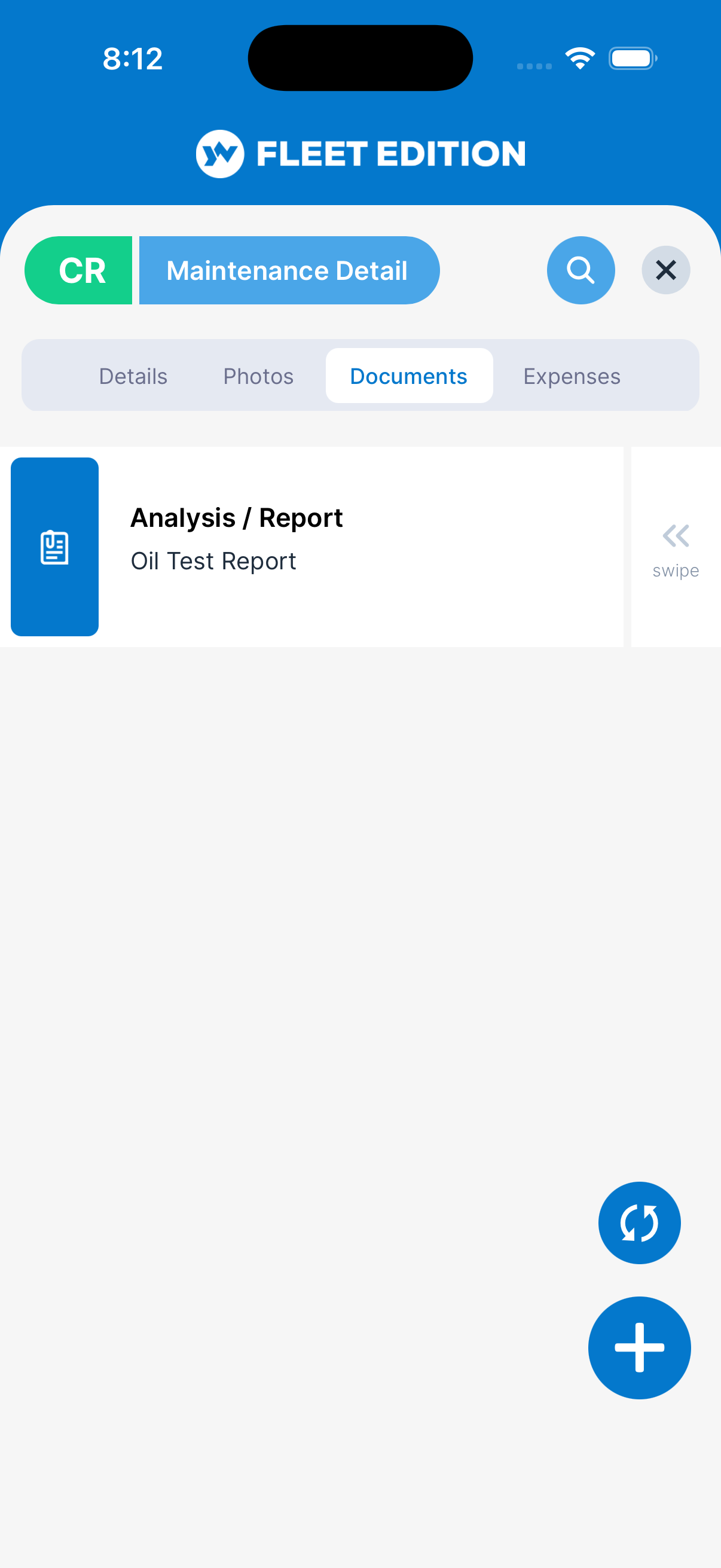
- Tabs on an entry — Details, plus Photos, Documents and, on plans that include them, Expenses and Audit Log.
How to Log Maintenance by Hand
- Tap the + button.
- Enter the Detail — a short description of the work (required).
- Pick the Type of maintenance (e.g. Engine Service, Hull Cleaning, Safety Equipment). The type determines which fields appear next.
- Pick the Equipment, Location or Mechanical (engine) the work was performed on, and for engine work the Hours at service.
- Enter the Date (defaults to today).
- Add Notes with any details worth keeping — parts used, who did the work, anything unusual.
- Tap ADD.
How to Check an Auto-Created Log
When you complete a task linked to an engine or equipment, there’s nothing to confirm: the log is created for you and the completion summary says A Maintenance Log was created for this completed task. Open Maintenance to see it, and tap the entry to adjust any field. The entry is dated the day you complete the task. Its description is the task name, and its notes hold the task details followed by the task’s discussion. It is linked to the same engine or equipment, and the task’s photos and documents are copied to it. Engine hours are left blank, so add them if you track hours.
Tips
- Log the unscheduled stuff too. A maintenance history with only routine items looks suspicious to buyers. Recording the impeller you replaced after a sand-strike, or the bilge pump you swapped at the dock, makes the history complete.
- Be specific in the description. “Oil change” is fine. “Oil change — Rotella 15W-40, 6 quarts, K&N filter” is much better when you need to reorder parts or troubleshoot later.
- Use engine hours, not just dates. Hours-based maintenance is the standard for engines. Always fill in the hours field for engine work.
- The auto-log prompt is the easiest path. If you find yourself adding the same kind of entry over and over by hand, the underlying task probably needs to be linked to an engine or equipment so the log gets created automatically.
Troubleshooting
- “My engine doesn’t show up in the picker.” — The maintenance Type you picked is filtered to specific engine/equipment types. Either change the Type to one that matches your engine/equipment, or open the engine and confirm its Type is set correctly.
- “I completed a task but no log was created.” — The task wasn’t linked to an engine or equipment, and No was chosen when YACHTWAVE asked about a log. Create the log here by hand. Linking future tasks to an engine or equipment makes them log automatically.
- “I have hundreds of historical entries to back-fill.” — Use the web version at
app.yachtwave.com. Full keyboard, copy/paste, and a larger screen make bulk entry much faster than the phone.
Frequently Asked
What's the difference between a Maintenance Log and a Task?
Tasks are for what's coming up — your planned, recurring, or one-off work. Maintenance Logs are for what's already done — the historical record. When you complete a task tied to an engine or equipment, YACHTWAVE creates the matching log automatically so you don't have to enter both.
Do I have to use Tasks to get a Maintenance Log?
No. You can create a log directly any time — useful for unscheduled fixes or back-filling work done by a previous owner. Tasks just make routine entries one-tap easier.
Can I attach a receipt or photo to a maintenance entry?
Yes. Open the entry and use its Photos or Documents tab. On plans that include Expenses, the Expenses tab records the cost with its receipt.
How do I export my service history?
From the web version (app.yachtwave.com) — open My Account and use the export option. The mobile app doesn't export directly.
Can I delete a log entry?
Yes, but think twice. Maintenance Logs are an audit record — deleting an entry removes part of your boat's history. If something is wrong, edit it; don't delete it unless it's a duplicate.
See Also
- Tasks — completing a task linked to an engine or equipment creates an entry here automatically.
- Service Schedules — the upstream rule that creates the tasks, which create the logs.
- Engines — each engine’s Maintenance tab shows its own history.
- Equipment — each item’s Maintenance tab shows its own history.