
What is this? A built-in reference library of engines and equipment, so you can add a known make and model to your boat without typing in the specifications yourself.
The Basics
Adding an engine or a piece of equipment by hand means typing a manufacturer, a model, and a long list of specifications off a plate in the engine room. The Catalog does that part for you.
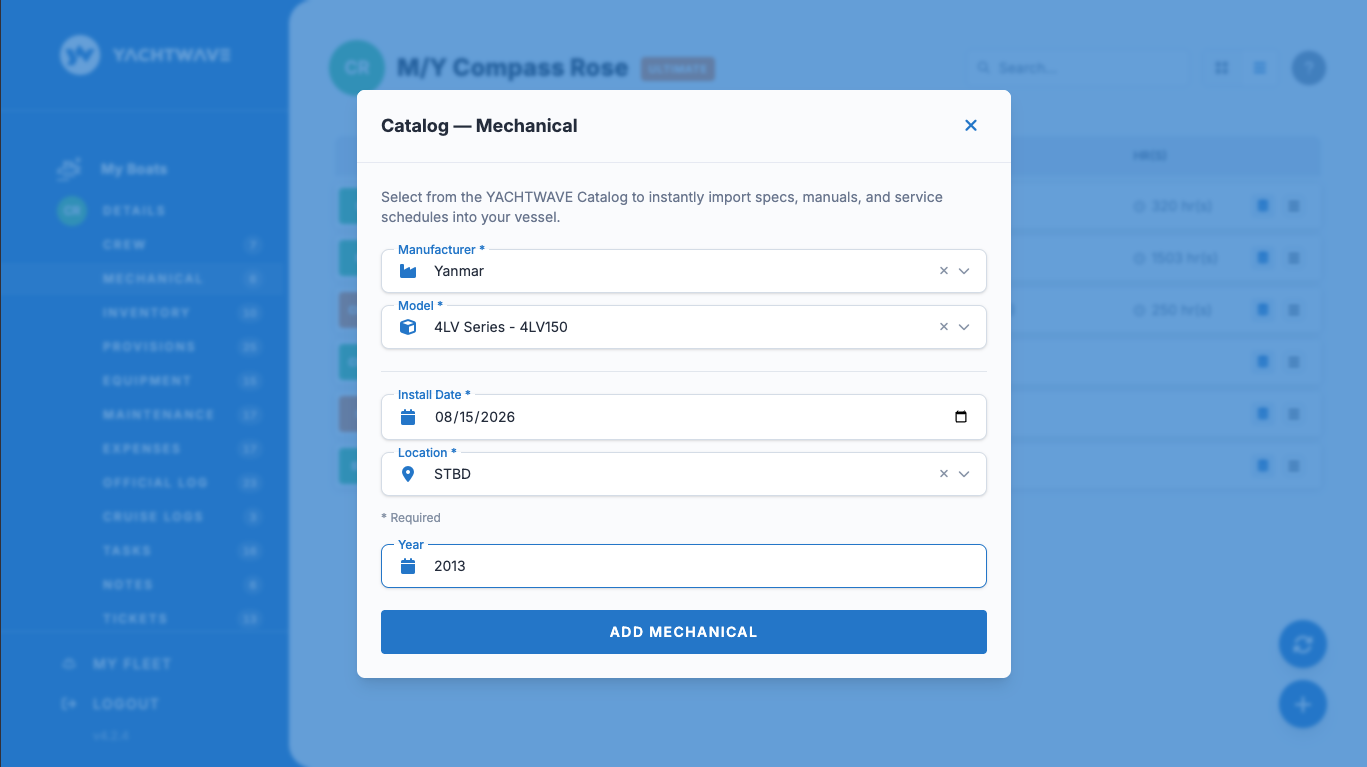
Pick the type, the manufacturer and the model, and YACHTWAVE copies the whole record onto your boat — manufacturer, model number, and the specifications we already hold for it, including manuals and service schedules where available. You are then dropped straight into the new record so you can fill in the parts that are yours alone: the serial number, the install date, and anything else specific to your vessel.
The Catalog covers about 1,800 engines from nearly 300 manufacturers, and about 6,400 pieces of equipment from more than 900 manufacturers.
The Catalog is part of a paid plan. If your plan doesn’t include it, the + button adds a record the way it always has, and you won’t see the Catalog / Custom choice at all.
Key Things on This Screen
- The + button splits into two choices — Catalog (the database icon) opens the reference library. Custom (the pencil icon) is the manual add you have always had, unchanged.
- Type — Required. The kind of engine or equipment. Choosing it narrows the manufacturers to the ones that make that type.
- Manufacturer — Required. You can type in the list to find one quickly.
- Model — Required, and available only once you’ve chosen a manufacturer. It lists only that manufacturer’s models; type in the list to narrow it.
- Location — Required. Where on the boat the item lives. It is the one piece of information only you can supply.
- Add — Copies the selected item onto your boat and opens the new record.
How to Add an Engine or a Piece of Equipment from the Catalog
- Open Mechanical (for engines and generators) or Equipment from the yacht dashboard.
- Tap the + button in the lower right. Two choices appear above it.
- Tap Catalog.
- Choose the Type.
- Choose the Manufacturer.
- Choose the Model. Type part of the model to narrow a long list.
- Choose the Location on the boat.
- Tap Add.
The record is created and opens immediately. Add your serial number, install date, and any notes while you’re still in context.
How to Tell a Catalog Record from One You Typed Yourself
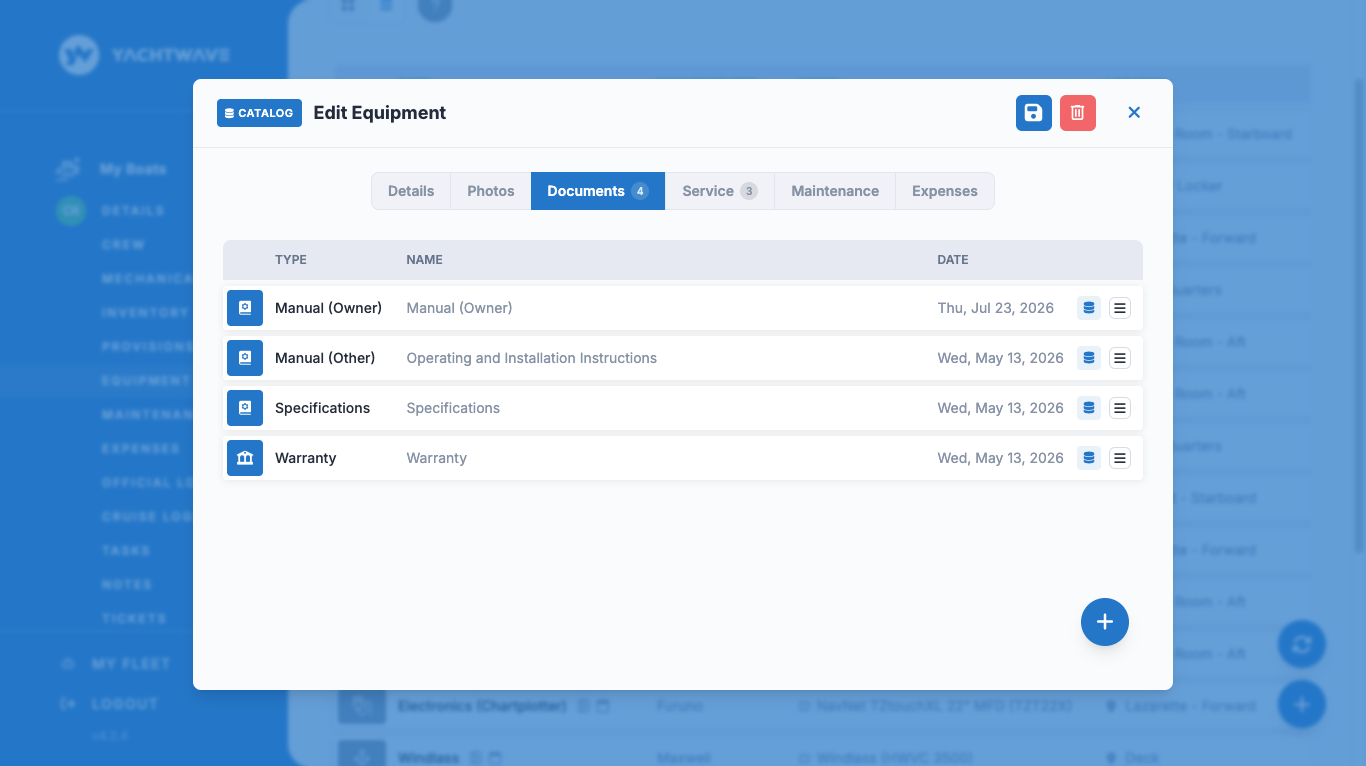
- On the list, a Catalog record shows a small database icon in front of its name.
- On the detail screen, a band across the top reads “This is a YACHTWAVE Catalog item.”
Documents that come from the Catalog are marked the same way.
Tips
- Add from the Catalog first, then edit. Everything the Catalog fills in is yours to change afterwards. If the specification we hold is slightly off for your particular unit, open the record and correct it — nothing is locked.
- The Model list shows one manufacturer at a time. If you can’t find a model, check the Type and Manufacturer before concluding the item isn’t in the library.
- You need a connection. The record is created on our servers, so adding from the Catalog doesn’t work offline. The manual Custom add still does.
- The first open is the slow one. The library is large and is downloaded once, then kept on your phone for a week. Opening it again is instant. Signing out clears it, so the next open after a sign-in downloads it again.
Troubleshooting
- “I don’t see a Catalog choice — the + just adds a record.” — The Catalog is part of a paid plan, and on organization accounts your role has to allow it. Check the Subscription screen, or email [email protected].
- “I can’t open the Model list.” — No manufacturer is selected yet. Choose the Type and Manufacturer first.
- “My manufacturer isn’t in the list.” — Not everything is in the library yet. Use Custom to enter it by hand, and email [email protected] so we can add it.
- “Add did nothing / I got an error.” — Adding from the Catalog needs an internet connection because the record is created on our servers. Check your connection and try again.
- “The specifications aren’t quite right for my unit.” — Manufacturers change specifications between production years. Open the record and edit any field; your change stays on your boat.
Frequently Asked
Is the Catalog the same thing that's on the website?
Yes. It is the same reference library, now available in the mobile app.
Can I edit a Catalog record after I add it?
Yes, every field. A Catalog record behaves exactly like one you typed in — the marker just tells you where it came from.
What happens if I delete a Catalog record?
Only your copy is removed. The library itself is untouched, so you can add it again.
Does the Catalog fill in my serial number?
No. Serial number, install date, hours, and location are specific to your boat, so you enter those yourself.
My make or model isn't listed. Can you add it?
Yes. Email support with the make and model, or send a full list of your boat's equipment, and we'll add it, usually within 48 hours. Meanwhile, use Custom to enter it by hand.
Can I add several items at once?
Not in this release — one item per trip through the Catalog. The screen returns you to the list after each add, so repeating it is quick.
See Also
- Mechanical — Engines and generators, and everything you can record against them.
- Equipment — Pumps, electronics, and the rest of the gear on board.
- Subscription & Licensing — Which plan includes the Catalog.