
What is this? A read-only list of everyone in your organization, with their email and organization role. For organizations (Fleet Edition).
The Basics
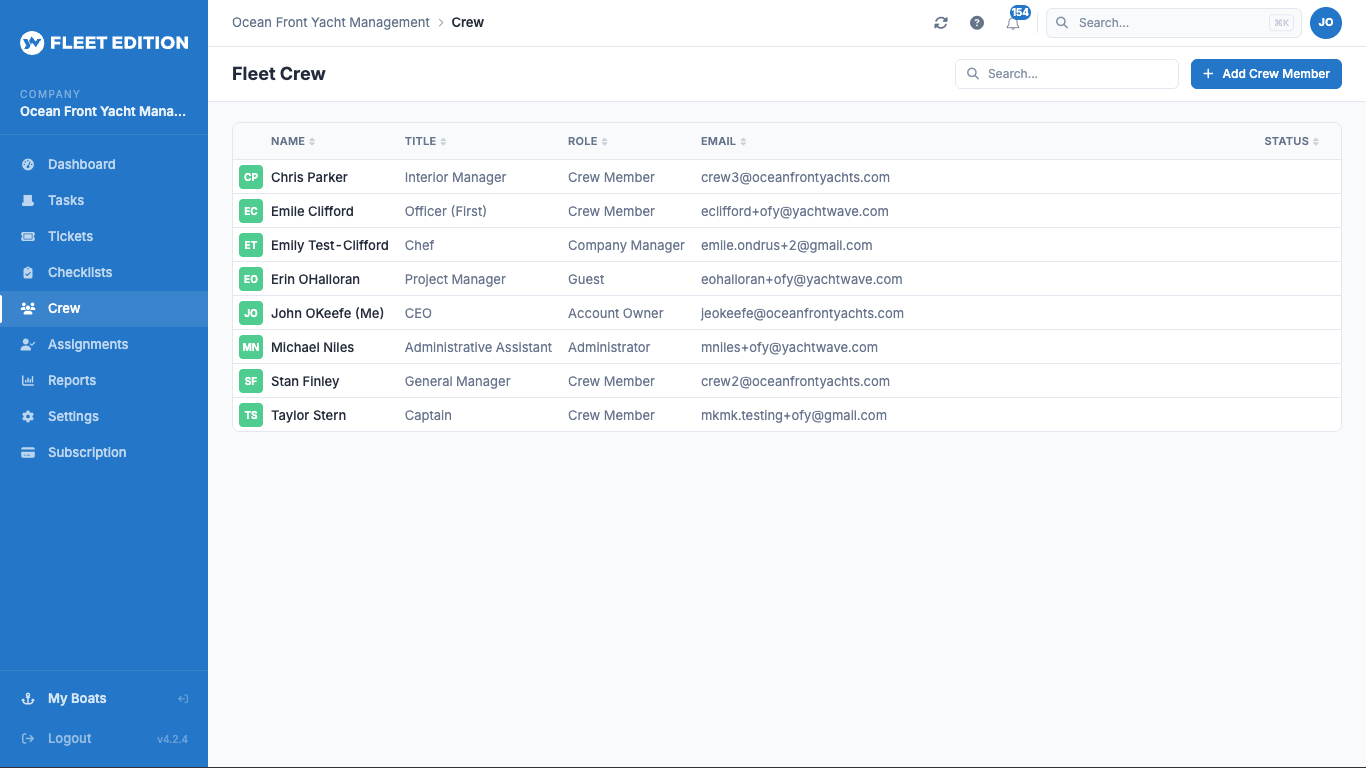
The Crew tab on My Fleet lists every member of your organization. Each row shows the person’s name, email, and organization role.
The list is for looking things up. You can’t add, edit, or remove people here. The amber notice at the top of My Fleet says the same: fleet administration is done in the YACHTWAVE web app. Tap the notice to open it.
Not everyone sees this tab. It appears only for people with a manager role in the organization (such as an owner, administrator, or manager), and only if the organization’s permissions let them see the member list.
For a single-yacht owner, crew lives at the yacht level under Sharing & Crew. There’s no fleet-wide list.
Key Things on This Screen
- Member row — name and email on the left, organization role on the right.
- Refresh button (lower right) — reloads your organization’s information, including this list.
- Fleet administration notice (top) — opens the YACHTWAVE web app, where members are added, changed, and removed.
How to Add Someone to a Yacht
People are added to the organization in the web app. Once they’re members, you put them on a boat from the boat itself:
- Bottom tab bar → My Boats → tap the yacht → Crew.
- Tap +, tap Select Crew Member, and pick the person.
- Pick their Role on this yacht and tap ADD.
See Sharing & Crew for the details.
Tips
- Organization role and boat role are different things. The role on this list is the person’s role in the organization. Each boat also gives them a role (Owner, Captain, Crew) on that boat’s Crew screen.
- Organizations can hide whole tools from a role. Your organization can be set up so that, say, Crew never see Expenses at all. See “What organizations can hide” below.
- Remove crew when they leave. Remove them from each boat’s Crew screen, and from the organization in the web app.
What Organizations Can Hide
If your boats are managed by an organization, the organization decides what each person can see and do. Someone on a Crew role might open the app and find no Expenses tile at all, while a Manager sees it on the same boat.
There are two kinds of setting:
- Which tools each organization role can see. This can only take away, never add. If the boat’s plan doesn’t include a tool, it stays hidden whatever the role setting says.
- Permissions for each area — who may see, add, edit, or delete things such as tasks, expenses, boats, or geofences. A person who isn’t allowed to see an area doesn’t get its tile or tab. A person who can see but not change it gets no add, edit, or delete buttons.
Both only reach boats the organization manages. A member’s own personal boats are untouched. Within an area someone can see, they see all of it; there’s no way to show one person half a list.
These settings are made in the web app, not on this screen.
Troubleshooting
- “I don’t see a Crew tab on My Fleet.” — The tab is only for organization managers, and your organization’s permissions may hide the member list. Ask your organization’s administrator.
- “Someone is missing from the list.” — Tap the refresh button. If they’re still missing, they haven’t joined the organization yet; add or invite them in the web app.
- “A crew member says a whole tool is missing — no Expenses tile, no My Fleet tab.” — Three things can hide a tool, so check them in order: the boat’s plan doesn’t include it; the organization’s settings or permissions hide it from that person; or they’re looking at a boat the organization doesn’t manage. The first two are the usual answers.
Frequently Asked
How is fleet Crew different from per-yacht Sharing?
Sharing & Crew (under each yacht) is where you add and remove people on one boat. The Crew tab here is a read-only list of everyone in the organization.
Can a crew member be on yachts in multiple organizations?
Yes. A crew member can belong to several organizations, with a role in each, and can have a different role on each boat. Their YACHTWAVE account is the same across all of them.
Can I see what a crew member changed?
Yes — the Audit Log on each yacht shows who made each change, when the boat's plan includes it.
See Also
- My Fleet — the fleet home.
- Sharing & Crew (per-yacht) — add and remove people on one yacht.
- Audit Log — see who changed what.
- Subscription & Licensing — what Fleet Edition includes.