
What is this? The organization view for Fleet Edition — the paid version of YACHTWAVE for yacht-management companies, charter operators, and other businesses running more than one boat. On your phone this screen shows the basics only; the fleet itself is administered in the YACHTWAVE web app.
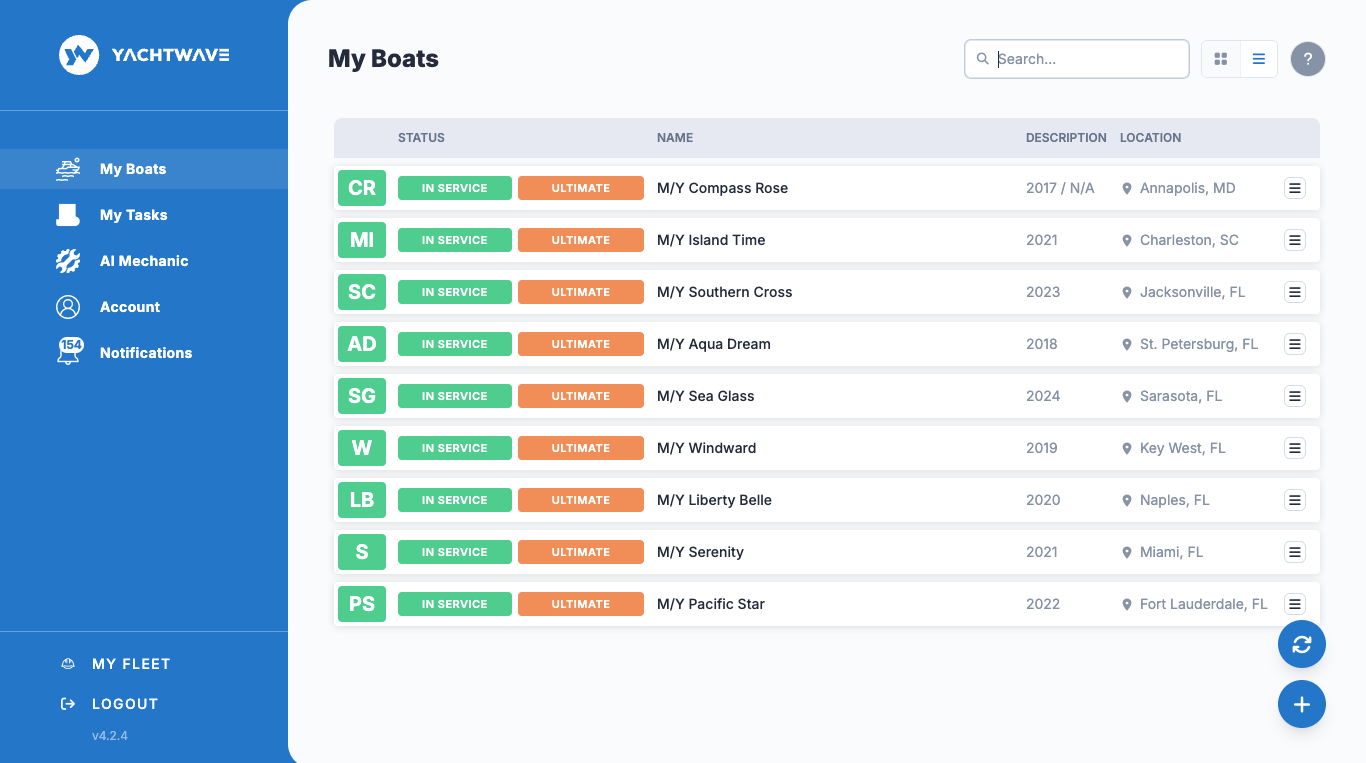
Fleet Administration on Web Version
This screen is view-only on your phone. Fleet Edition is administered in the YACHTWAVE web app at app.yachtwave.com. Log in there to make any change and to see the complete information.
The amber banner at the top of the Company screen in the app says the same thing — “Click here to open YACHTWAVE in your Web browser for full administration capabilities (desktop or tablet required)” — and tapping it opens the web app for you.
The Basics
Fleet Edition is the paid version of YACHTWAVE designed for professional and commercial use. If you manage more than one vessel as part of a business, your boats, crew, licenses and billing are grouped under an Organization — the management entity that owns or operates the fleet (e.g. Sea Breeze Yacht Management LLC).
For individual boat owners managing one or two of your own vessels, the standard YACHTWAVE experience (My Boats → tap a boat → manage it) is what you want — the My Fleet tab isn’t required.
An organization brings together:
- Vessels — the boats licensed under the organization’s management.
- Crew across the fleet — captains, mates, deckhands assigned across multiple boats.
- Licensing — the per-vessel licenses that determine which advanced features are unlocked.
- Subscription — plan, billing and trial status.
What You See on Your Phone
On the phone, the Company screen gives you a read-only summary of your organization, one tab per topic. Nothing here can be edited on the phone; the only action is leaving the company.
- Details — the company’s name, your title and role, an overview with the number of crew members and managed boats, and a Leave Company button.
- Subscription — one card per subscription edition. A trial shows the days remaining; a paid edition shows how many subscriptions are available and how many are used.
- Boats — the boats the company manages, each with its year, manufacturer and model, and the subscription it is on.
- Crew — everyone in the company, with email and role. See Crew.
Only members with a management role (Owner, Admin or Manager) see the tabs. Other members see Details only. If your company uses permissions, it can also hide individual tabs. The round refresh button (lower right) reloads the company’s information.
Done in the YACHTWAVE Web App
Everything that changes the organization is done by logging into the web app at app.yachtwave.com on a desktop or tablet. That is where you:
- Set up the organization — its name, type, address and contact details.
- License or unlicense a vessel — choose which of your boats sit under the organization and unlock the fleet features for them.
- Manage roles — who is an Owner, Admin, Manager or crew member, and on which vessels.
- Invite or remove crew across the fleet.
- Handle billing — the subscription, plan changes and payment details.
- See the complete picture — fleet-level reporting and the full detail behind every tab the phone summarises.
Don’t have an organization yet? If you are not a member of one, the My Fleet tab on the phone offers two buttons:
- Join a Company — accepts an invitation someone in a company has sent you. If there is none, the app tells you to ask your company’s administrator for one.
- Create a Company — a short series of steps: your first and last name, the company name, your title, the company’s address and country, and an optional website. The last step explains that the rest of the setup is done in the web app.
Creating a company doesn’t start a trial by itself; a trial comes from the separate trial sign-up in the web app. From that point on, administration — licensing vessels, roles, crew and billing — moves to the web app.
Leaving a company: Details → Leave Company → confirm. You lose access to the company’s boats. If you are the last member, the company is deleted and its boat subscriptions go back to personal subscriptions.
Tips
- One organization per management entity, not per boat. Sea Breeze Yacht Management LLC is one organization with many vessels under it. Don’t create a new org for each boat.
- Crew can have different roles on different vessels. A captain on one boat can be a deckhand on another. A person’s role on a boat is set on that boat’s Crew screen; their organization role is set in the web app. See Crew.
- The trial gives you time to evaluate. During the trial, all Fleet features are unlocked. Use the time to see whether the cross-vessel views, reporting, and crew roles meet your business needs.
- Keep the web app to hand. Bookmark app.yachtwave.com on the computer you use for the business — the phone is for checking, the web is for running the fleet.
Troubleshooting
- “I created an organization but my vessels aren’t appearing.” — Vessels need to be licensed under the organization first. Log into the web app and check which of your boats are licensed; add the missing ones there. The phone’s Boats tab updates once that is done.
- “A vessel I licensed says it’s not active.” — Log into the web app and check the organization’s subscription for any payment or trial issue, and confirm the vessel’s license there. YACHTWAVE works out license status fresh each time, so a change shows once your phone refreshes (or once the payment has gone through); tap the refresh button on the Company screen.
- “I can’t change anything on this screen.” — That is expected. Fleet Edition is administered only in the YACHTWAVE web app; the phone shows a read-only summary. Tap the amber banner at the top of the Company screen, or go to app.yachtwave.com on a desktop or tablet.
- “I’m using YACHTWAVE for one boat — do I need My Fleet?” — No. Individual boat owners using the app for personal use don’t need to create an organization or use My Fleet. Stay on My Boats.
Frequently Asked
Do I need Fleet Edition?
Only for professional or commercial use — yacht managers, charter operators, manufacturers, or anyone managing multiple vessels as part of a business. Individual boat owners managing their own boats don't need it. See Subscription & Licensing for the full breakdown.
Why can't I administer my fleet from the phone?
Fleet administration — licensing, roles, crew, billing and the full reporting — needs the space of a desktop or tablet screen, so it lives in the YACHTWAVE web app only. The phone gives you the basics at a glance; log into app.yachtwave.com to do anything and to see everything.
What does "Fleet Edition" unlock that I don't have today?
Cross-vessel views, organization-wide crew roles, fleet-level reporting, multi-vessel dashboard summaries, and other commercial workflows. The exact feature set varies — check the current Fleet Edition page on yachtwave.com, or email [email protected] for a walkthrough.
Can I run a fleet without creating an organization?
You can have access to multiple boats (yours and ones you crew on) without an organization — that's the free model. The organization construct is for managing the fleet as a business, with billing, reporting, and crew structure attached.
How is an Organization different from just having multiple boats?
An Organization is a management entity. The boats are still boats in YACHTWAVE; the organization wraps them so you can manage crew, billing, and reports at the fleet level rather than per-boat.
See Also
- Crew — managing crew across the fleet.
- Subscription & Licensing — what Fleet Edition costs and what it includes.
- My Boats — the per-vessel view.
- Sharing & Crew — per-yacht access management (works for free and Fleet Edition users).