
What is this? A six-step guide that installs your YachtLINK® device, connects it to Wi-Fi and registers it to this boat.
The Basics
Setup takes a few minutes and is done on the boat, near the device. The dots at the top show which of the six steps you are on: Install, Power, Scan, Connect, Network and Register.
Before you start, have:
- The YachtLINK® device, the T-connector and the drop cable (all in the box).
- Access to the boat’s NMEA 2000® network.
- A 2.4 GHz Wi-Fi network with internet access, and its password.
- A paid Plus (shown as Personal+ in the app for now) or Ultimate subscription on this boat, and an internet connection on your phone.
During setup your phone briefly joins the device’s own Wi-Fi. That Wi-Fi has no internet, which is expected.
To leave setup, tap the X at the top and answer Yes to Cancel the Setup?. You can start again from the YachtLINK® page at any time.
The Six Steps
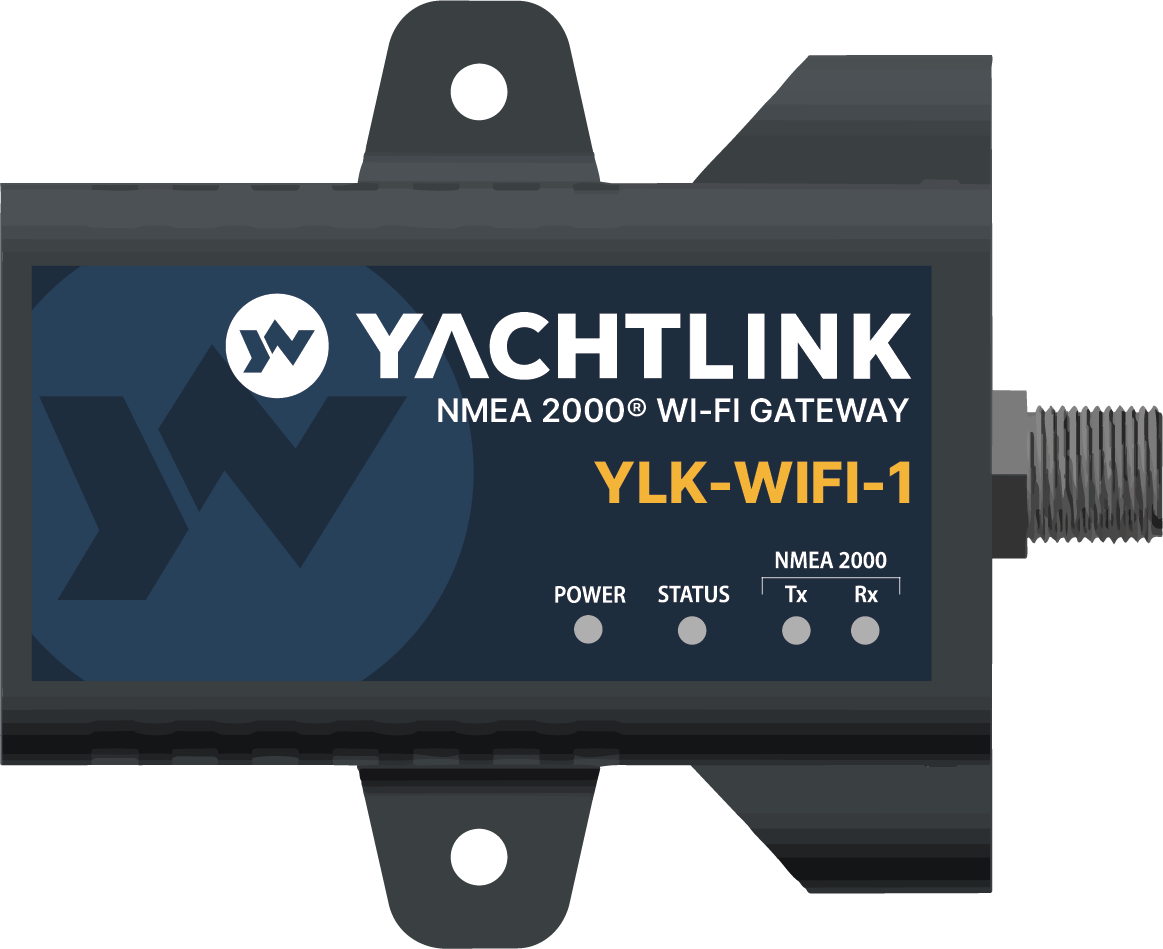
- Install — Add the included T-connector to the NMEA 2000® backbone (or use a free tee), then connect the drop cable between the tee and the YachtLINK®. Mount the box below deck, within reach of the Wi-Fi network. Tap NEXT.
- Power — Switch on the NMEA 2000® network, usually the instruments breaker. The Power light stays on. The Status light flashes white quickly while the device starts, then flashes amber once a second. Amber means it is ready. Tap STATUS IS FLASHING AMBER.
- Scan — Point the camera at the QR code on the YachtLINK® label, on the back of the device and on the side of its box. Hold the phone about 10 cm (4 in) away. Setup moves on by itself once the label is read. If the camera cannot read it, tap Enter Manually and type the Serial Number and Wi-Fi Passphrase printed under the QR code, then tap CONNECT DEVICE.
- Connect — Your phone joins the device’s Wi-Fi, named YachtLINK- followed by its serial number, and waits for the device to answer. The first one or two attempts often get no answer; that is normal. If your phone cannot join by itself, follow the Connect Manually steps on screen: open Wi-Fi settings, choose the device’s network, enter the passphrase, stay connected even though the phone says there is no internet, then come back to YACHTWAVE and tap I’M CONNECTED.
- Network — Choose the Wi-Fi network the device will use from now on and enter its password. Only 2.4 GHz networks are listed. For a network that does not appear, tap Join a Hidden Network… and type its name.
- Register — The device joins your Wi-Fi, your phone reconnects to the internet, and the device is registered to this boat. This usually takes under a minute. Keep the app open. When it finishes you see YachtLINK® Is Set Up.
Tips
- Start step 4 soon after the Status light turns amber. The device’s setup Wi-Fi only runs while that light flashes amber.
- If registration is slow, you can tap Stop for now. The device keeps trying on its own, and the YachtLINK® page shows Registration Pending until it confirms.
- A 5 GHz-only network cannot be used. Most routers offer both; choose the 2.4 GHz one.
Troubleshooting
- “No Power light” — Check the tee, the drop cable and that the NMEA 2000® network has power.
- “Device Wi-Fi Not Found” or “Could Not Join the Device’s Wi-Fi” — The device’s setup Wi-Fi is off or the passphrase is wrong. Check the passphrase against the label. Then unplug the device for 10 seconds, plug it back in, wait for the Status light to flash amber, and tap TRY AGAIN.
- “This is not the device on the label” — Your phone is on a different YachtLINK®’s Wi-Fi. Make sure you scanned the label of the device you are setting up.
- “The device could not join that network” — The Wi-Fi password is wrong, or the device cannot see the network. Check the password and that the network is 2.4 GHz and in range of the boat.
- “YACHTWAVE could not be reached” — Your phone is still on the device’s Wi-Fi. Switch back to your usual network, then try again.
- “This device is already registered to a different vessel” — Remove it from that vessel first, or contact support at [email protected] to transfer it.
Frequently Asked
Do I need to be on the boat?
Yes. Your phone needs to be within a few metres of the device to join its setup Wi-Fi.
Why does my phone say "No Internet Connection" during setup?
Your phone is connected to the device's own Wi-Fi, which has no internet. That is expected. Stay on it until setup moves to the Register step.
Can I use marina Wi-Fi or a phone hotspot?
Yes, if it is 2.4 GHz, has internet access, and stays available to the device on the boat.
What happens if I stop part way?
If you cancel before the Register step, the device is not set up yet. Open the YachtLINK® page and tap SET UP YACHTLINK® to start again. If you tap Stop for now during the Register step, the device keeps trying to register on its own; if it stays pending, tap SET UP AGAIN.
See Also
- YachtLINK® — check the device’s status or remove it from the boat.
- YachtLINK® Configuration — after setup, match each signal to the right engine or tank.