
What is this? Your boat’s food and beverage stock — snacks, frozen goods, drinks, dry goods, whatever you keep onboard for crew and guests. Tracked by quantity and (where it matters) expiration date.
The Basics
Provisions and Inventory share the same underlying screen and tools — they’re two views into the consumables you keep onboard. The split is intentional:
- Inventory (Stores) = non-food consumables — oil, filters, hydraulic fluid, cleaning supplies, deck soap, hose clamps, zincs.
- Provisions = food and beverage — coffee, beer, eggs, frozen pizza, the dry stores in the lazarette.
By having Provisions as its own dashboard tile, you don’t scroll past diesel additive when you’re trying to figure out whether you have enough cream for the morning coffee. Same mechanics, different list.
Key Things on This Screen
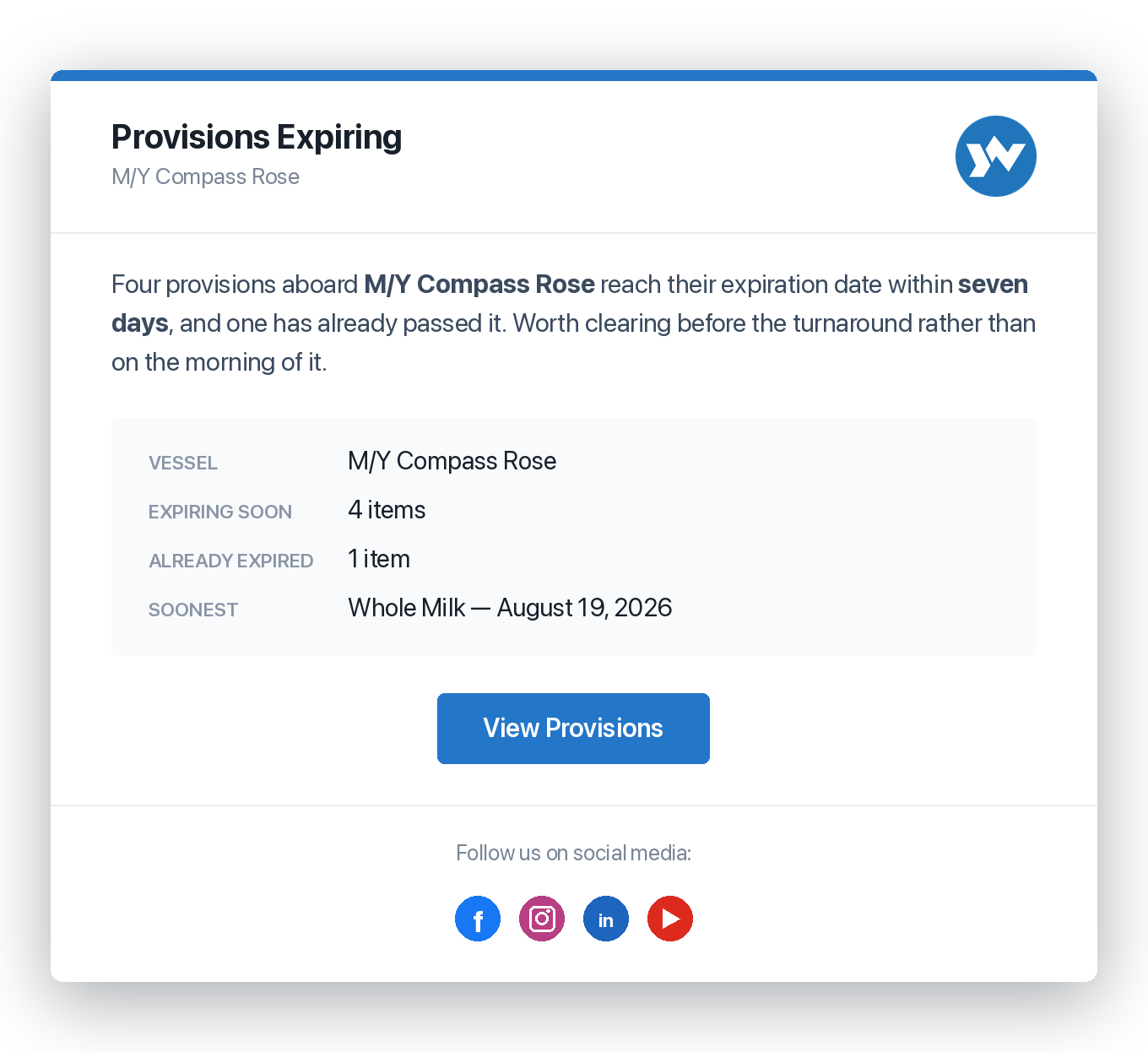
- Provision tile — Name, type, stock status, on-hand / required count, location, and an expiration badge (Good, Expiring or Expired) when you’ve set a date.
- All / Good / Expiring / Expired — The buttons across the top. Expiring means 30 days or less; Expired means the date has passed. Good includes items that can expire but have no date yet. Items whose type never expires show only under All. Especially useful for short-shelf-life provisions (dairy, fresh produce, opened jars).
- Stock status — Compares On-hand with Required: Low Stock means half of Required or less; Out of Stock means zero.
- Swipe a tile — Swipe one way to add 1; swipe the other way to take 1 away or delete the item.
- + button (lower right) — Add a new provision. You need a connection to add one.
- Search — Searches name, type, location, position and stock status.
How to Add a Provision
- Tap the + button.
- Enter the Name (e.g. “Local IPA, 12-pack”, “Bacon, frozen”).
- Pick the Type that fits. The list shows only provision types.
- Pick the Location where it’s stowed, and optionally enter a Position (e.g. “top shelf”).
- Enter Required (how many you want aboard) and On-hand (how many you have now).
- Optional: if the type can expire, the Expiration section appears — choose Expires and pick the date.
- Tap Add.
How to Update a Quantity After Using or Restocking
For one unit at a time, just swipe the tile: one direction adds 1, the other takes 1 away (it never goes below zero).
For a bigger change:
- Tap the item’s tile to open it.
- Tap the edit icon at the top of the form.
- Change On-hand to the current count.
- Tap Save.
Tips
- Set expirations on fridge and freezer items. The Expiring button becomes a single place to check what to use up next — much more reliable than digging through the freezer guessing at dates.
- Use specific locations. “Galley freezer — top shelf” beats “Freezer.” Crew preparing meals shouldn’t have to play hide-and-seek.
- Bulk-load before a long trip. Adding 40 provision items on a phone is slow; use the web version on a laptop the night before departure.
- Provisions and Inventory are separate views, but the same database. A provision item shows in the Provisions tile; a stores item shows in the Inventory tile. Pick the right Type when adding so it lands in the right view.
Troubleshooting
- “My provision is showing in Inventory, not Provisions.” — The item was added from the Inventory tile, so it has a stores type. The type list on each screen only offers its own types, so delete it from Inventory and add it again from the Provisions tile.
- “I want to track something that’s both food and mechanical (e.g. ice for the cooler).” — Pick whichever bucket it lives in mentally. If you think of it as galley/food, use Provisions. If you think of it as deck/equipment, use Inventory. There’s no right answer — pick what makes the item easier to find for you.
- “Expiring and Expired are empty but I know things expire.” — Items only land there once you’ve set an expiration date. Items without a date stay under Good (or only under All if their type never expires).
- “I want a low-stock alert before a trip.” — Set Required on the item. The tile shows Low Stock when on-hand drops to half of Required or less. (Push notifications for low stock are on the roadmap.)
Frequently Asked
What's the difference between Provisions and Inventory?
Same mechanics, different list. Provisions = food and beverage. Inventory = non-food consumables (oil, filters, fluids, cleaning supplies, spare parts). Splitting them means you don't scroll past engine oil when looking for crew snacks. Both are tracked by on-hand and required quantity, location and expiration. Only the Provisions list has the All / Good / Expiring / Expired buttons.
Can I scan a barcode to add a provision?
Not currently. Each provision is added by hand. Bulk-add on the web version is the fastest path for pre-trip provisioning.
How do I share my provisions list with the crew?
Anyone with crew access to the yacht sees the same list. Use Sharing & Crew to add a steward or chef who'll update the list as items are used.
Can I track provisioning costs?
Yes — log each provisioning trip as an Expense with the receipt attached. The expense can be tied to the vessel.
What happens to provisions after a trip?
Whatever's left, update the quantity. If something was used up, set quantity to zero (or delete the item). Provisions are a live count of what's actually on the boat, so keep it current after each trip for next time to be accurate.
See Also
- Inventory — non-food consumables (oil, filters, fluids, parts).
- Expenses — record the cost of provisioning trips.
- Sharing & Crew — give the chef or steward access to update Provisions.
- Cruise Log — guests onboard for a trip are tracked here.