
What is this? The list of system messages and reminders that YACHTWAVE has sent you — overdue task alerts, service schedule warnings, document expirations, crew invitations, system announcements.
The Basics
YACHTWAVE generates notifications when something needs your attention:
- Tasks coming due or overdue.
- Service schedules firing their reminder window.
- Documents approaching their expiration date.
- Crew invitations sent to you.
- Inventory items expiring or running low.
- Tickets raised on your boat, and new discussion messages on tasks.
- Changes to your crew access, such as a new role or being added to a boat.
Each notification appears as a tile on the Notifications screen with a colored label down the left side naming its type, a short title, the first two lines of the message, and how long ago it arrived. Unread notifications are listed first. Tap a tile to read the full message in a pop-up; that also marks it as read. A notification doesn’t open the boat, task, or document it’s about — go there yourself from My Boats.
There are three channels the same notification can arrive through:
- In-app — always on. Appears here, in the Notifications list.
- Email — sent to your registered email if you’ve opted in.
- SMS / Text — sent to your mobile number if you’ve opted in.
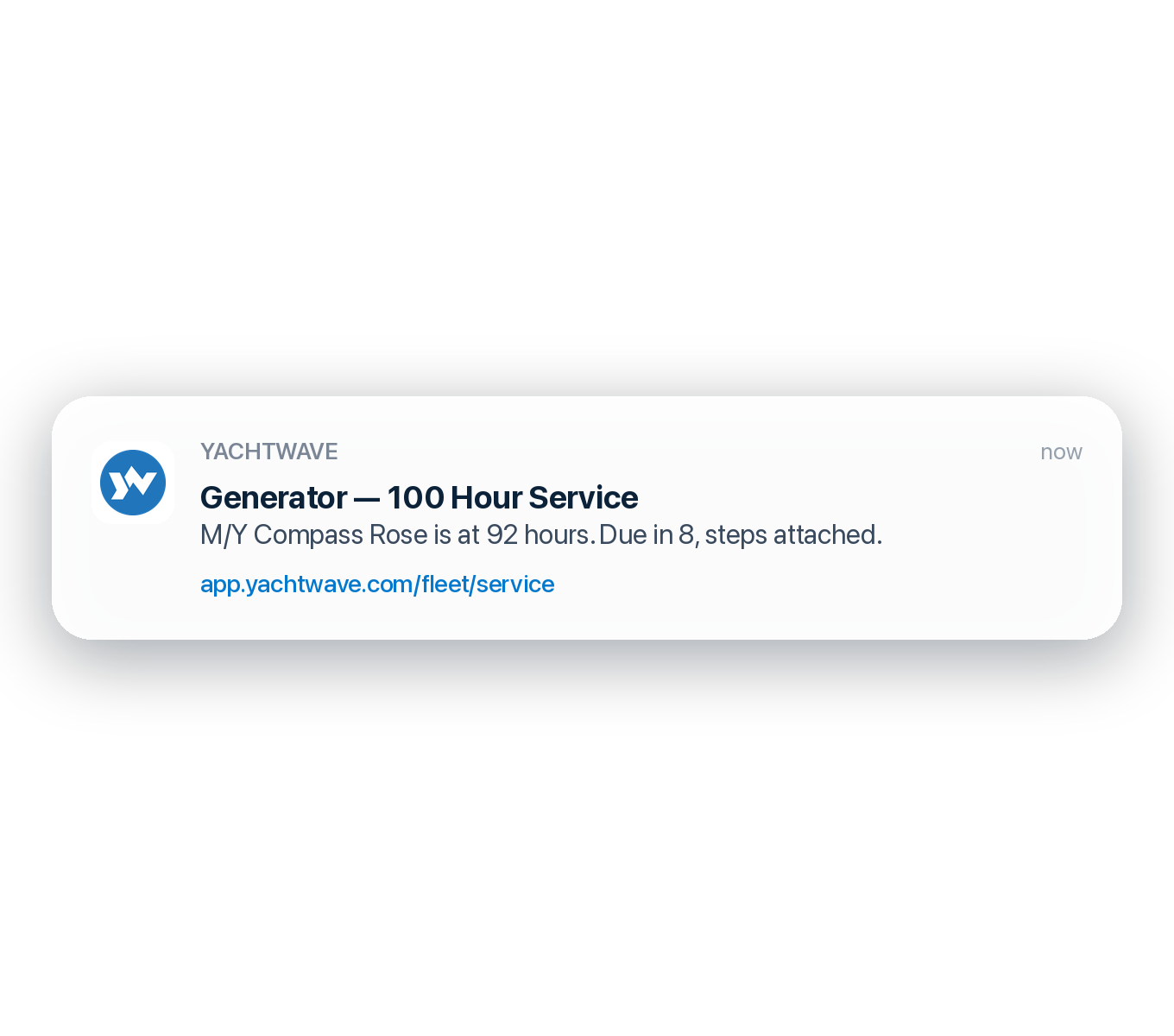
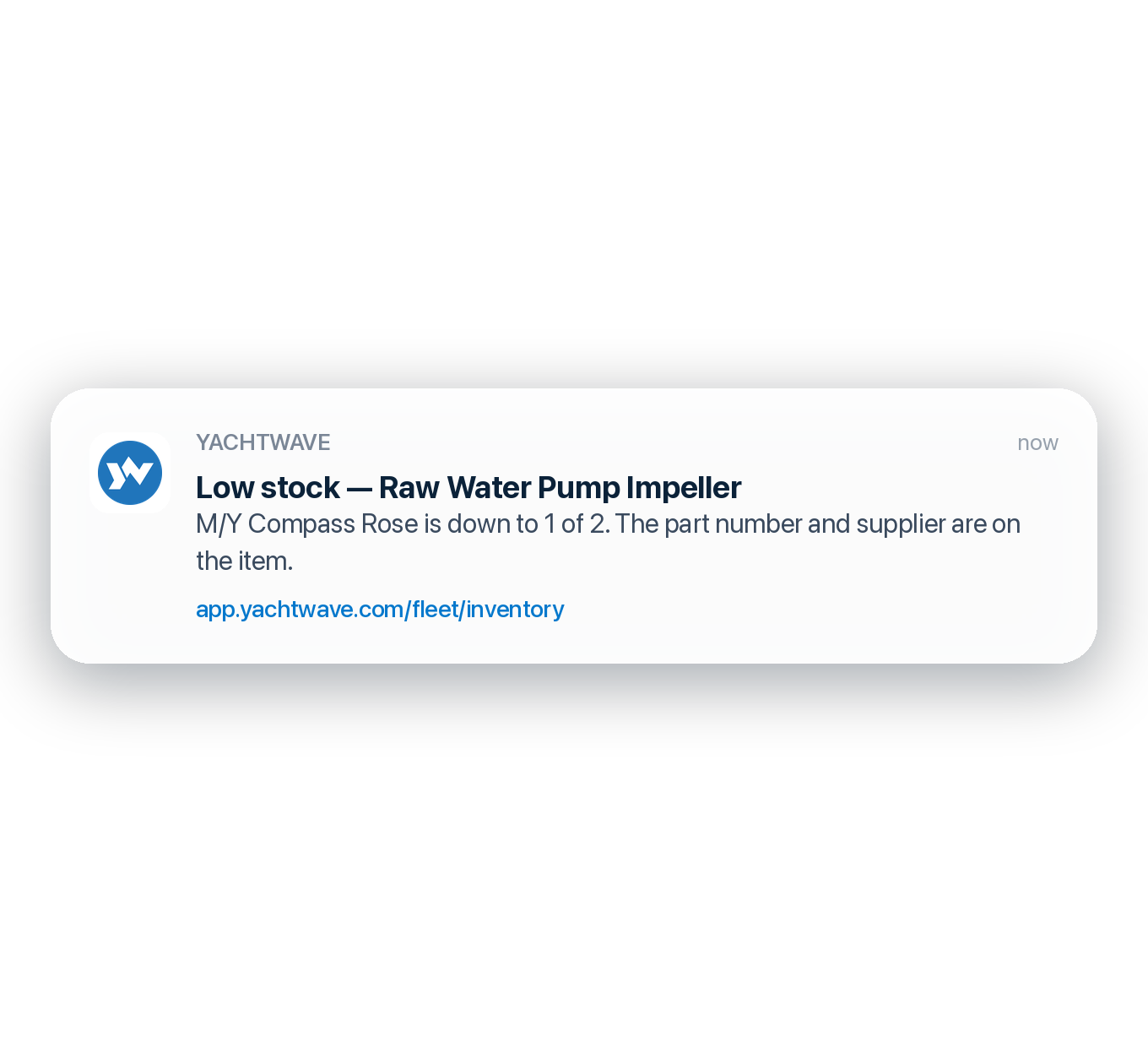
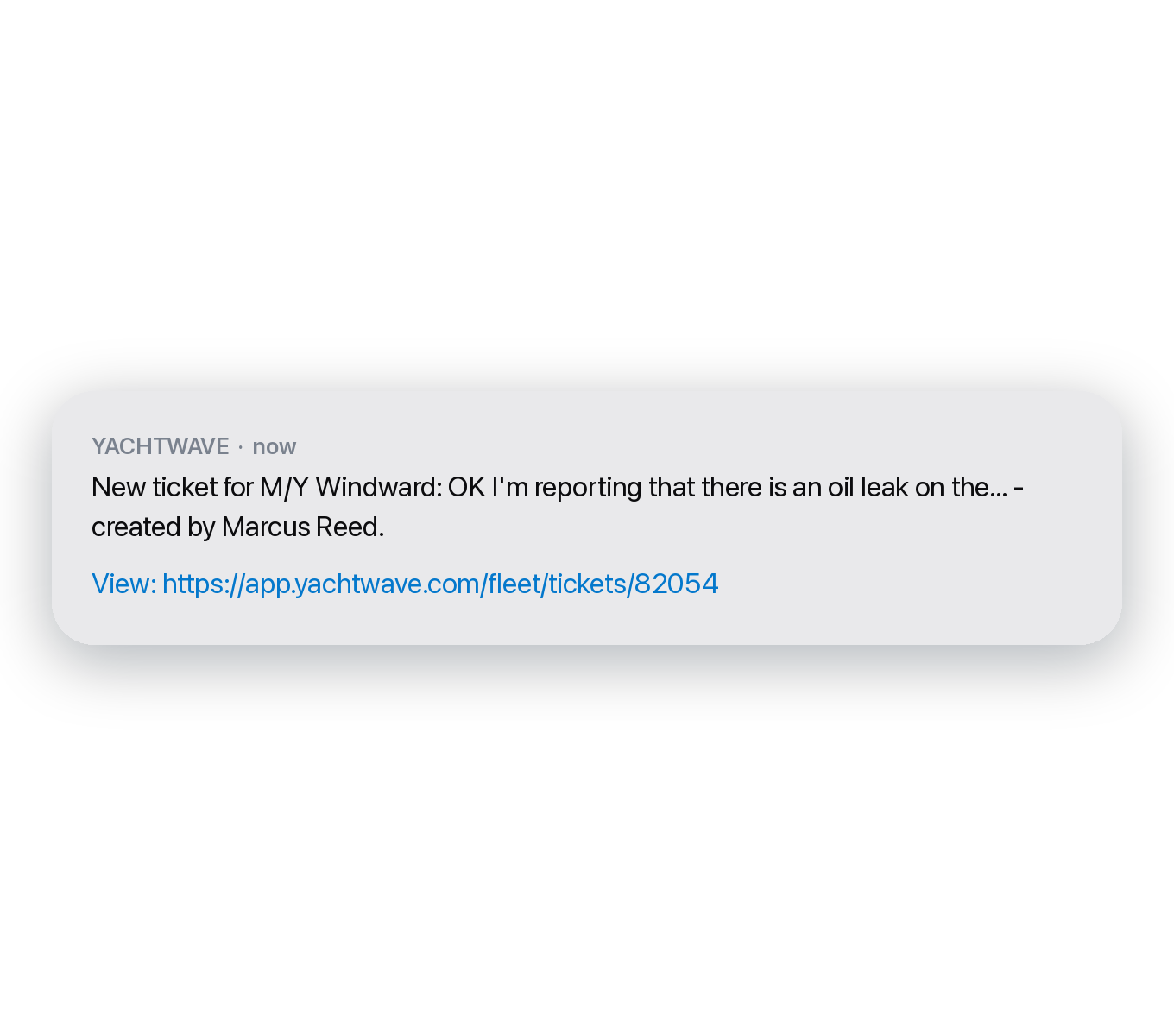
- Push notification — appears on your phone’s lock screen / notification shade if you’ve opted in.
You turn email, text, and push on or off in your Account Settings. Each switch covers every kind of notification; there are no per-type switches. Tapping a push notification opens YACHTWAVE but not a particular screen.
Key Things on This Screen
- Notification tile — Type label, title, the start of the message, and its age. Unread first, then newest first.
- Unread state — An unread tile’s type label is in color; once read, it turns gray.
- Tap a tile — Read the full message in a pop-up and mark it read. You need a connection.
- Swipe a tile left — Shows Delete. There’s no separate “mark as read” swipe; tapping the tile does that.
- Trash can icon (top of the screen, when you have notifications) — Deletes all of them, after you confirm.
- Search icon — Search your notifications by type, title, or message.
- Pull down — Refresh from the cloud.
How to Manage What Notifications You Get
- Bottom tab bar → Account → Settings.
- Under Notifications, switch Email Notifications, SMS / Text Notifications, and Push Notifications on or off.
- There’s no Save button — each change saves itself. You need a connection.
The in-app list is always on. Push is best for time-sensitive things (overdue tasks, service-due reminders). Email is good if you want a copy you can find again later in your inbox.
Tips
- Don’t ignore overdue tile color. When the overdue task indicator goes red, it’s not just decoration — it’s the only place that information is consolidated. Skim it daily.
- Service reminders have a window. A date-based reminder can fire from 30 days before the due date up to 181 days after it; an hour-based one from 10 hours before to 49 hours after. Each reminder fires once per service cycle, so if it can’t fire inside its window (for example, the engine hours were never logged), no reminder is sent.
- Push notifications need OS permission. If you said “Don’t Allow” when YACHTWAVE asked, push notifications won’t fire even with the YACHTWAVE toggle on. Re-enable in your phone’s Settings → YACHTWAVE → Notifications.
- Email, text and push arrive between 8 AM and 8 PM in your local time. A reminder created overnight waits until morning so it doesn’t wake you. It shows in the in-app list right away. Account and security messages are sent at any time.
Troubleshooting
- “I’m not getting notifications I expect.” — Three checks: 1. Open Account → Settings and confirm the switch for that channel (Email, SMS / Text, or Push) is on. 2. Confirm your phone’s OS-level notification permission for YACHTWAVE is on (iOS: Settings → YACHTWAVE → Notifications; Android: Settings → Apps → YACHTWAVE → Notifications). 3. For service-schedule notifications, confirm your engine hours Readings are current — stale readings = no fire.
- “I’m getting too many notifications.” — Open Account → Settings and turn off the channels you don’t want. The switches cover every type at once. Email is the easiest channel to dial down without losing the information (it’s still here in the in-app list).
- “A notification I deleted came back.” — Reminders repeat only on set days, not every day. An overdue task is renotified 1, 7 and 14 days after its due date. A document expiration notice is sent 30 and 5 days before the expiration date, and 1, 5 and 10 days after it. A service reminder is sent once per service cycle. To stop overdue notices, complete the task.
- “Push notifications stopped working entirely.” — Most often, OS-level permission. Go to your phone’s settings for YACHTWAVE and re-enable notifications. If that doesn’t fix it, sign out of YACHTWAVE and back in — re-registering the device with the push service usually clears stuck states.
Frequently Asked
Are notifications synced across my devices?
Yes. Read/unread state is saved to your account, so reading one on your phone marks it read on your iPad too.
How long are notifications kept?
Notifications stay until you delete them. Delete one with a left swipe, or all of them with the trash can icon. Deleted ones are permanently removed the next day.
Can I get a daily summary instead of individual emails?
Not currently. Each event generates its own notification. If email volume is high, turn Email Notifications off and rely on the in-app list and push. Under Account → Settings you can also turn off individual email topics (such as tips or offers) and keep the rest. Account and security emails are always sent.
Why aren't my reminders instant?
Service schedules, tasks, documents and inventory are checked once a day, in the early morning. Most reminders start before the due date (a service reminder up to 30 days or 10 engine hours ahead), so you normally hear about it in advance. A schedule you add today that is already due sends its reminder after the next morning's check at the earliest.
Can my crew see my notifications?
No — notifications are per-user. On a personal boat, task reminders and past-due notices go to the task's own people (whoever created it, the assignee, and anyone added to the task's team), and service-schedule reminders go to the boat's Owners and Captains. Everyone must be active crew on the boat. On a boat managed by a company, each kind of notice goes to whoever the company's notification settings name; unless the company changes them, that is the company's Owners, Admins and Managers (their roles in the company, not on the boat). A new discussion message always goes to the whole task team except the person who wrote it. If the company's license has lapsed, the boat's company notices stop. The in-app list goes to the same people as push.
See Also
- Account, Profile & Settings — to configure which notifications you receive on which channels.
- Service Schedules — the main generator of automated reminders.
- Tasks — overdue tasks fire here.
- Documents — set expirations to get reminders before they lapse.